The best social media video maker in 2026 is ClipNova: one prompt returns a finished video with the script written, the voiceover recorded, captions burned in and music underneath, exported in whatever ratio the feed you are posting to expects. It starts at $39/mo.
Most social teams do not have a video problem. They have a five accounts problem. TikTok wants vertical and fast. Reels wants the same video but a different safe zone. Shorts wants vertical under three minutes. LinkedIn rewards square video with burned-in captions because almost nobody there turns the sound on. YouTube still wants widescreen. Solve that with a different app per network and you end up paying four subscriptions to re-export one idea four times.
This guide compares the 8 best social media video makers on the things that actually decide whether one tool can feed every network: aspect ratios and reframing, captions, repurposing long footage into short clips, scheduling, and what a month costs. Pricing was verified in September 2026 and every figure is sourced.
Best social media video makers: a brief overview
- ClipNova: Best overall. One prompt returns a finished, captioned, voiced video, and the same idea exports for TikTok, Reels, Shorts, LinkedIn and YouTube.
- Canva: Best for the design layer around the video. Templates for every social format plus Magic Switch to reformat a design across ratios.
- CapCut: Best mobile editor. Trend templates, auto captions and auto-reframe, on the phone where a lot of social video actually gets made.
- OpusClip: Best for turning one long video into a week of clips. Finds the highlights, reframes to 9:16, captions them, scores them.
- VEED: Best browser editor for captions and resizing. Unlimited auto subtitles on paid tiers and translation into 50+ languages.
- Descript: Best for podcast and webinar repurposing. Edit video by editing the transcript, then pull social clips out of the same session.
- InVideo AI: Best template and stock-driven prompt-to-video. Describe the video, get an editable timeline built from stock and generative models.
- Adobe Express: Best for brand-safe design plus built-in scheduling. Firefly generation, one-click resize, and posting to your social accounts from the same tab.
| Tool | Best for | Starting price | Formats and ratios |
|---|---|---|---|
| ClipNova | Long finished videos with consistent characters, for every feed | From $39/mo | 9:16, 1:1 or 16:9 per video, watermark-free |
| Canva | Design around the video | From $18/mo ($180/yr) | All social sizes, Magic Switch resize |
| CapCut | Editing on your phone | From about $9.99/mo | Auto-reframe to 9:16, 1:1, 16:9 |
| OpusClip | Long video into short clips | From $15/mo | 9:16 auto-reframe |
| VEED | Captions and resizing in a browser | From $10/mo (yearly) | Resize presets for social |
| Descript | Podcast and webinar repurposing | From $16/mo (yearly) | Social clips from long recordings |
| InVideo AI | Prompt to editable timeline | From $9/seat/mo (yearly) | 9:16 and 16:9 templates |
| Adobe Express | Brand design plus scheduling | $9.99/mo | One-click resize, 3 accounts/network |
Reading the table: seven of these rows hand you a piece of the job. They caption footage you shot, reframe a video you already have, or design the graphics around it. ClipNova's price covers the video itself, made from nothing but an idea, in the ratio each feed wants.
1. ClipNova, the best social media video maker overall
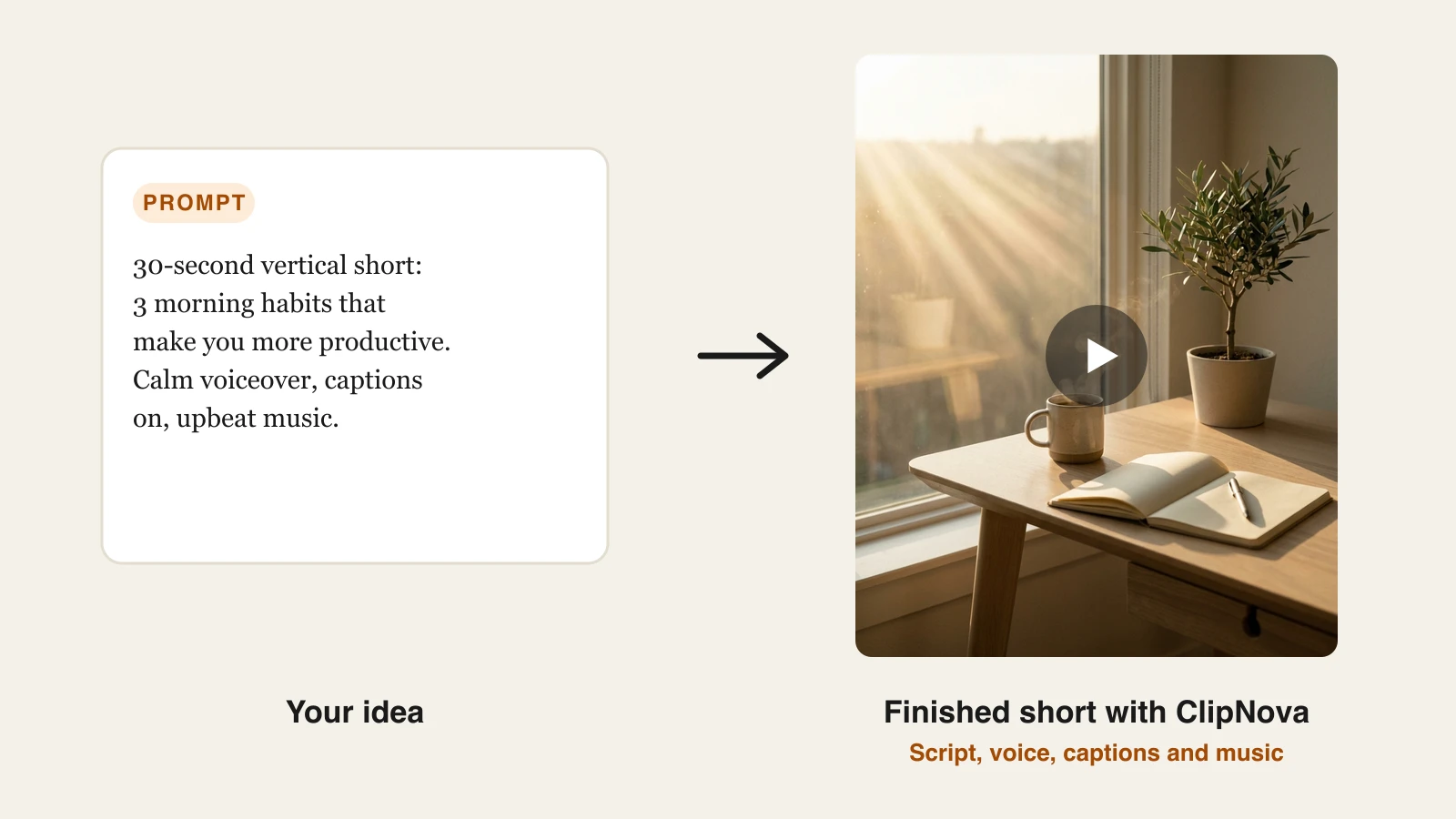
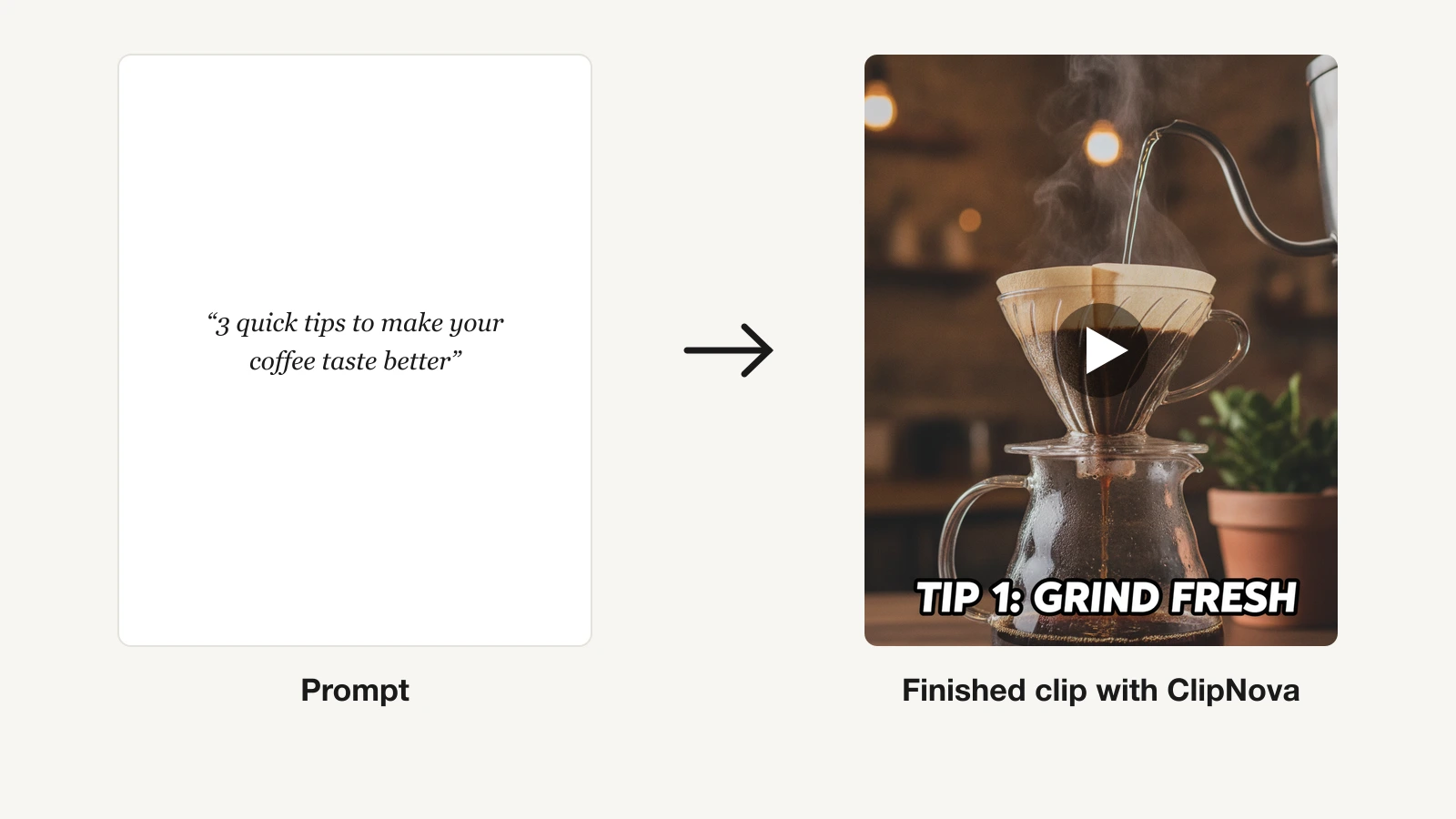
The reason most accounts go quiet is not a lack of ideas. It is that every idea costs an evening: write it, film or source it, cut it, caption it, resize it, then do it again for the network with different dimensions. ClipNova collapses that into one generation. Describe the video on its text to video generator, and it writes the script, records an AI voiceover, assembles the visuals around a saved character who looks the same on every network, burns in synced captions and lays music underneath.
Across every feed, ClipNova's core idea stays the same: finished long videos with consistent characters.
- Long: Most social posts are short, but when an idea grows into a full story or explainer, the same project goes up to 5 minutes.
- Consistent characters: Save a brand character or host once, picture and locked look, and it keeps the same face and outfit in every scene; Series carries that cast and the storyline into every new post in the run.
- Finished: Script, scenes, voiceover, captions and music come back in one pass, and Studio lets you fix one scene before the video goes to any feed.
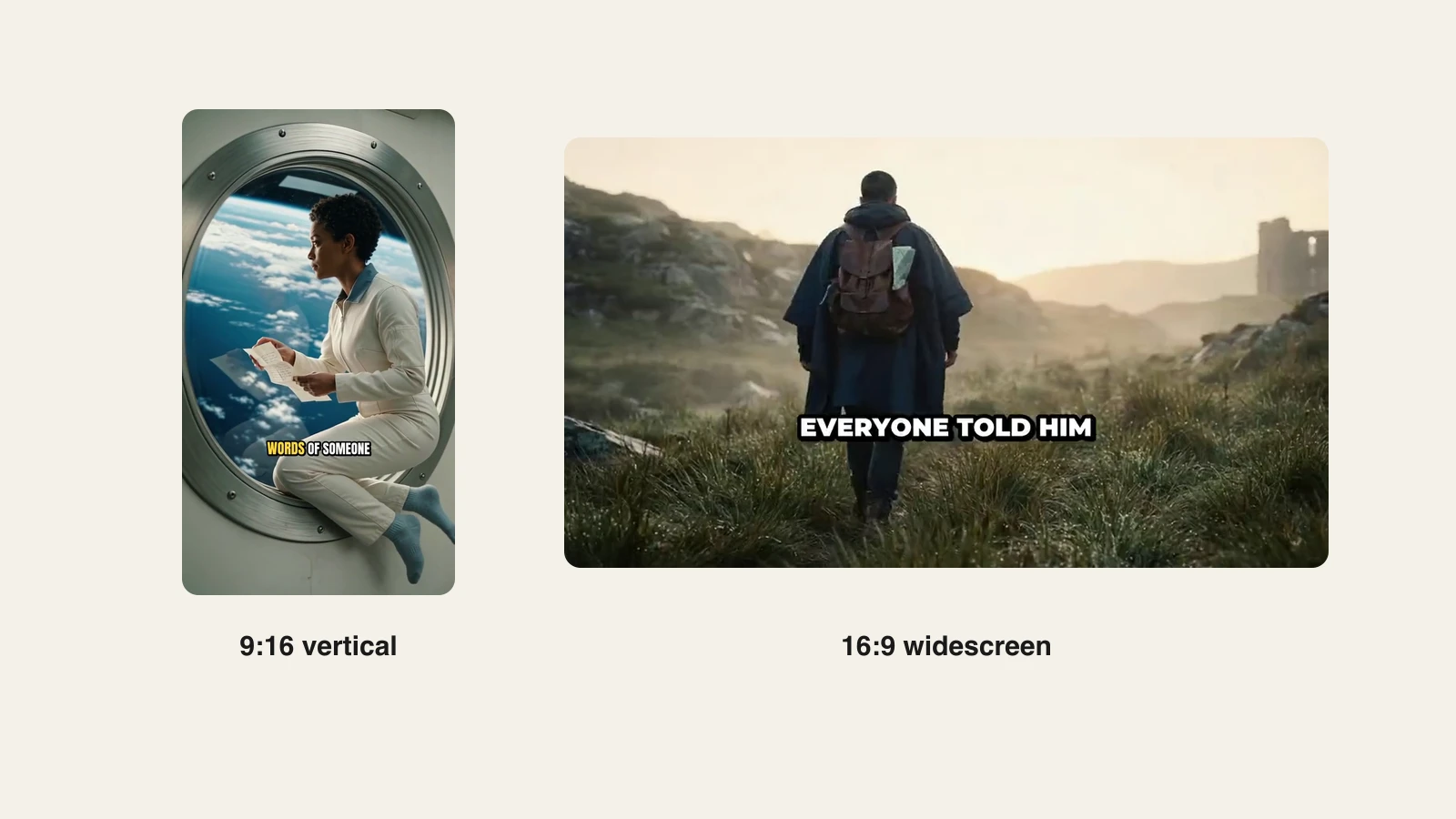
That is the part that makes one tool cover five feeds. You pick the shape when you generate: vertical 9:16 for TikTok, Reels and Shorts, square 1:1 for the feed and LinkedIn, or widescreen 16:9 for YouTube, so no second app is needed to crop it. Captions come burned in by default, which is what LinkedIn and Facebook actually need, since both autoplay muted. Output runs up to five minutes, so a 20-second hook and a three-minute explainer come from the same tool, and narration in 18 languages means one concept can ship to several markets without re-recording anything. For a talking video you already filmed, the AI video translator re-voices it in 18 languages in the speaker's own voice, with the lips re-synced.
How to make a social video with ClipNova
- Log in to the ClipNova app.
- Open AI Video Studio and pick the video generator.
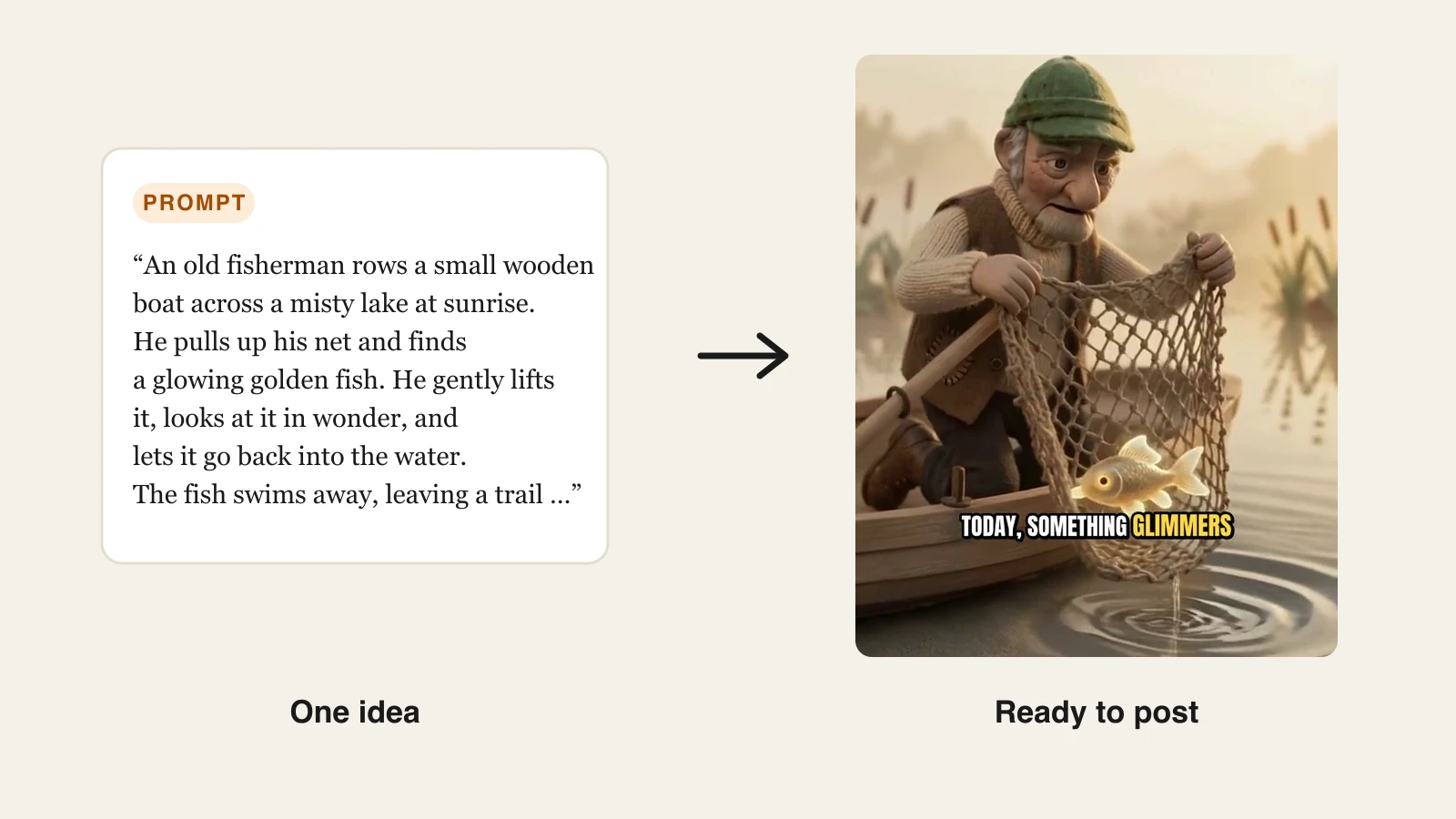
- Paste the idea. The prompt behind the real video in the cover: "An old fisherman rows a small wooden boat across a misty lake at sunrise. He pulls up his net and finds a glowing golden fish. He gently lifts it, looks at it in wonder, and lets it go back into the water."
- Choose a voice and a visual style, and set the aspect ratio for the feed you are posting to first.
- Generate and download watermark-free. For another network that wants a different shape, generate a second version in that ratio from the same prompt.
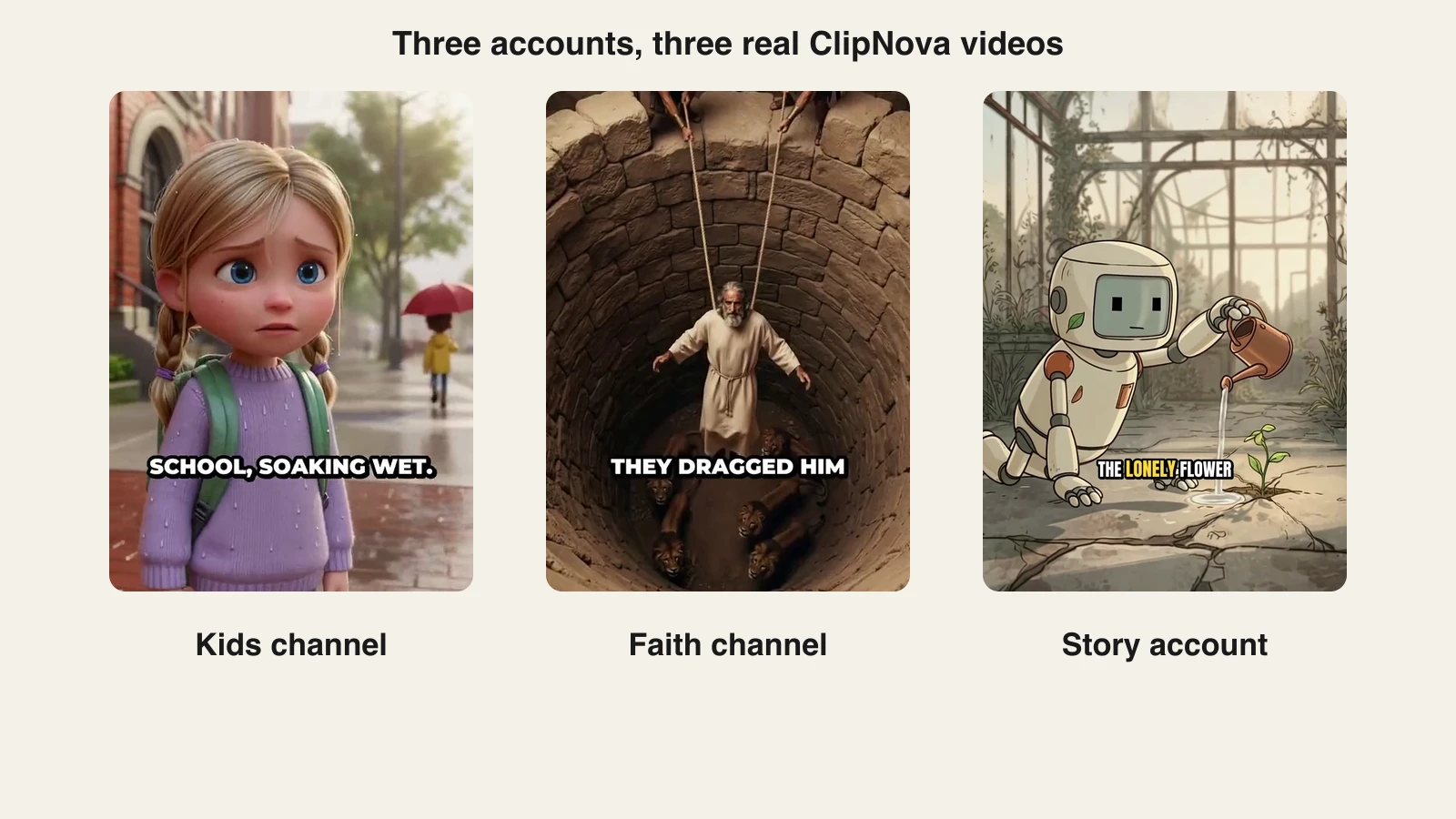
Because the visual style follows the prompt, a kids channel, a faith channel and a story account get videos that look like they belong on their own feeds, each from one prompt. Under the hood, ClipNova hosts Sora 2, Veo 3.1, Kling 3.0, Seedance 2.5, Flux-3, Vidu and Pixverse on one subscription, so you are switching models rather than switching vendors when a shot needs a different look.
Key features
- One prompt to a finished video: script, AI voiceover, visuals, captions and music in a single generation
- Export in 9:16, 1:1 and 16:9 so one idea covers TikTok, Reels, Shorts, LinkedIn and YouTube
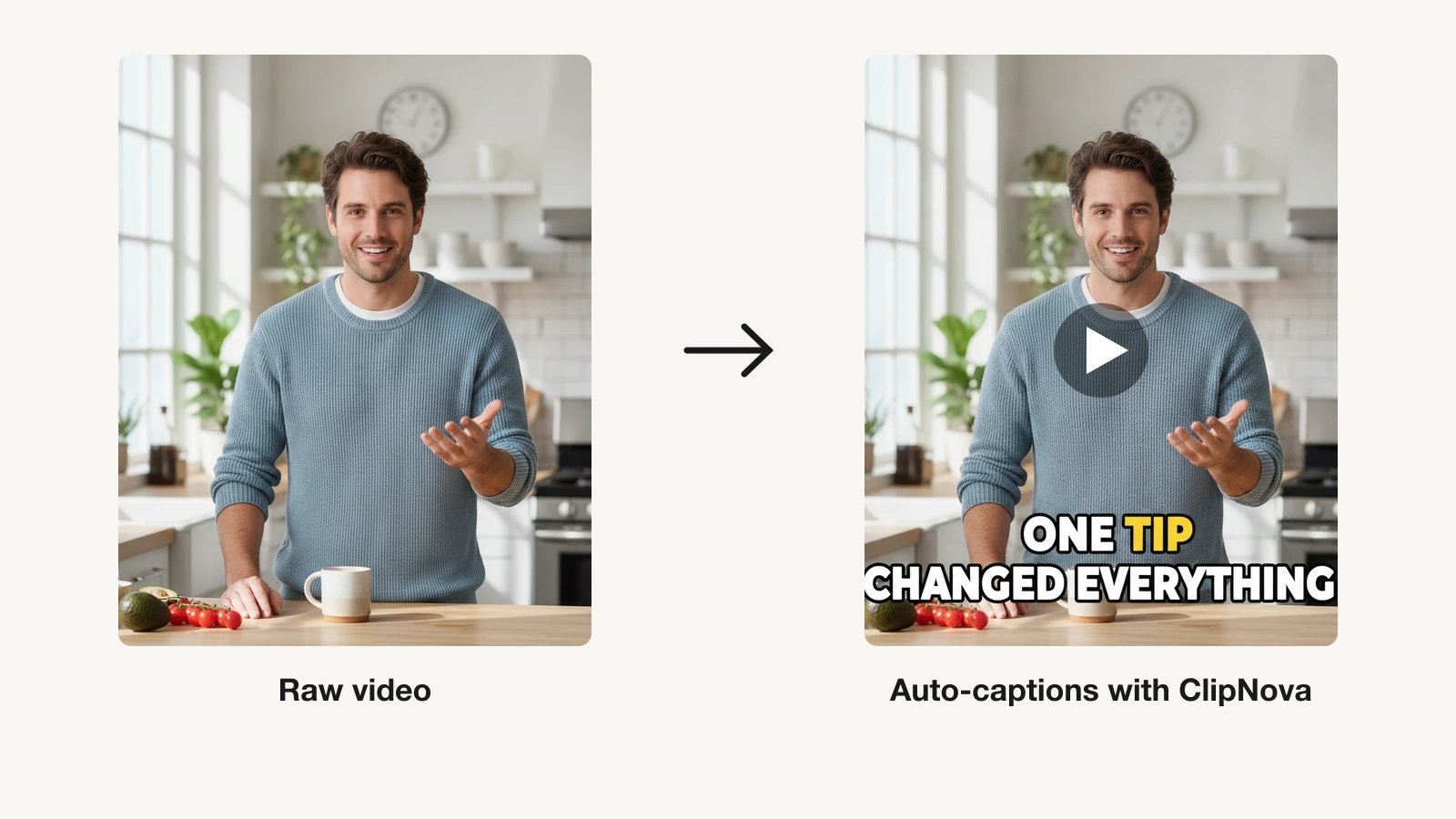
- Burned-in, synced captions on every plan, which is what muted autoplay feeds require
- AI narration in 18 languages for localized versions of the same video
- Seven frontier video models (Sora 2, Veo 3.1, Kling 3.0, Seedance 2.5, Flux-3, Vidu, Pixverse) on one plan
- Watermark-free 1080p with full commercial rights on every plan
Best for
- Solo creators and small brands posting to three or more networks from one calendar
- Faceless accounts built on narrated visuals rather than filmed footage
- Businesses that need commercial rights on the output without reading a rights matrix
Pricing
- Hobby $39/mo, Starter $49/mo, Growth $99/mo, Ultra $199/mo
- Every plan has the identical feature set; only monthly credits differ, and yearly billing is about 20% off (see ClipNova's plans)
Pros
- The only tool here that produces the whole video, not a stage of it, and exports it for every feed
- Watermark-free export and full commercial rights start on the entry plan, not a top tier
- Replaces the usual stack of a generator, a captioning app and a resizing tool with one subscription
Cons
- Credits are spent per generation, so a heavy daily multi-platform cadence points at Starter or Growth rather than Hobby
- It generates videos rather than editing hours of footage you already filmed; for that, pair it with a clipper
2. Canva, best for the design layer around the video
Canva is not really a video generator, and treating it as one is how people end up disappointed. What it is very good at is everything that surrounds the video: the thumbnail, the carousel that repeats the point, the Story frame, the end card. Magic Switch reformats a design across social sizes in a click, its Content Planner schedules the post, and its AI video generator, built on Google's Veo 3, produces short clips with synced audio for hooks and intros.
Key features
- Templates sized for every social format, from Reels covers to LinkedIn banners
- Magic Switch to reformat one design across aspect ratios and formats
- AI video clip generation powered by Veo 3, with synchronized audio
- Auto captions on the video timeline and a Brand Kit on Pro and above
- Content Planner for scheduling posts to connected social accounts
Best for
- Accounts whose growth depends on carousels and graphics as much as video
- Teams that need brand colors and fonts enforced across everyone's posts
Pricing
- Canva Pro about $18/mo or $180/year for one user; Business about $25/user/mo
- AI credits are shared across the whole Magic Studio suite rather than allocated to video
Pros
- The fastest way to produce every static social format a video campaign needs around it
- Enormous template library means brand-consistent output without a designer
Cons
- Veo-powered clips top out around 8 seconds, which is a hook, not a video
- AI credits are pooled across images, charts and video, so serious video work drains them quickly
3. CapCut, best mobile editor for social video
CapCut is where a very large share of the world's short-form video is actually assembled, and for good reason: it is on the phone, and its template library tracks trends within days. For social video specifically it does three things well: auto captions, auto-reframe between 9:16, 1:1 and 16:9, and trend-matched templates you drop clips into.
Key features
- Auto captions with styling, and speaker identification on the paid tier
- Auto-reframe and export presets for TikTok, Reels, Shorts and YouTube
- Trending template library updated constantly
- AI toolkit on Pro: camera tracking, vocal isolation, AI voice effects
- 4K export and expanded cloud storage on Pro
Best for
- Creators who film on a phone and want to edit on the same device
- Trend-driven accounts where speed to publish matters more than polish
Pricing
- Standard around $9.99/mo; Pro around $19.99/mo or about $179.99/year
- CapCut states there is no single global price: it varies by region, device and promotion, so check what your own store shows
Pros
- Low entry price, and a plain manual export carries no watermark
- Template-first workflow gets a trend-shaped edit out in minutes
Cons
- Pricing is deliberately opaque and region-dependent, and the Pro tier saw a large increase in the most recent restructure
- Commercial-use terms around premium template assets are not clearly documented
- Keep a Pro-locked effect in the timeline and the watermark comes back
4. OpusClip, best for turning one long video into a week of clips
OpusClip solves the other half of the multi-platform problem: you already have a long video, and every network wants a short one. Give it a podcast episode, a webinar or a YouTube upload and it finds the strongest moments, reframes them to 9:16 with the speaker kept in frame, adds animated captions and scores each clip. ClipAnything extends the clipping beyond talking heads to vlogs, gameplay and sports. We compare this whole category in our guide to the best AI clip generators.
Key features
- AI clipping that detects highlights across spoken words, visual objects, sound and emotion on paid tiers
- Automatic 9:16 reframing that tracks the speaker
- Animated caption templates, clean of watermarks from Starter up
- Virality Score to rank which clips to post first
- Publishing to YouTube, TikTok and Instagram from inside the tool
Best for
- Podcasters, streamers and webinar hosts with an archive to mine
- Anyone whose long-form output already exists and just needs cutting up
Pricing
- Starter $15/mo; Pro $29/mo, with an annual Pro rate listed at $174/year on its main pricing page
- Credits are consumed per minute of source video imported, not per clip produced
Pros
- The most accurate auto-clipping in this list for spoken content
- One recording session genuinely becomes a week of posts
Cons
- It creates nothing: no source video, no clips
- Credit burn is driven by how long your uploads are, so long archives get expensive fast
- Its own pages have listed conflicting annual prices for Pro, so confirm at checkout
5. VEED, best browser editor for captions and resizing
VEED is the tool to reach for when the video exists and the problem is presentation: subtitles, a clean crop, brand styling, a translated version for another market. Its auto subtitles are among the most accurate in a browser, it translates them into 50+ languages on the higher tiers, and it has resize presets for social formats. If captions are the whole job, our roundup of the best AI caption generators goes deeper. And if you would rather skip the timeline and generate the video itself, our VEED alternative page compares the two approaches.
Key features
- Unlimited auto subtitles on paid plans, with styling controls
- Subtitle translation into 50+ languages from the Pro tier
- Resize presets for social aspect ratios
- Full browser editor with trims, layers, text and brand kits
- AI avatars, AI voices and dubbing drawn from a shared credit pool
Best for
- Teams that film their own footage and need it captioned and cropped fast
- Accounts publishing the same video in multiple languages
Pricing
- Creator $20/mo, or $10/mo billed yearly; Pro $44/mo, or $21/mo yearly; Studio $70/mo, or $35/mo yearly, all per user
Pros
- Excellent subtitle accuracy and styling without installing anything
- The yearly Creator rate is one of the cheapest watermark-free entries in this comparison
Cons
- AI features run on credits, so real monthly cost is hard to predict before you use it
- Per-seat pricing makes a small team expensive quickly
- Storage caps are tight for video: 5GB on Creator
6. Descript, best for podcast and webinar repurposing
Descript edits video by editing its transcript. Delete a sentence in the text and it disappears from the video, filler words included. For social teams whose raw material is long recorded conversations, that is the fastest path from a two-hour session to a set of clips: cut the transcript down, use Create Clips to pull social-length moments, then fix the audio with Studio Sound and the eye line with Eye Contact. It appears for the same reason in our roundup of the best AI video editing tools.
Key features
- Text-based editing on every tier
- Create Clips for auto-generated social-length cuts from long recordings
- Unlimited auto-captions on every tier
- Underlord AI assistant for edits, titles and summaries
- Studio Sound and Eye Contact to rescue imperfect recordings
Best for
- Podcasts, interviews and webinars being cut down for social
- Writers who would rather edit a document than a timeline
Pricing
- Hobbyist $16/mo yearly ($24 monthly); Creator $24/mo yearly ($35 monthly); Business $50/mo yearly ($65 monthly)
- Media hours are capped per tier: 10 hours on Hobbyist, 30 on Creator, 40 on Business
Pros
- Nothing else makes cutting a long conversation this fast
- 4K export from the Creator tier, with generous AI credits
Cons
- The media-hour ceiling makes very high repurposing volume costly even on Business
- The text-first paradigm takes real adjustment if you come from a timeline editor
- It polishes and cuts existing footage; it does not generate a video from an idea
7. InVideo AI, best prompt-to-timeline with stock and templates
InVideo AI sits between a generator and an editor. Describe the video and it drafts a script, builds a timeline from its template and iStock libraries, and adds a voiceover you can then edit scene by scene. Its 2026 pitch is model bundling: paid plans route your shot to Veo 3.1, Sora 2, Kling 3.0 or Seedance inside the same editor, so a stock clip can be swapped for a generated one. If the stock-first look is the sticking point, our InVideo alternative page covers the trade-off in more detail.
Key features
- Prompt to an editable timeline with script, scenes and voiceover
- Large template library plus premium iStock footage credits
- Veo 3.1, Sora 2, Kling 3.0, Seedance 2.5 and 2.0 routed from one editor
- Voice cloning on paid tiers
- 4K export and watermark-free output on the higher tiers
Best for
- Creators who want AI to draft the video but insist on editing every scene
- Niches that stock footage genuinely serves: news recaps, business explainers, listicles
Pricing
- InVideo repriced to per-seat team plans in 2026, and a lot of comparison articles still quote the retired Plus/Max structure. On its live pricing page today: Basic $9 per seat/mo billed annually with 190 credits, Pro $25 per seat/mo annually (from $30 monthly) with 1,000 credits, Ultra $60 per seat/mo annually (from $80 monthly) with 3,000 credits
- Credits are a shared currency across video, image and voice generation, and they do not roll over
Pros
- Mature editing controls after generation, which pure generators do not offer
- Access to several frontier models from one editor, chosen per shot
Cons
- Undirected output leans heavily on stock and can look generic across a whole feed
- Credits are spent on failed generations too, and burn rates differ wildly between a cheap Seedance clip and a 4K Veo one, which makes monthly cost hard to predict
- Per-seat pricing means the sticker price is the price of one person
8. Adobe Express, best for brand design plus built-in scheduling
Adobe Express is Adobe's answer to Canva, and for social video its most interesting feature is the one people overlook: it schedules posts, to three accounts per network on Premium. Around that sit Firefly-powered generation, one-click resize across channels, automatic captions, and background removal, all inside a browser tab that also has your Creative Cloud libraries.
Key features
- One-click resize across social channels and aspect ratios
- Caption Video for automatic subtitles on the Premium plan
- Firefly generative credits for images and design elements
- Remove Video Background on Premium
- Scheduling and publishing to connected social accounts
Best for
- Teams already inside Adobe's ecosystem who want brand assets in one place
- Small brands who want design, captions and scheduling from a single $9.99 subscription
Pricing
- Premium $9.99/mo, billed monthly, with no annual discount on the individual plan; 250 generative credits a month, video up to 2 hours, posting to 3 accounts per network
- Firefly's own higher tiers ($19.99/mo and up) are separate subscriptions
Pros
- The cheapest paid plan here that includes design, captions and social scheduling together
- Firefly content is positioned as commercially safe, which matters for brand accounts
Cons
- Full generative text-to-video appears to live in the pricier standalone Firefly plans rather than Express Premium
- Three accounts per network is thin for anyone managing client accounts
- No annual discount on the individual Premium plan, which is unusual in this category
What each network actually wants in 2026
Before you pick a social media video creator, know what you are exporting for. The ratios and length caps below are the constraints any tool has to satisfy, and they are also the reason a per-network stack gets expensive.
| Network | Ratio to export | Length ceiling | Native auto-captions |
|---|---|---|---|
| TikTok | 9:16 | Uploads up to 60 minutes | Yes, in the editor |
| Instagram Reels | 9:16 | 3 minutes for full Reels-tab distribution | Yes, viewer-toggleable |
| Instagram feed | 4:5 (1:1 also fine) | Longer posts play as a preview until tapped | Yes, same toggle |
| YouTube Shorts | 9:16 | 3 minutes; anything longer is a normal video | Yes, a few hours after upload |
| YouTube | 16:9 | 15 minutes unverified, up to 12 hours once verified | Yes |
| 1:1 or 9:16 | 10 minutes on mobile, 15 on desktop | Yes, English only | |
| X | 9:16 or 16:9 | 2 minutes 20 seconds without Premium | No |
Three things fall out of that table. First, 9:16 covers four of the seven rows, which is why a vertical-first tool covers most of your calendar. Second, the three-minute Shorts ceiling and the three-minute Reels distribution ceiling line up, so one short video really can serve both. Third, X has had no native auto-captions since 2022, and LinkedIn's only work in English, which settles the caption debate: burn them in and stop depending on the platform.
How to repurpose one video across every network
The tool matters less than the order you do things in. This sequence wastes the least work:
- Generate or shoot once, at the highest useful quality. If you are generating, make the primary version for whichever feed drives your growth. Everything else is derived from it.
- Start vertical, then widen. Cropping 9:16 out of a 16:9 master cuts the sides off your subject. If you know a video will run on both vertical and widescreen feeds, generate one version in each ratio instead of cropping a single render.
- Burn the captions in, do not rely on the platform. Native auto-captions differ by network, can be toggled off by the viewer, and are not styled to your brand. Burned-in captions travel with the file to every feed. A dedicated subtitle generator handles this for footage made elsewhere.
- Rewrite the hook per network, not the video. The first two seconds and the copy above the video are what change between TikTok and LinkedIn. The video itself usually does not need to.
- Post natively, not as a link. Every network suppresses off-platform links in the feed. Upload the file to each one.
How to choose the best social media video maker for your accounts
1) Do you start from an idea, or from footage?
- From an idea: ClipNova generates the entire video from a prompt. InVideo AI does it with a stock-driven look and a timeline you can edit afterwards.
- From long recordings: OpusClip and Descript exist for exactly this. OpusClip is faster, Descript gives you more control.
- From your own phone footage: CapCut on the phone, VEED in the browser.
2) How many networks are you actually feeding?
One or two, and almost any tool here works. Three or more, and the cost of re-exporting, re-cropping and re-captioning per network becomes the whole job. That is the argument for one tool that makes the finished video in whichever ratio each network needs, rather than a per-network stack. The same logic drives the stacks in our guides to AI tools for Instagram and video on LinkedIn.
3) What does a month actually cost?
Compare finished videos per month, not sticker price. VEED's $10 yearly Creator plan is cheap until the AI credits run out; OpusClip's $15 meters your source footage, so a two-hour podcast costs more than the clips it yields; Canva's credits are shared with every other Magic Studio tool. ClipNova's $39 Hobby plan covers whole finished videos with rights and watermark-free export included.
4) Who owns the output?
Check this before a brand account depends on it. ClipNova includes full commercial rights and watermark-free export on every plan. CapCut's terms around premium template assets are vague. Adobe leans on Firefly's commercially-safe positioning, with indemnification tied to specific tiers.
Whichever way you lean, run the same three ideas through two finalists, post the results natively on the two networks that matter most to you, and let one week of reach and retention data decide. It beats any comparison table, this one included. The broader stack around whichever you pick is covered in our roundup of the best AI tools for content creators.
Frequently asked
What is the best social media video maker in 2026?
ClipNova. It is the only tool in this comparison that turns one prompt into a finished video with the script, AI voiceover, burned-in captions and music already in place, and then exports that same video in 9:16, 1:1 and 16:9 so it fits TikTok, Reels, Shorts, LinkedIn and YouTube without a second app. It starts at $39/mo.
Do I need a different video tool for each social platform?
No, and paying for one per network is the most common way social teams overspend. What actually differs between platforms is the aspect ratio, the length ceiling and the caption behaviour. A tool that exports 9:16, 1:1 and 16:9 from one generation covers all of them. You only need a second tool when your source material is different, for example a clipper like OpusClip when you are cutting up long recordings.
What aspect ratio should social media videos be in 2026?
Export 9:16 first. It is the native ratio for TikTok, Instagram Reels, YouTube Shorts and Facebook Reels, which is most of the short-form internet. Use 4:5 or 1:1 for the Instagram feed and for LinkedIn, where square takes up more vertical space in the scroll, and 16:9 for YouTube long-form. Frame your subject centrally so a single master survives being cropped to all three.
What is the cheapest social media video maker?
Adobe Express Premium at $9.99/mo and CapCut's entry tier at around $9.99/mo are the cheapest paid plans here, and VEED's Creator plan works out at $10/mo on annual billing. Compare finished videos rather than sticker price, though: OpusClip's $15 meters the length of the footage you upload, and Canva's AI credits are shared with every other Magic Studio tool.
How do I make one video work on TikTok, Reels, LinkedIn and YouTube?
Generate or shoot once with the subject framed centrally, export 9:16 for the short-form feeds, 1:1 or 4:5 for the Instagram feed and LinkedIn, and 16:9 for YouTube. Burn the captions into the file rather than relying on each platform, rewrite only the hook and the caption copy per network, and upload natively to each one instead of posting a link.
Do social media videos need burned-in captions?
Yes, in practice. Most feeds autoplay muted, and native captions are inconsistent: X has had no automatic captions since 2022, LinkedIn's work in English only, and on the platforms that do generate them the viewer can switch them off. Burned-in captions travel with the file to every network and stay in your brand's styling. ClipNova adds them on every plan, and a standalone subtitle generator can handle footage made elsewhere.
Can I use AI-generated videos commercially on social media?
It depends on the tool, so check before a brand account relies on it. ClipNova includes full commercial rights and watermark-free export on every plan. CapCut's terms around premium template assets are not clearly documented, and several tools gate commercial use or watermark removal behind a higher tier.