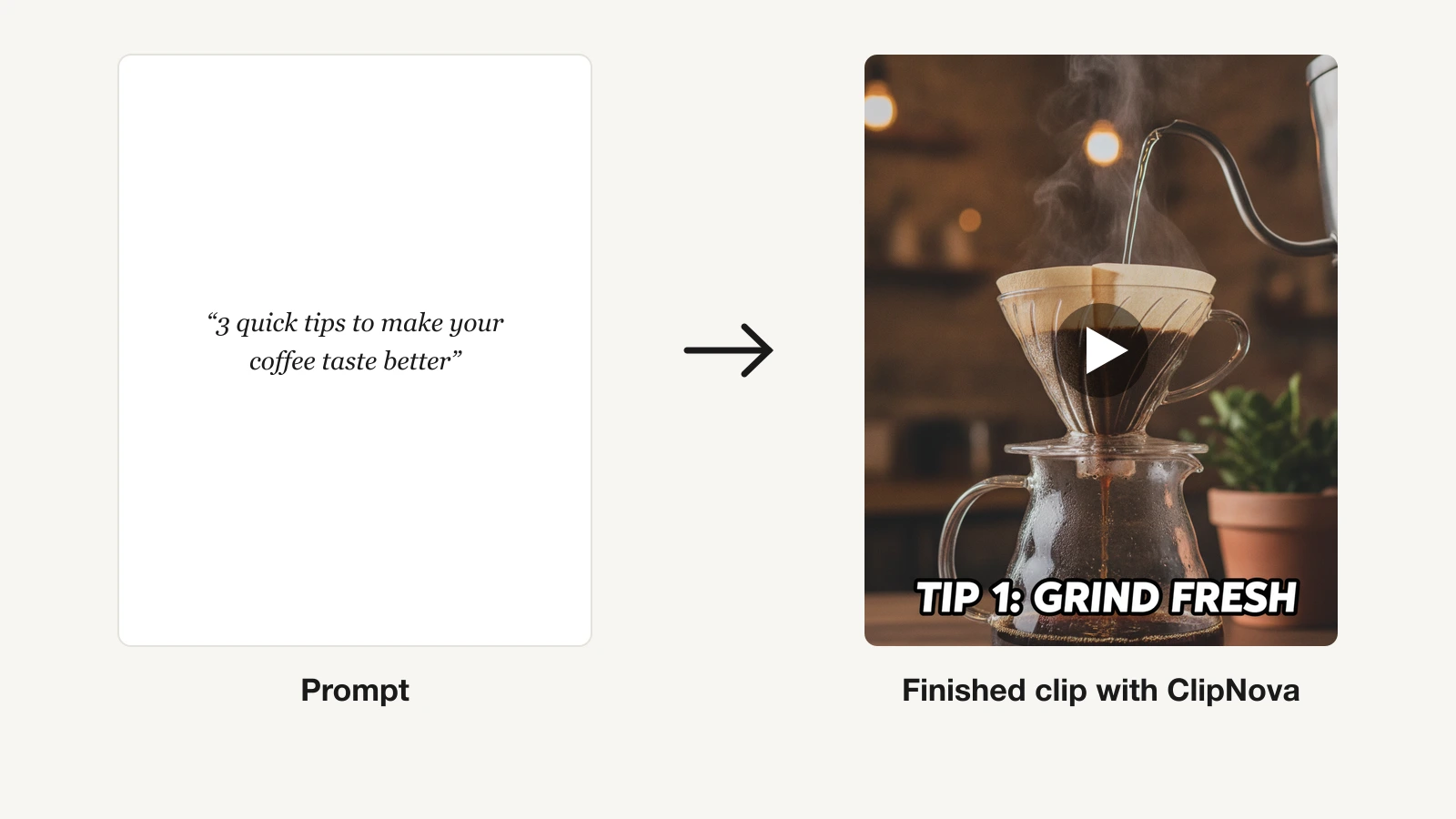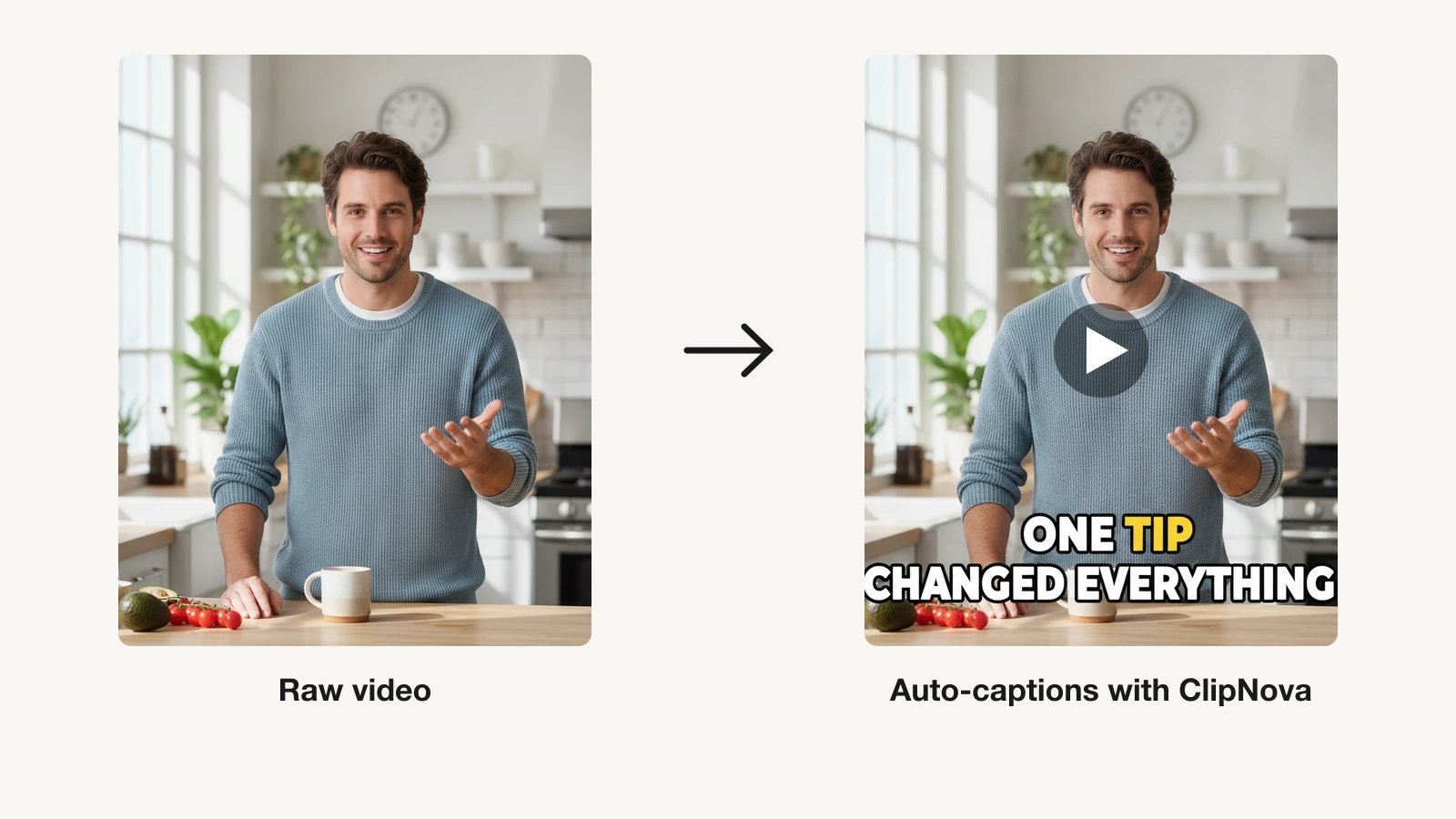
Most social video is watched on mute, so the captions on the screen are doing the work your audio cannot. An AI caption generator turns a video's speech into synced, on-screen text in seconds, which is the difference between a scroll-past and a stop.
The category is wider than it looks. Some tools burn animated, word-by-word captions onto short clips, some are full editors with an auto-subtitle button, and some transcribe long-form so you can edit the video by editing the text. A few skip the "add captions later" step entirely and generate the video with captions already on it.
This guide compares the 7 best AI caption generators for video in 2026 on pricing, languages, caption styles, and accuracy, so you can match a tool to how you actually publish.
Best AI caption generators for video: a brief overview
- ClipNova: Best overall. Generates the whole video, script, voiceover, visuals, and burned-in captions, from one prompt, and also offers a standalone AI subtitle generator, so captions are part of the export rather than a separate task.
- Submagic: Best for animated short-form captions. Word-by-word "viral" caption styles built for TikTok, Reels, and Shorts.
- Captions: Best all-in-one caption app. A mobile-first AI editor that styles captions and translates video into 100+ languages.
- CapCut: Best for auto-captions inside a full editor. Its auto-caption tool transcribes and styles subtitles without leaving the timeline.
- VEED: Best browser-based subtitle editor. One-click auto subtitles plus translation into 50+ languages, no install.
- Kapwing: Best for team and collaborative subtitling. Online editor with editable auto-subtitles and shared projects.
- Descript: Best for transcription-first long-form. Edit podcasts and talking-head videos by editing the transcript, captions included.
| Tool | Best for | Starting price | Languages |
|---|---|---|---|
| ClipNova | Captions baked into finished videos | From $19/mo | 32 (narration) |
| Submagic | Animated short-form captions | From $19/mo | 100+ (claimed) |
| Captions | All-in-one caption app | From $24.99/mo | 100+ |
| CapCut | Auto-captions in a full editor | Pro pricing unpublished | 20+ |
| VEED | Browser subtitle editor | $20/mo ($10 yearly) | 50+ (translate) |
| Kapwing | Collaborative subtitling | $24/mo ($16 yearly) | 60+ (translate) |
| Descript | Transcription-first long-form | $24/mo ($16 yearly) | 61 (caption translate) |
Reading the table: the cheaper rows caption a video you already made. ClipNova's price is for the whole video — script, voiceover, visuals, and music — with the captions already burned in.
1. ClipNova, best overall AI caption generator for video
Captions are usually the last step in a workflow: make the video, then add the text. ClipNova collapses that. You describe the video in a sentence and it returns the finished vertical with the script written, narration voiced, visuals assembled, and captions already burned in and synced to the voiceover. There is no separate captioning pass, which is the whole point when you are shipping daily.
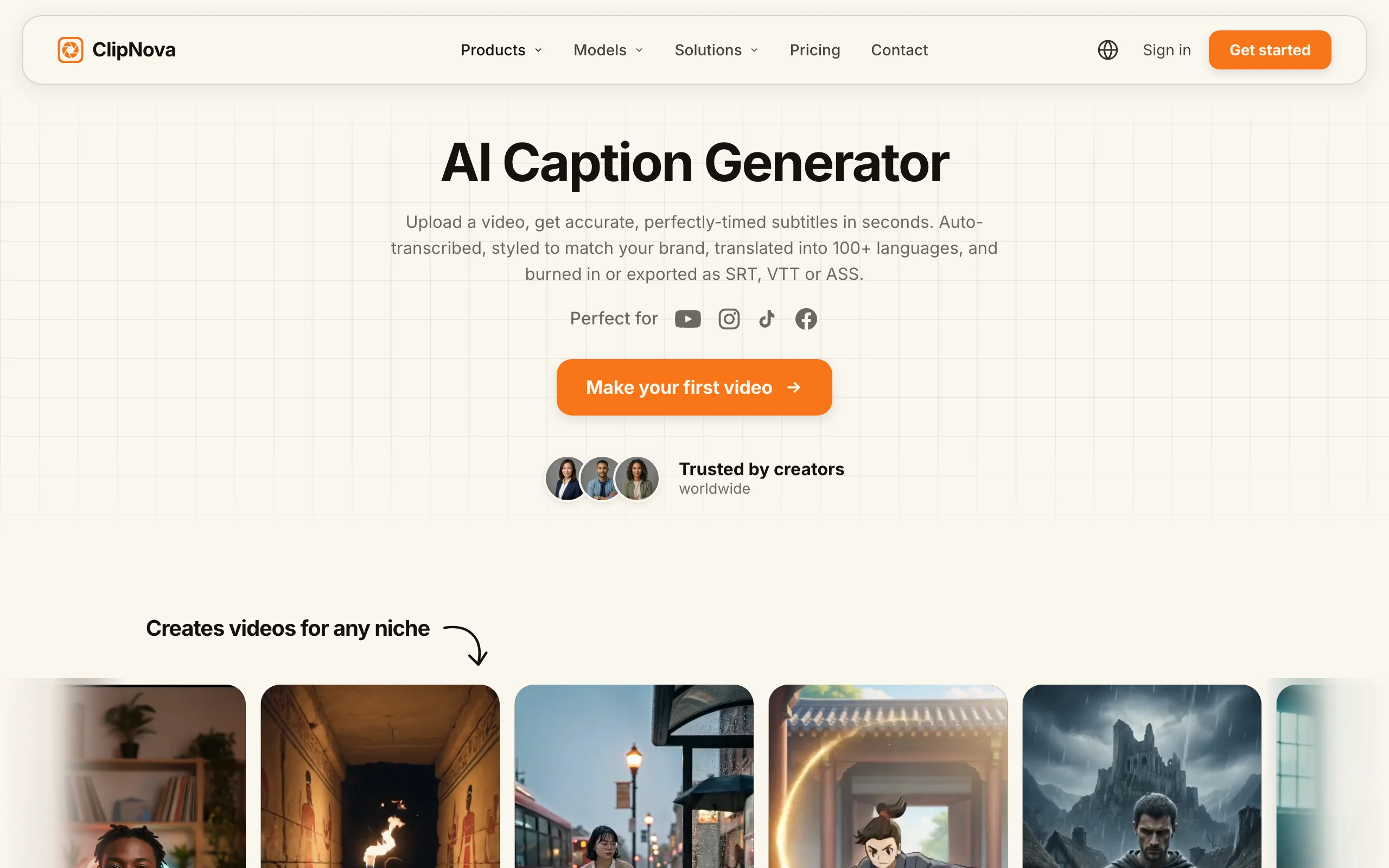
How to add captions with ClipNova
- Log in to the ClipNova app.
- Open Subtitles from the sidebar.
- Upload your video (.mp4, .mov, or .webm with spoken audio).
- Choose burned-in or soft-track captions and pick a caption style.
- Generate — ClipNova transcribes the speech and returns the captioned video.
It works both ways. If you are creating from scratch, captions come with the generated video. If you already have a clip, the standalone AI subtitle generator transcribes and burns in captions on its own. Auto subtitles are included on every plan, and narration covers 18 languages, so one caption concept can ship localized without re-editing. Everything exports watermark-free in 1080p or 4K with full commercial rights.
Key features
- Prompt-to-video with captions burned in and synced in the same pass
- Standalone AI subtitle generator for captioning existing clips
- Auto subtitles on every plan, no separate captioning step
- Captions and narration in 18 languages for localized versions
- Vertical-first output tuned for the AI Shorts generator and TikTok workflows
- Watermark-free 1080p and 4K with full commercial rights on every plan
Best for
- Creators who want captions already on a finished, publish-ready video
- Faceless and daily-posting channels that cannot afford a manual caption step
- Teams localizing the same captioned video into multiple languages
Pricing
- Hobby $19/mo (1,000 credits) and Starter $49/mo (2,600 credits)
- Growth $99/mo (5,750 credits, most popular) and Ultra $199/mo (12,000 credits); 20% off yearly, every plan includes the full feature set (see ClipNova's plans)
Pros
- The only tool here that generates the video and the captions together, removing the extra step
- Captions and voiceover stay in sync automatically because they come from the same generation
- Watermark-free and commercial rights on the entry plan, not just top tiers
Cons
- Fewer trendy word-by-word animation presets than a dedicated short-form caption tool like Submagic
- Built for generating or subtitling within ClipNova, not for heavy manual restyling of an external edit
2. Submagic, best for animated short-form captions
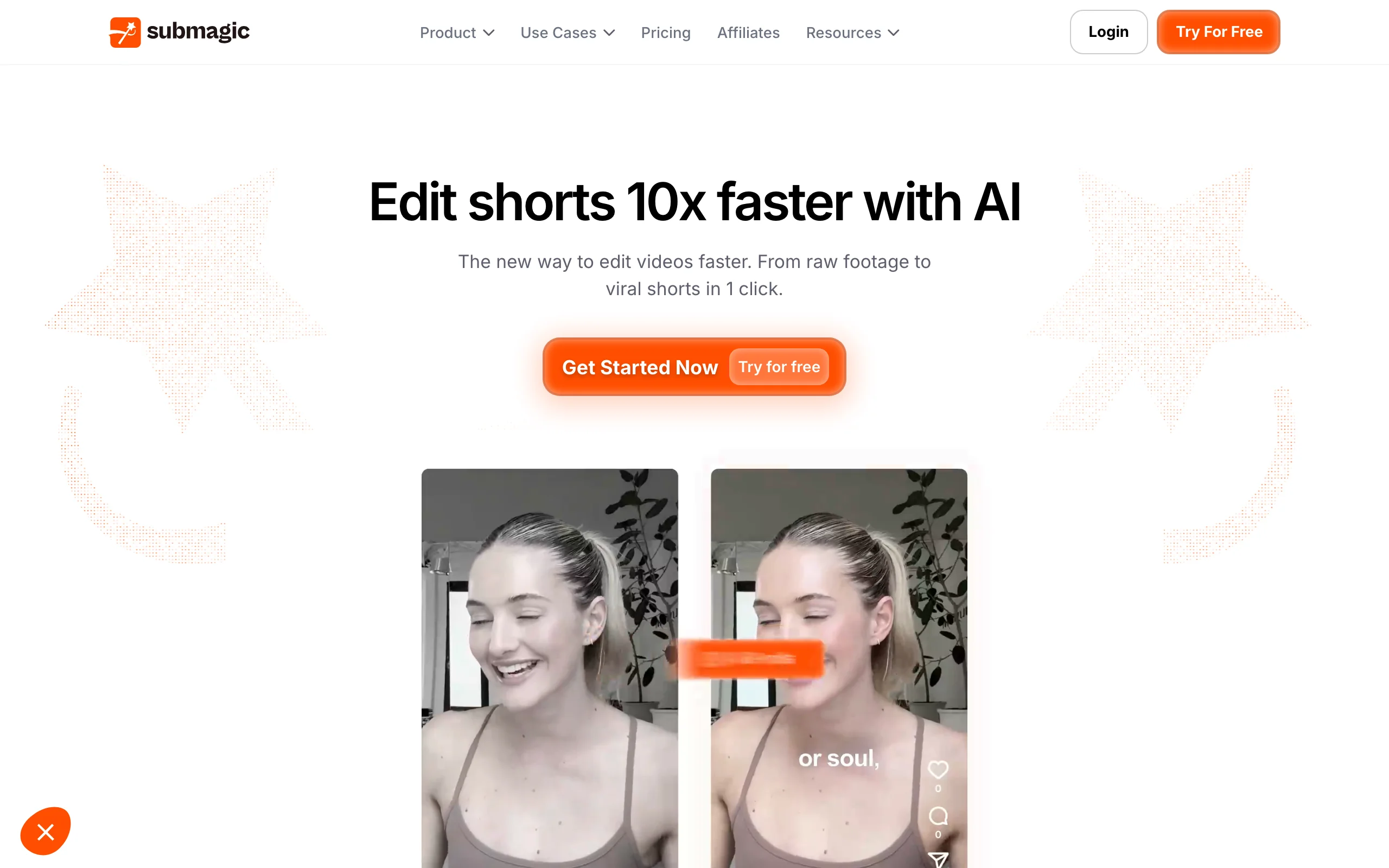
Submagic is purpose-built for the caption look that defines short-form: bold, word-by-word text that highlights in time with the speech. You upload a clip, it transcribes the audio (claimed around 99% accuracy), and it applies animated "viral" caption templates tuned for TikTok, Reels, and Shorts. Text-based editing lets you trim silences by editing the transcript, and an AI translator localizes the captions.
Key features
- Automatic transcription with animated, word-by-word caption styles
- Short-form caption templates optimized per platform
- Text-based editing to cut silences and filler
- AI video translator for multi-language captions
- Export up to 4K at 60fps
Best for
- Short-form creators who want the high-retention animated caption style
- Editors repurposing clips into TikTok, Reels, and Shorts at volume
Pricing
- Starter $19/mo (15 videos), Pro $39/mo (40 videos), Business $69/mo (100 videos); up to about 41% off billed yearly
Pros
- Best-in-class animated caption presets for short-form
- Fast, transcript-based workflow that non-editors can use
Cons
- Its own pages disagree on language coverage (40+ on pricing, 123 on the homepage), so verify before relying on a specific language
- Video-count caps on lower tiers can be tight for daily posting
3. Captions, best all-in-one caption app
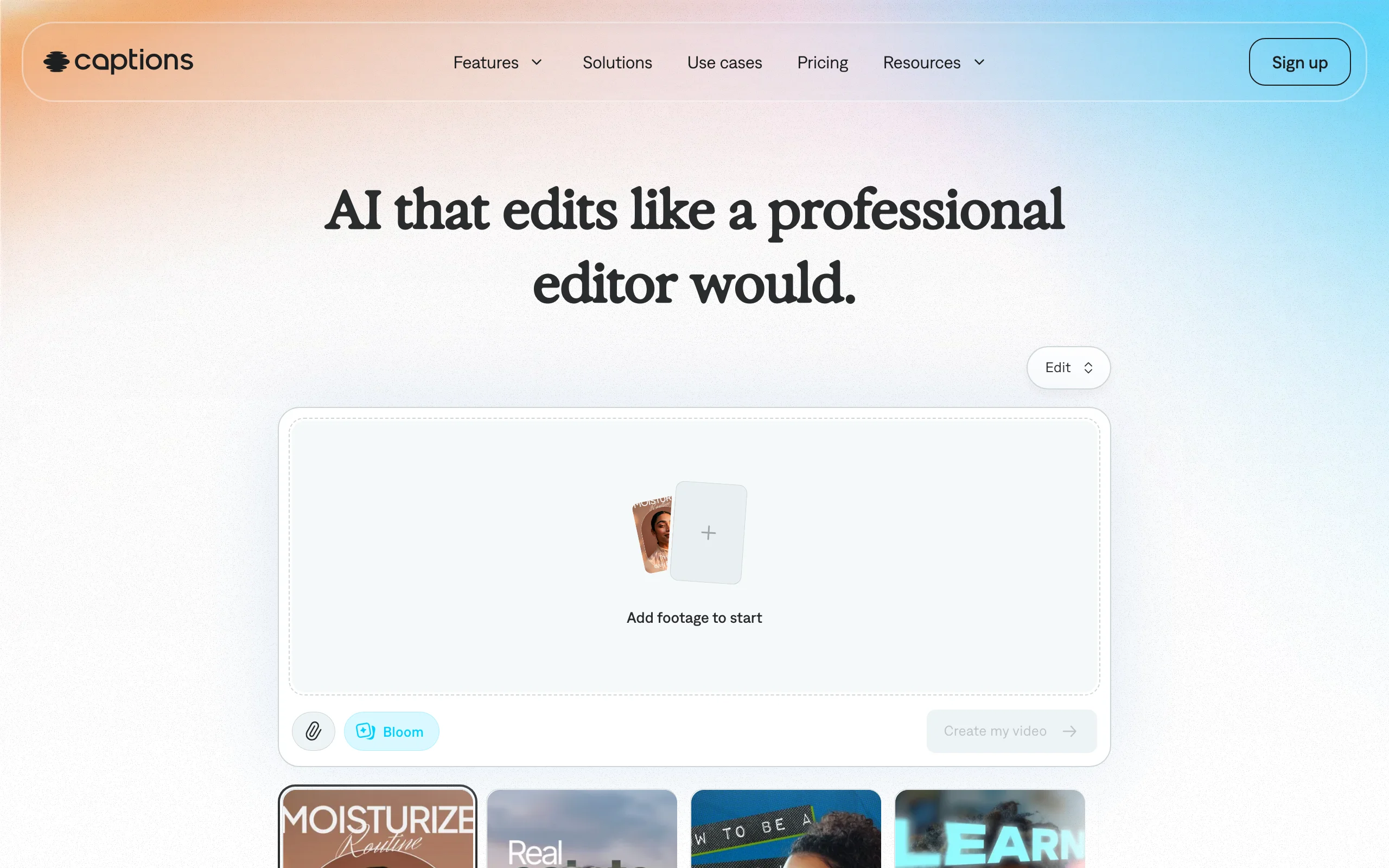
Captions (the app) wraps captioning inside a broader AI video editor aimed at creators shooting on a phone. It auto-generates stylized captions from your speech, offers 100+ caption styles, and can translate and subtitle a video into 100+ languages, including a one-tap AI translation that re-syncs the speaker. Captions are one part of a suite that also handles editing, keyframes, and formatting.
Key features
- Auto-captions with 100+ stylized templates
- Translate and subtitle video in 100+ languages
- Keyframes and customizable caption formatting
- Transcript download
- One-tap AI translation of the spoken video
Best for
- Mobile-first creators who want captions inside their editing app
- Talking-head creators localizing videos into many languages
Pricing
- Max $24.99/mo (500 credits, most popular), Scale tiers from $69.99/mo up to $279.99/mo; annual billing is discounted and credits roll over up to 3x
Pros
- Deep caption-style library and strong translation coverage
- Captioning lives in the same app as the rest of the edit
Cons
- Prices on the site reflect iOS plans, so other platforms may differ
- Credit system means heavy captioning can push you up a tier
4. CapCut, best for auto-captions in a full editor
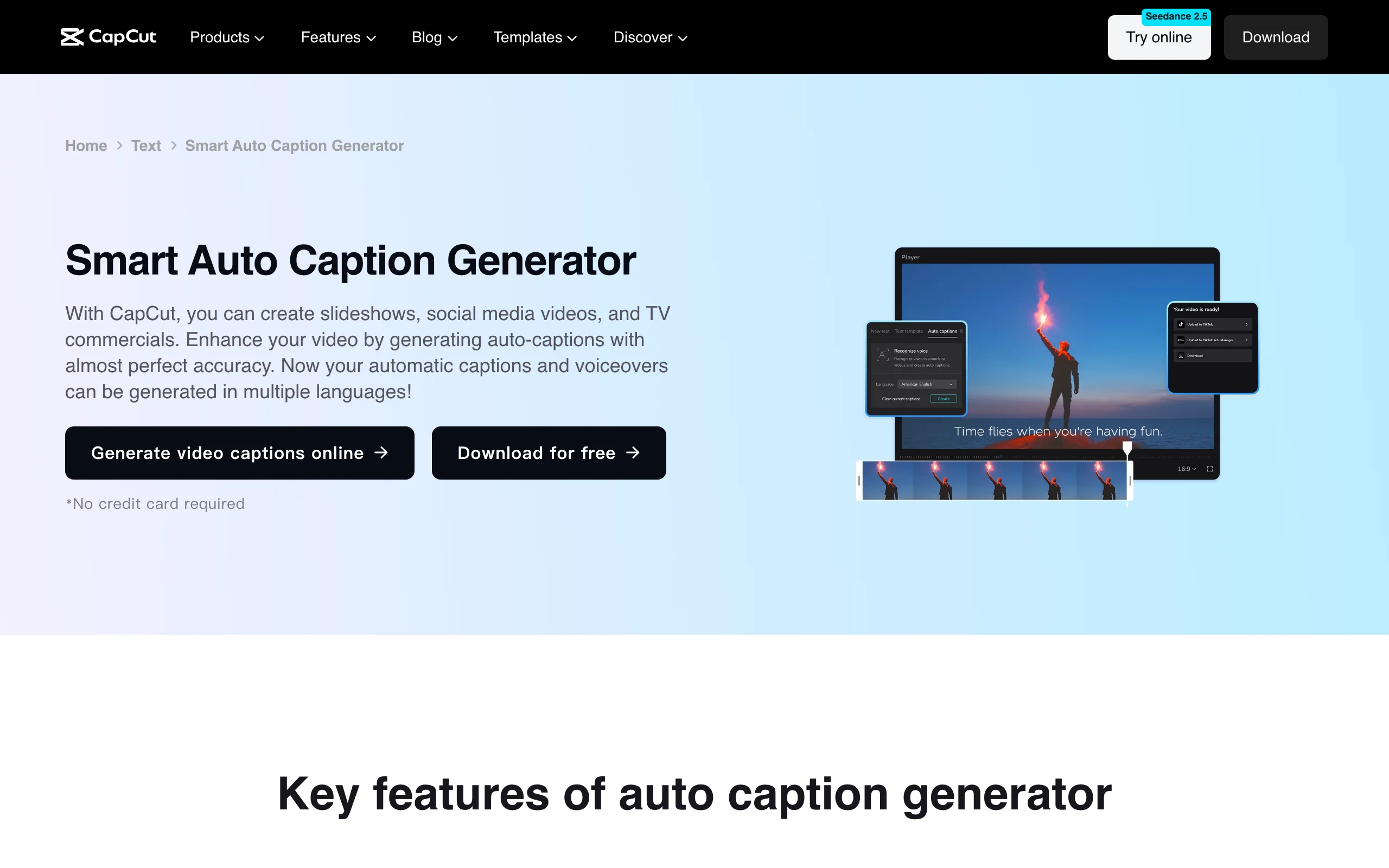
CapCut is one of the most widely used video editors, and its Auto Captions feature (also called Recognise Subtitles) transcribes your audio into synced, styleable captions. You get font, color, motion, and animation controls, a caption template library, translation to a target language, and filler-word trimming, all inside a full editor. For creators who already cut their videos in CapCut, it is the default.
Key features
- AI auto-transcription into synced, burned-in captions
- Caption styling: fonts, colors, effects, and motion
- Translate captions to a target language
- Filler-word detection and trimming
- Caption template library, in a full editor
Best for
- Editors who want captioning inside a complete editing app
Pricing
- Pro tiers exist but CapCut publishes no public pricing page; reported figures around $9.99 to $19.99/mo vary by region and platform and are unverified
Pros
- Genuinely capable, styleable captions
- Part of a full editor, so you never leave the timeline
Cons
- No official public pricing page, so paid limits are hard to confirm before you hit them
- Caption language coverage (about 20+) trails the translation-heavy tools here
5. VEED, best browser-based subtitle editor
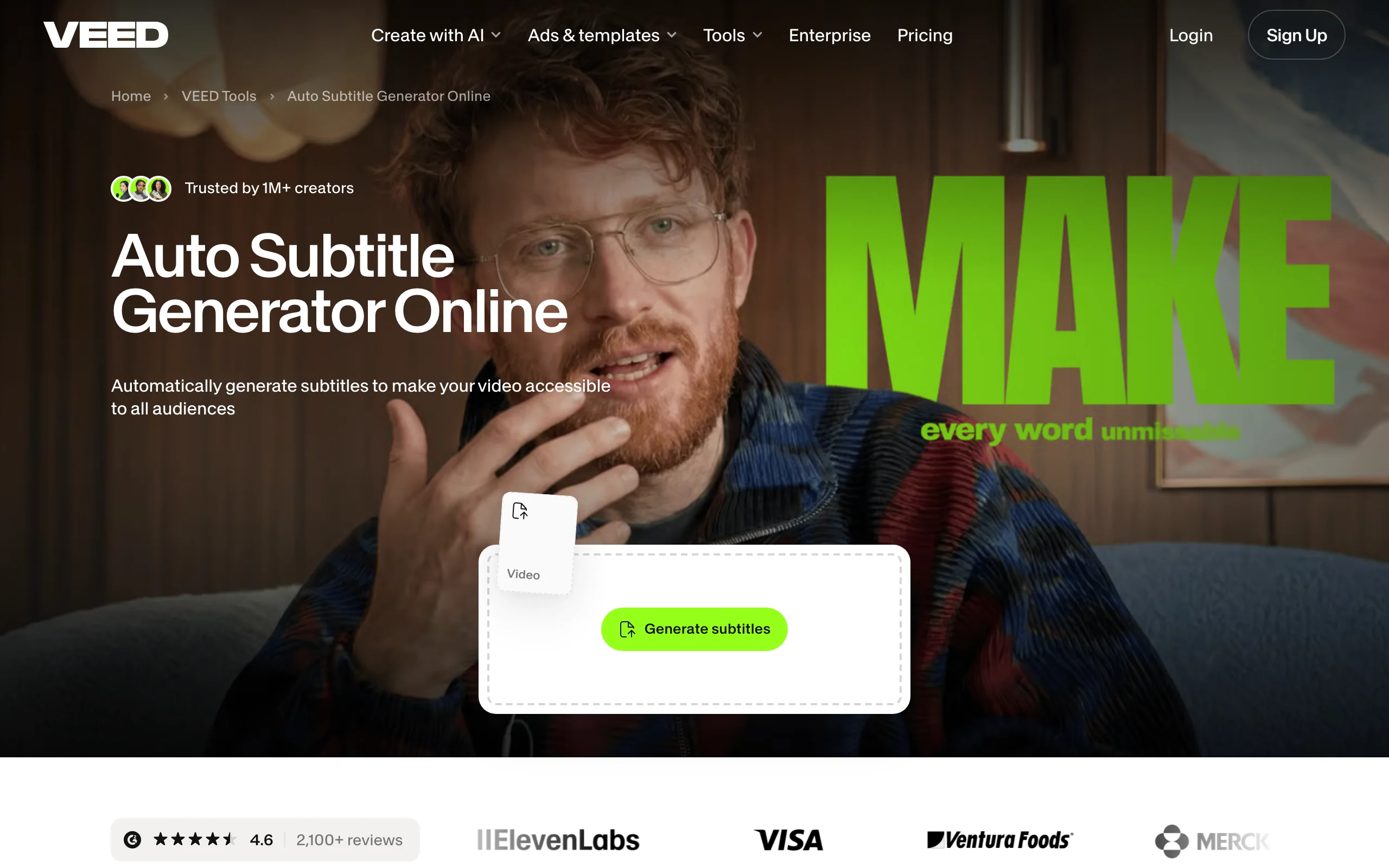
VEED is a browser video editor with a one-click Auto Subtitle Generator: it recognizes the speech, adds editable subtitles, and lets you style them, burn them in, or export a subtitle file. Its translation reaches 50+ languages, and paid plans include unlimited auto subtitles. Because it runs in the browser, it is the easy pick when the person adding captions is not the person who edited the video. If you would rather generate the whole video than caption an existing one, see our VEED alternative.
Key features
- One-click auto subtitle generation from speech
- Editable subtitle text and styling
- Translate subtitles into 50+ languages
- Burn in captions or export subtitle files
- Unlimited auto subtitles on paid plans
Best for
- Teams and clients who want captioning with no install
- Creators who need subtitle files (SRT) as well as burned-in text
Pricing
- Creator $20/mo ($10/mo billed yearly), Pro $44/mo ($21/mo yearly), Studio $70/mo ($35/mo yearly); up to 51% off annually
Pros
- Fast, no-install captioning with both burn-in and file export
- Strong translation coverage for localized subtitles
Cons
- Credit allowances mean long or frequent videos climb tiers
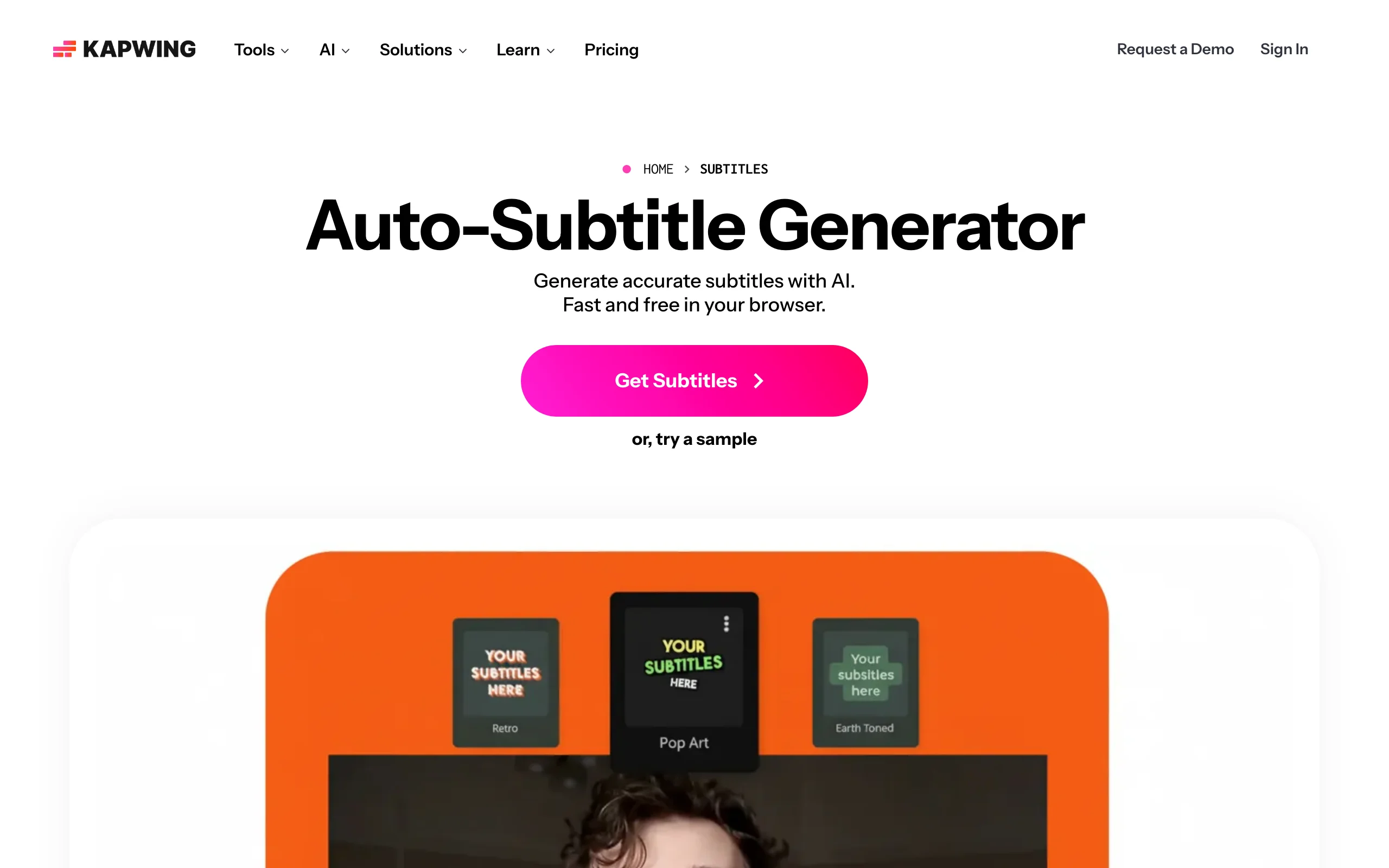
6. Kapwing, best for team and collaborative subtitling
Kapwing is an online editor built around collaboration, and its subtitle tool fits that: auto-transcribe speech into editable captions, style them, auto-translate into 60+ languages, and share the project with a team. You can burn subtitles in or export an SRT, and paid tiers raise the monthly subtitling minutes. For agencies and teams captioning together, the shared workspace is the draw.
Key features
- Auto-subtitling with editable, styleable captions
- Auto-translate subtitles into 60+ languages
- Burn in or export SRT files
- Shared, collaborative projects
- Per-plan subtitling minute allowances
Best for
- Teams and agencies captioning videos together
- Creators who want browser editing plus subtitle export
Pricing
- Pro $24/mo ($16/mo billed annually, auto-subtitling up to 1,000 min), Business $64/mo ($50/mo annually, up to 4,000 min)
Pros
- Collaboration and shared projects are built in
- Clear per-plan subtitling minute limits
Cons
- Individual creators may not need the collaboration layer
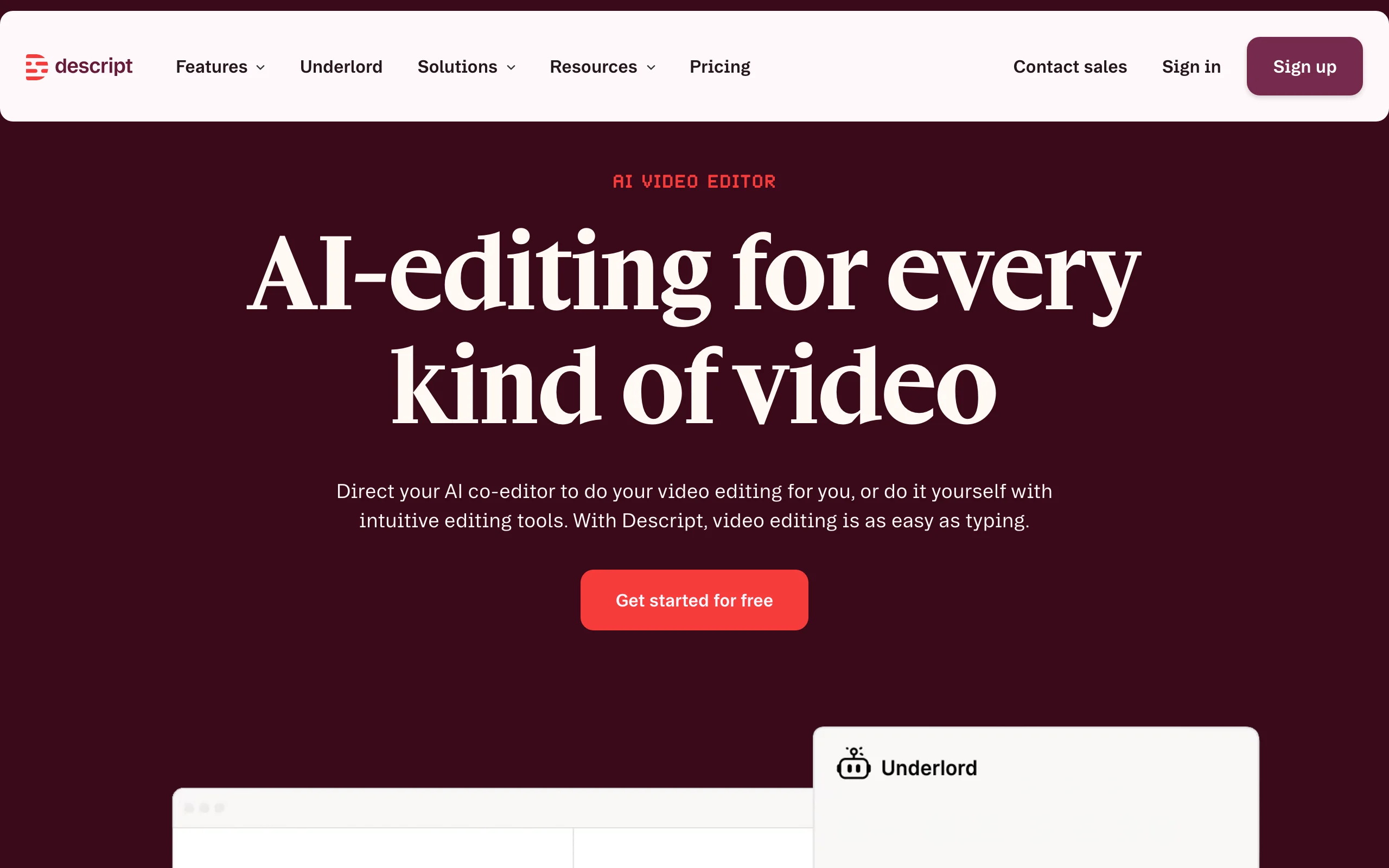
7. Descript, best for transcription-first long-form
Descript approaches captions from the transcript up. It auto-transcribes your video or podcast and lets you edit the footage by editing the text, then add captions, burned in or exported, with animated styles. Caption translation reaches 61 languages and dubbing covers 30. For long-form creators, podcasters, and talking-head videos, editing by transcript is faster than a timeline, and the captions come along with the edit.
Key features
- Auto-transcription with edit-by-text video editing
- Captions and subtitles, burned in or exported
- Animated caption styles
- Caption translation in 61 languages, dubbing in 30
- Filler-word and silence removal via the transcript
Best for
- Podcasters and long-form creators who edit by transcript
- Talking-head videos where accurate captions and cuts matter most
Pricing
- Hobbyist $24/mo ($16/mo annually), Creator $35/mo ($24/mo annually, most popular), Business $65/mo ($50/mo annually); up to 35% off annually
Pros
- Transcript-based editing is the fastest way to cut long-form
- Strong caption translation and dubbing coverage
Cons
- Overkill for quick short-form captions
- Monthly transcription hours cap heavy long-form workflows
How to choose the best AI caption generator for your workflow
1) Are you adding captions, or making the whole video?
- If you already have a clip and just want captions: Submagic and the Captions app for animated short-form styles, CapCut for captioning inside a full editor, VEED or Kapwing for browser editing with export.
- If you are creating the video too: ClipNova generates the script, voiceover, visuals, and burned-in captions in one pass, so there is no separate captioning step to add later.
2) Short-form animation or clean, accurate subtitles?
- Word-by-word animated captions for TikTok, Reels, and Shorts: Submagic and Captions lead, and CapCut does a solid version inside its editor.
- Clean, editable, exportable subtitles (including SRT files) for longer or professional video: VEED, Kapwing, and Descript are the stronger fits.
3) How much do you localize?
- Heavy translation needs: Captions (100+ languages), Kapwing and VEED (50 to 60+), and Descript (61 for captions) cover the most ground. ClipNova narrates and captions in 18 languages when you generate the video itself.
- Mostly one language: any tool here works, so choose on workflow and price instead.
4) What is the real cost per video?
- Translate each plan's credits or minutes into videos you actually publish. A cheap sticker price with a low caption-minute cap can cost more per video than it looks. ClipNova's credit plans include every feature at each tier, which keeps the math simple as you scale. For repurposing long-form into captioned clips, see our guide to the best AI clip generators, and for a broader editing view, the best AI video editing tools.
Whatever you pick, caption two or three real videos from your niche before you subscribe. Accuracy and caption style vary a lot by audio quality and topic, and the tool that nails clean studio speech can struggle with fast, accented, or noisy clips.
Frequently asked
What is an AI caption generator for video?
An AI caption generator transcribes a video's audio and turns it into on-screen text, usually as timed subtitles or animated captions burned into the frame. Modern tools do this automatically from the audio track, sync each word to the speech, and let you restyle fonts, colors, and animations. Some also translate the captions into other languages so one video can reach multiple markets.
Which is the best AI caption generator for video?
It depends on your workflow. For animated, word-by-word short-form captions, Submagic and the Captions app lead. If you already edit in CapCut, its built-in auto-captions are hard to beat. If you would rather the captions come baked into a finished video instead of adding them afterward, ClipNova generates the script, voiceover, visuals, and burned-in captions in one pass.
Are AI-generated captions accurate?
For clear English speech, leading tools now transcribe at roughly 90 to 95 percent accuracy, which usually means a few edits per minute rather than a full rewrite. Accuracy drops with heavy accents, background noise, technical jargon, and overlapping speakers. Always proofread captions before publishing, since a single wrong word is very visible on screen.
Can AI caption generators translate subtitles into other languages?
Yes. Most tools here can auto-translate captions, and the count ranges from a handful of languages to well over 100. This is how creators localize one video for several regions without re-recording. Translation quality varies, so review localized captions with a native speaker for anything high-stakes.
Do captions actually get more views?
Captions help because most social video autoplays muted, so on-screen text keeps viewers watching without sound. They also improve accessibility and give the algorithm more text to understand your video. Animated captions in particular are associated with higher retention on TikTok, Reels, and Shorts.
I just want finished videos with captions already on them, what should I use?
ClipNova is the simplest fit. You describe the video and it returns a publish-ready vertical with the script, AI voiceover, visuals, music, and burned-in captions already in place, in 18 languages and watermark-free from the entry plan. There is no separate captioning step, so captions stop being a task and become part of the export.