One AI video is easy. An AI series is harder: the same characters have to come back every week looking like themselves, the world has to stay put, and episode 12 has to feel like it belongs with episode 1. This guide shows how to make an AI series with a workflow you can repeat. It covers the series bible, the character sheets, the recurring sets, the episode outline, producing each episode, and a posting schedule you can actually keep. One example series runs through every step: a 3D cartoon for young kids.
In ClipNova, the tool for this is Series. You save the show once (its cast of named characters, its style, language, format and voices), and every new episode starts from a sentence or two. Series also keeps a story memory, so episode 5 knows what happened in episodes 1 to 4. What it cannot do is invent your format, so the planning steps below still come first. The first asset is your cast, and the AI Character Generator is where it starts.
What makes an AI series work
The AI series that find an audience have a few things in common, and none of them is a better model:
- A recurring cast with a look you can spot at a glance. Viewers come back for characters, not for visuals.
- A format. Same length, same structure, same opening. Viewers know what an episode gives them.
- Recurring places. A handful of sets the story keeps returning to.
- A cadence. Episodes arrive on a schedule people can expect.
Two recent examples show the range. Fruit Love Island, an AI drama series of talking fruit on TikTok, ran 28 vertical episodes of 2 to 4 minutes across two seasons in about two weeks and passed 300 million views. DRAGGLiNS, a 3D kids series about six baby dragons made by one independent creator, launched on YouTube with weekly episodes, built from AI images, AI animation, and AI voices.
The kids format is also what ClipNova users reach for most. Among prompts that ask for an episode, a "part 2", or a series, kids 3D cartoons are the largest group, more than stories, history, and horror combined. So that is our example.
The example: Hazel & Moss
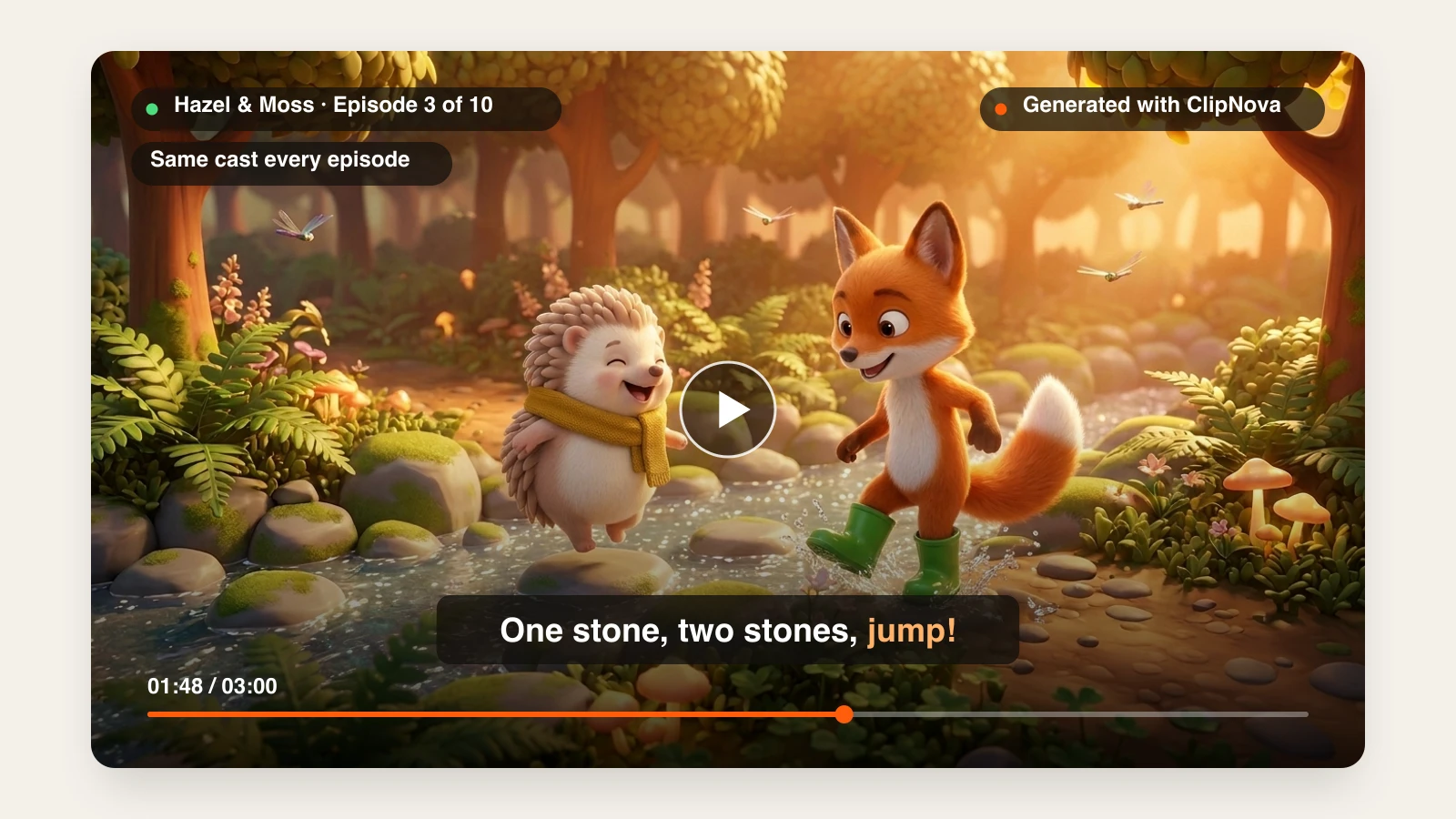
Hazel & Moss is an original 3D cartoon for ages 3 to 6. Hazel is a small hedgehog in a mustard-yellow scarf. Moss is a fox kit in green rain boots that are too big for him. Each episode is about 3 minutes, set in their woodland, and ends with one small lesson: being brave, sharing, waiting your turn. A new episode goes up every week on YouTube, with short vertical clips in between.
Everything below is the production plan for that show.
Step 1: write a one-page series bible
The series bible is the document every prompt comes from. Without it, each episode gets reinvented from scratch and the drift starts. Keep it to one page:
| Bible field | Hazel & Moss |
|---|---|
| Logline | Two woodland friends solve one small problem a day, together. |
| Audience | Ages 3 to 6, watched with a parent |
| Format | 3 minutes, 16:9 for YouTube, warm narrator voice, captions on |
| Look | 3D cartoon, soft rounded shapes, warm light |
| Cast | Hazel (hedgehog, yellow scarf), Moss (fox kit, green boots) |
| Sets | The log house, the creek bridge, the sunset meadow |
| Formula | Morning, a problem, two tries, the lesson, a goodbye line |
| Never changes | Scarf color, boot color, the narrator, the closing line |
The last row matters most. Write down the details that must never change, because those are the details you will check in every episode.
Step 2: design the cast with character sheets
A character sheet is the same character from several angles on a plain background. It does two jobs: it is your visual reference for every scene, and it is the image you hand to the video model later.
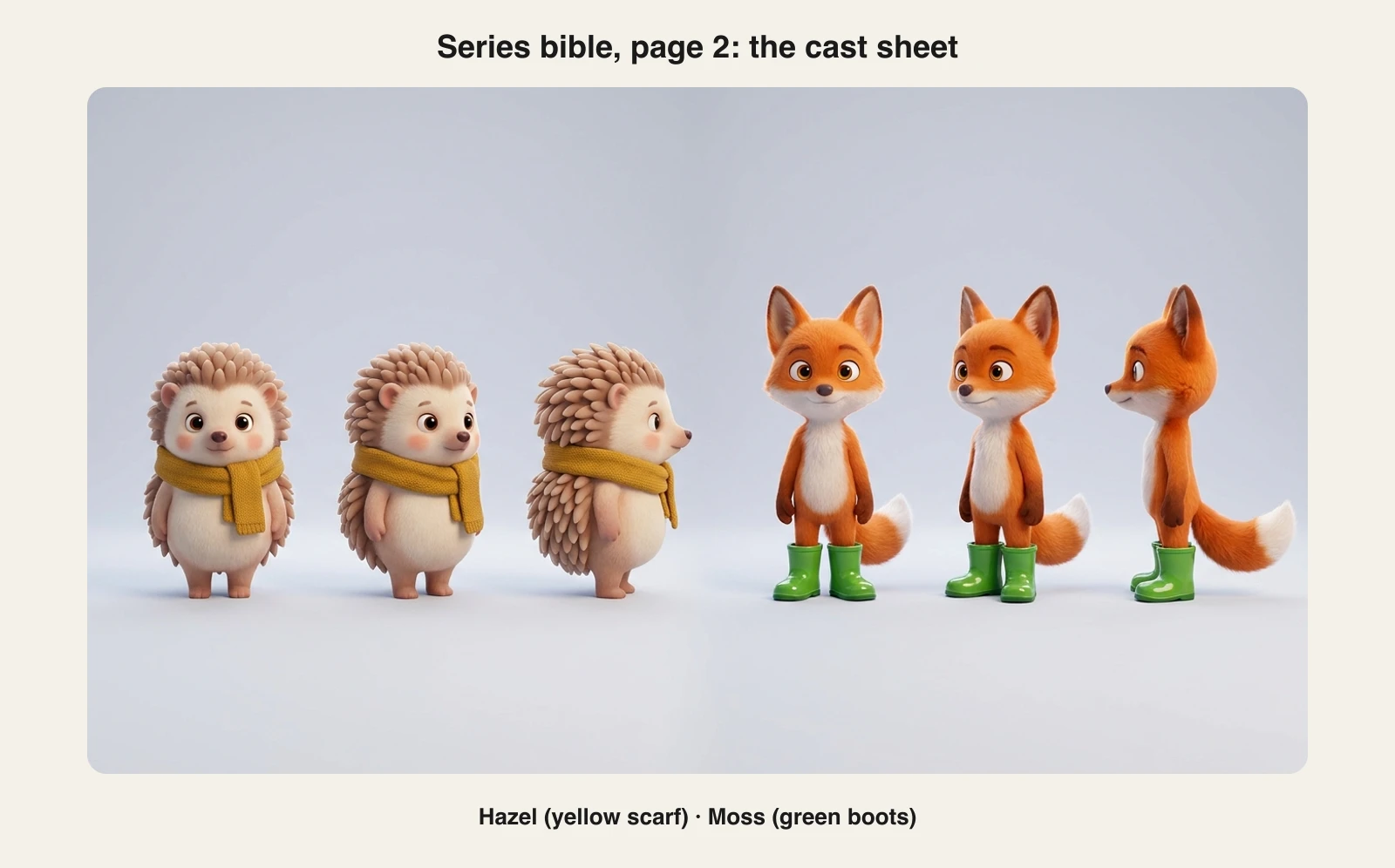
In ClipNova:
- Open AI Character / UGC Studio and pick AI Character.
- Choose the Pixar look (charming 3D render) and the Landscape format.
- Write the character in one paragraph: species, size, colors, eyes, and one signature item. For Hazel: "a small young hedgehog girl, soft light-brown rounded spines, cream face and belly, big dark eyes, rosy cheeks, mustard-yellow knitted scarf."
- Generate several options and keep the one that reads best at a glance. Then run the same paragraph again with "full body, side view" and "three-quarter view" added, and keep the matching ones.
- Save the final paragraph as the character's card. In Step 5 it becomes the character's Look in your series, which is locked for every episode, and the front view becomes the character's picture.
A signature item (Hazel's scarf, Moss's boots) is the cheapest consistency trick there is. Viewers recognize a yellow scarf faster than a face, and you can spot drift in one glance.
Step 3: build the sets once
Locations drift just like characters. Generate each recurring set once as an empty establishing shot in the same style, save it, and reuse it as a reference instead of describing the place from scratch every time.
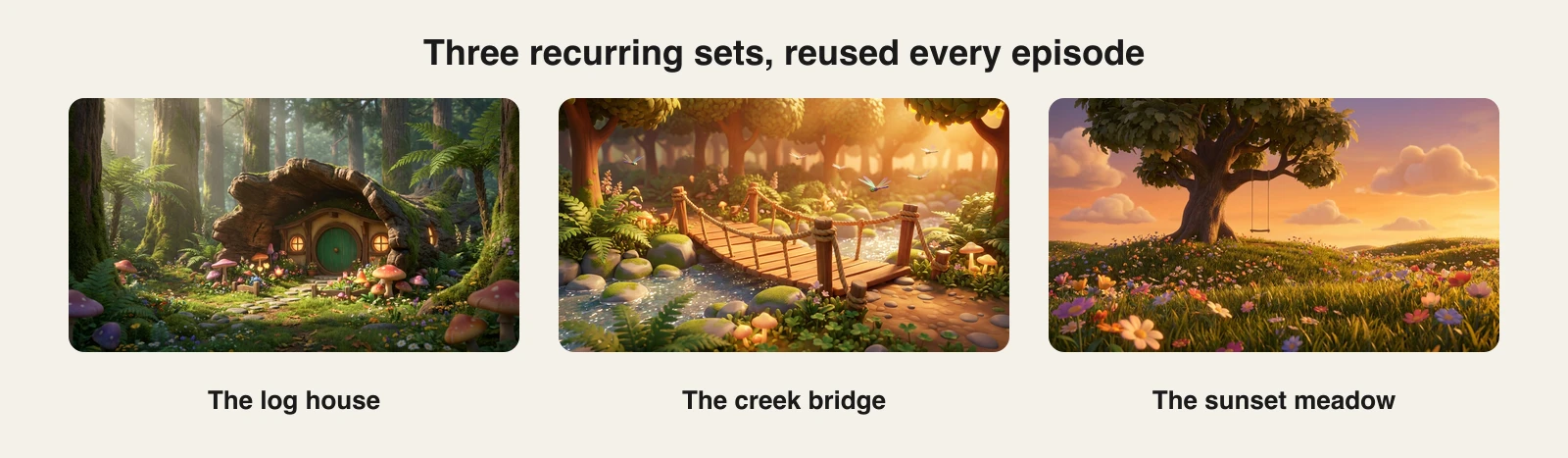
Three sets are enough for a first season. New places can appear in single episodes, but the show should keep coming home to the same ones. A series in ClipNova saves characters, not places, so write a one-line description of each set into the series description: that text goes into every episode, and the set images stay ready for hero shots.
Step 4: outline each episode on the formula
Write the outline, not the script. For a 3-minute kids episode, the formula from the bible becomes five beats:
- Morning (0:00 to 0:20): the two friends at the log house, and today's plan.
- The problem (0:20 to 1:10): something stops them. In episode 1, The Wobbly Bridge, Moss is scared to cross the creek bridge.
- Two tries (1:10 to 2:10): the first try fails, the second gets closer.
- The lesson (2:10 to 2:40): Hazel holds out a paw, they cross together. Being brave can mean asking for help.
- Goodbye (2:40 to 3:00): the sunset meadow and the same closing line every episode.
Plan ten titles before you produce the first episode. If you cannot fill ten, the format is too narrow, and it is better to find that out now than at episode four.
The outline is also what you will type as the episode idea in Series, with each character mentioned by name: "@Moss is scared to cross the creek bridge, and @Hazel helps him after two failed tries."
Step 5: produce the episode
Now the bible turns into a saved show. You set it up once, then each episode is one idea and one click.
Set up the series once
- Open Series in the ClipNova app and click New series.
- Pick the kind of show: Kids stories, Bible stories, History, Mythology, Drama series, Faceless explainers, or Something else. The template only pre-fills the settings and the tone, and you can change all of it. For Hazel & Moss, pick Kids stories, name the show, and paste the logline and the three sets into What is it about?
- Set the look and sound once: the Disney / Pixar 3D visual style, the narration language (18 languages), the Landscape format, an episode length (30 seconds, 1, 2, 3 or 5 minutes; Hazel & Moss uses 3), a quality tier, and captions. Every episode uses these settings, which is what keeps episode 12 looking like episode 1.
- Choose how episodes are made. AI Video animates every shot. Moving AI Images draws each scene as an image with camera motion, voice and captions, keeps the same faces, and costs about a third as much. You can switch for any single episode.
- Cast the characters (up to 8). Give each one a name, a role, a personality, a catchphrase if they have one, and the Look from their card. Then give them a picture: pick one from My characters (your AI Characters), create a new one that is drawn in the series' style, or upload your own. Hazel and Moss use the front views from Step 2.
- Pick the voices. With AI Video, you choose who speaks in each episode: one narrator voiceover, or the characters themselves on screen with lip sync, each in their own voice. Talking characters work on any quality; Moving AI Images episodes use the narrator.
Make episode 1, then episode 2
- Write the episode idea from your outline. Type @ to mention a character, such as @Hazel or @Moss, or pick who is in the episode. Nobody picked means the whole cast.
- Check the price shown before you generate (it is exactly what you are charged) and click Generate episode 1. It takes a few minutes, and the finished episode appears in the series and in your library.
- When an episode is ready, ClipNova writes its story memory: a two or three sentence summary of what happened. You can edit it.
- Click Make episode 2. The summaries of up to the last five episodes go into the new one, so if Hazel found a lantern in episode 1, the show remembers it.
Settings you change later apply to the next episodes only. Episodes already made stay as they are.
What a season costs depends on the length and how episodes are made. These are the prices the app shows for one episode with voiceover and captions, and how many fit in each plan's monthly credits:
| One episode | Credits | Hobby $19 (1,000) | Starter $49 (2,600) | Growth $99 (5,750) | Ultra $199 (12,000) |
|---|---|---|---|---|---|
| 1 min, Moving AI Images, Base or Pro | about 189 | 5 | 13 | 30 | 63 |
| 3 min, Moving AI Images, Base or Pro | about 429 | 2 | 6 | 13 | 27 |
| 1 min, AI Video, Base | about 550 | 1 | 4 | 10 | 21 |
| 3 min, AI Video, Base | about 1,610 | under 1 | 1 | 3 | 7 |
So a weekly 3-minute Hazel & Moss in Moving AI Images fits the Starter plan, with credits left for hero shots. AI Video on Pro or Ultra costs more per minute, and an episode with talking characters has its own price, which the app shows before you generate.
Hero shots: references in, matching clips out
Some moments must match the character sheet exactly: the opening, the big lesson, the thumbnail frame. For those, use Image to Video in AI Video Studio and choose Images to Video ("same subject, new scene"):
- Upload the character images from your sheet (front and three-quarter views work best) and the set image as references. The Base tier takes up to 7 references, Pro takes 2 to 4, and Ultra takes up to 9 and also generates sound for the clip.
- Describe the action and the camera: "Moss stands nervously at the start of the bridge while Hazel turns back and reaches out her paw, slow push in."
- Pick a length (4 to 10 seconds, depending on the tier) and generate.
This is how the Consistent Character AI Video Generator works: the model learns the subject from your images instead of guessing it from words.
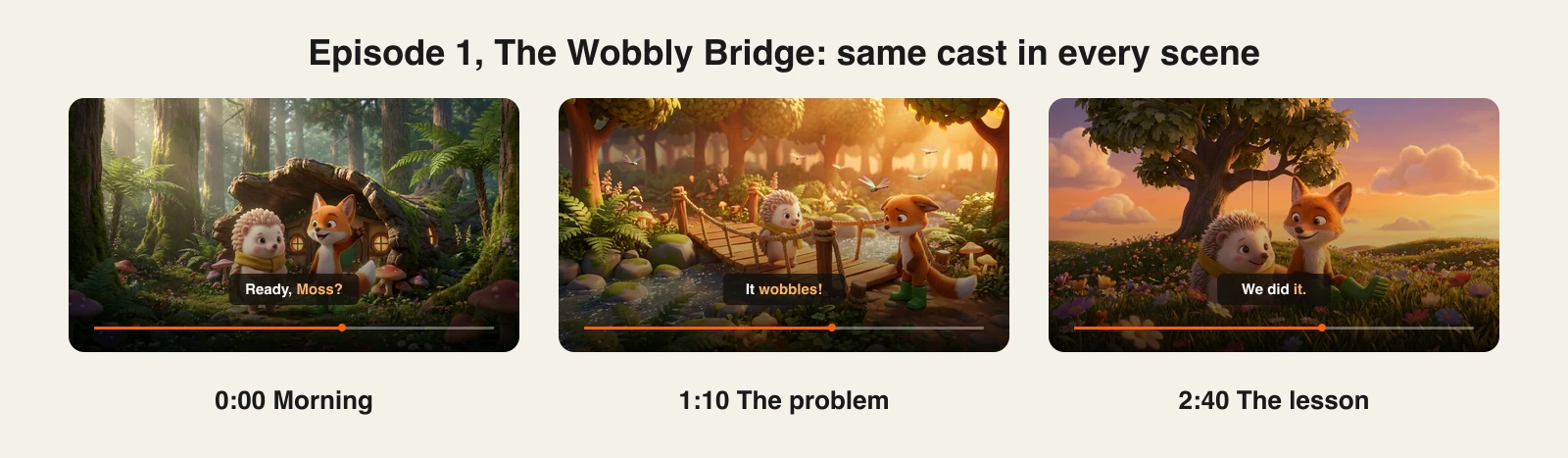
Be honest with yourself about what consistency means here. In a series, each character's picture and locked Look go into every episode, and the same style, voices and story memory carry over from one episode to the next. That keeps the cast steady, but AI will still drift now and then (a scarf turns orange, boots disappear), which is what the next step is for.
Step 6: fix and finish in the AI Editor
Open the episode in your library (Open in library on the episode) and use the Edit button to get the AI Editor. Watch it once with the bible next to you and check the "never changes" row in every scene.
- Replace a drifted scene with a hero shot from Step 5: upload the clip (MP4, MOV, or WebM, up to 50 MB) or generate a new image or clip from the Media panel.
- Rewrite a narration line: the line is re-voiced and the scene adjusts to the new length.
- Trim, split, reorder, duplicate, or delete scenes. A project holds up to 40 scenes, plenty for a 3-minute episode.
- Keep the caption style, voice, and music identical to the previous episodes.
Each export is a new version, so the original render stays in your library. Finished videos export at up to 1080p. If a fix changes the story, update that episode's story memory in the series too, so the next episode remembers what viewers actually saw.
Step 7: post on a cadence you can keep
A series is a promise about when the next episode arrives. Pick a schedule you can still keep in month three:
- Weekly long episodes suit kids shows and story series. DRAGGLiNS launched this way.
- Short daily episodes suit vertical micro-dramas, where each part ends on a cliffhanger.
- Two or three Shorts per episode keep the channel active between releases. Cut a 9:16 moment from each episode, such as the funniest beat or the lesson.
Make the series easy to follow: number every title ("Hazel & Moss, Episode 3: The Stepping Stones"), keep one thumbnail layout, and put each season in its own playlist. Batch the work: write four outlines in one sitting, produce two episodes in the next.
Two YouTube rules matter for a series like this. Videos aimed at children must be marked made for kids. And YouTube limits monetization for mass-produced, repetitive content, so every episode needs its own story, not the same video with a new title. If your show uses realistic-looking AI visuals rather than cartoons, YouTube also asks you to disclose them.
For more ready-made ideas on the kids side, the AI kids video generator page shows the formats that work. If you are still choosing tools for story content, our list of AI video generators for storytelling compares them.
How long does one episode take?
For a 3-minute episode like The Wobbly Bridge, once the bible, sheets, and sets exist:
- Episode idea: 15 to 20 minutes to outline it and write it as one idea with @mentions.
- Episode render: one click in Series, done in a few minutes while you work on something else.
- Hero shots: three or four Images to Video clips.
- Review and fixes: 20 to 30 minutes in the AI Editor.
- Upload, thumbnail, Shorts cuts: 20 minutes.
The setup work (bible, cast, sets, and the series itself) happens once per season. That is what makes a weekly series realistic for one person. Plans from $19/mo, with every feature included, Series too; only the monthly credits change between plans.
What goes wrong, and the fix
- Describing characters differently each time. "A hedgehog with a scarf" becomes a different hedgehog every episode. Save the card as the character's Look in the series, where it is locked, and paste the same text into every hero-shot prompt.
- Too many characters too soon. Every new face is another thing that can drift. Start with two, add a third in season two.
- Changing the preset or voice mid-season. The show stops looking like one show. Settings changed in a series apply to every next episode, so keep them fixed for the season.
- No signature items. Without the scarf and boots, small changes in face shape are hard to spot and easy for viewers to notice.
- Episodes with no hook into the next. End on the closing line plus a teaser for next week.
- Publishing faster than you can check. Every drifted frame you ship teaches viewers the characters are not real to you. Review against the bible before every upload.
The cast is the part of an AI series that viewers remember, so build it first: one paragraph per character, one sheet per character, one saved series, then episode one.
Frequently asked
How do I make an AI series?
Write a one-page series bible first (format, cast, sets, and the details that never change), then design each character once as a character sheet and each location once as an establishing shot. Save the show as a series with its cast, style and voices, write each episode as an outline on the same formula, and check every episode against the bible before you post.
Is there an AI episode generator that makes a whole series?
Yes. ClipNova's Series saves a show once: a cast of named characters with their pictures, plus the style, language, format and voices. Each episode then starts from a short idea with @mentions, and a story memory of earlier episodes goes into the next one, so the show continues where it left off. Episodes run from 30 seconds to 5 minutes. You still write the format and the stories, which is what the series bible is for.
How do I keep AI characters consistent across episodes?
Save each character with a fixed Look, a picture, and a signature item, such as a yellow scarf. In a ClipNova series, those pictures and descriptions go into every episode, and the style and voices stay the same for the whole season. For shots that must match exactly, feed the character sheet images to a reference-to-video tool.
How long should an episode of an AI series be?
Match the platform. Vertical micro-dramas on TikTok often run 1 to 4 minutes per episode, and kids or story episodes on YouTube commonly run a few minutes each. A ClipNova series offers episodes of 30 seconds, 1, 2, 3 or 5 minutes, so one episode is one render plus a few fixes.
How often should I post a new episode?
Pick a schedule you can keep for three months. Weekly works well for kids shows and story series; short daily parts work for cliffhanger dramas. Shorts cut from each episode keep the channel active between releases.
Can I make an AI drama series with the same workflow?
Yes. Drama series use the same bible, character sheets, and recurring sets; the difference is the format, usually short vertical parts that each end on a cliffhanger. Fruit Love Island, a viral AI drama series on TikTok, ran 28 episodes of 2 to 4 minutes across two seasons.
Do I need to label an AI series on YouTube?
Videos aimed at children must be set as made for kids. YouTube also asks creators to disclose realistic altered or synthetic content, which matters if your series looks like real footage rather than a cartoon.
Can an AI series be monetized?
AI-made channels can join the YouTube Partner Program, but YouTube limits monetization for mass-produced, repetitive content. Give every episode its own story and keep the quality checks, and a recurring cast actually helps here, because it makes the series recognizably yours.