To make an AI face swap video, you need two inputs: a short video clip and one sharp, front-facing photo of the face you want in it. Upload both to a video face swap tool, choose a quality level, and the AI re-renders the person in the clip with the face from your photo. The motion, expressions, camera moves, lighting and soundtrack all stay as they were. To compare tools first, see the best AI face swap tools.
That is the whole process in one paragraph. The quality, though, comes down to which clip and which photo you pick, and to a few settings most people skip. This guide shows how to swap a face in a video step by step in ClipNova, how to choose between Standard and Pro, what makes a source clip and photo work, how to fix the usual problems, and how to post the result responsibly.
Want to swap a face in a video right now? Open ClipNova's AI Face Swap Video tool: upload a clip, add one face photo, and get back the same video with the new face, motion and sound intact. Plans from $39/mo.
What an AI video face swap actually does
Older face swap apps cut a face out of a photo and pasted it over each frame. That is why they flickered, slid around when the head turned, and never matched the light in the room.
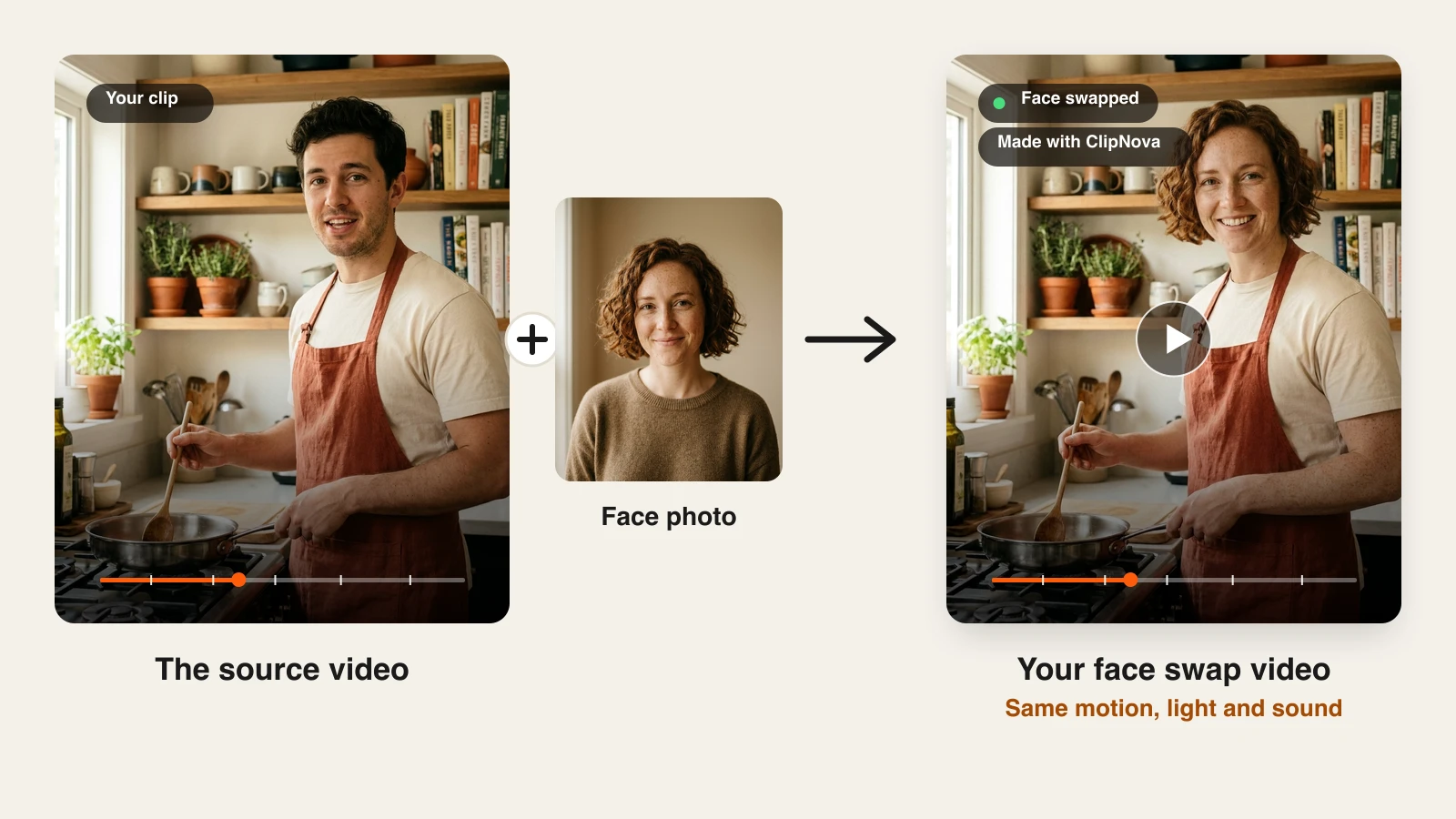
An AI video face swap works differently. The model studies your clip frame by frame (how the person moves, where they look, how their mouth shapes words, where the light falls) and then re-renders the person with the identity from your photo. You get a new performance of the same shot, not a sticker on top of it:
- Kept from the clip: body motion, head turns, facial expressions, lip movement, timing, camera moves and cuts, the scene, the lighting, and the original audio.
- Taken from the photo: the face, the hair, and the overall look of the person. In ClipNova it can even carry over the outfit from the photo, because it replaces the whole look rather than just the eyes, nose and mouth.
The result is a clip where the new person appears to have performed the original take. The better the model understands both inputs, the less you notice the swap.
What you need before you start
Gather three things before you open any tool:
- A short clip. In ClipNova, an .mp4, .mov or .webm file up to 200 MB. Standard mode takes clips from 1 second to 2 minutes; Pro takes 5 seconds to 1 minute. Linking to a TikTok or Instagram post does not work, so download or export the file you have the rights to.
- A face photo. One sharp, front-facing photo per person you want to swap in, with the whole face visible and good light. A recent phone portrait is usually perfect.
- Consent. You need the right to use the video and the permission of the person whose face is in the photo. Get both before you start.
You also need a paid ClipNova plan, since face swap runs on the same credits as every other AI video tool. More on credit costs below.
How to make an AI face swap video in ClipNova, step by step
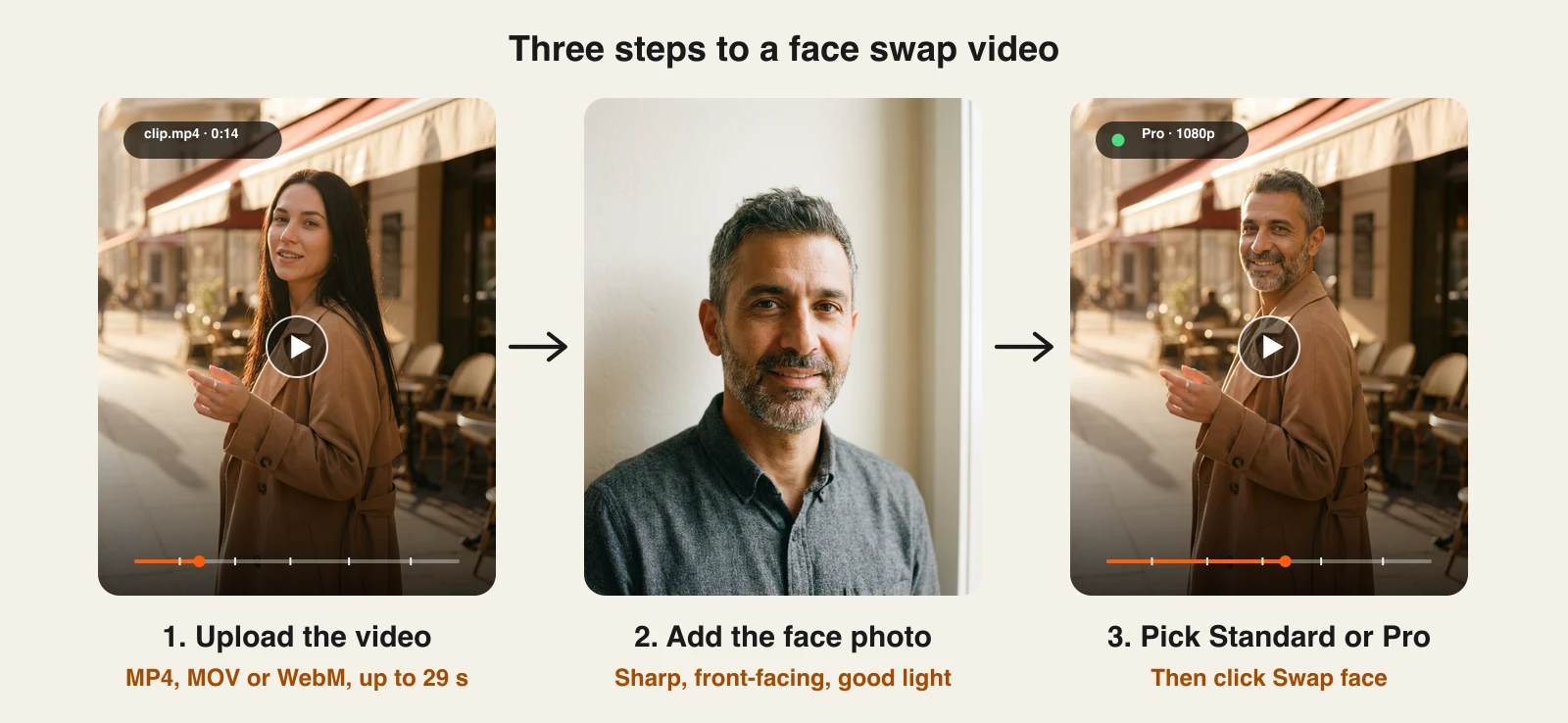
Here is the full flow from login to a finished file.
Face swap recasts a clip you already have. When you want a new story instead, ClipNova makes finished long videos with consistent characters: up to 5 minutes, the same saved face in every scene, with script, voiceover, captions and music done in one pass.
- Log in to ClipNova and open AI Video Studio.
- Under the editing tools, click the AI Face Swap card.
- Upload your video, or use Pick from my videos to choose a clip you already made or uploaded in ClipNova.
- Add the face photo. Upload it, or use Pick from my images to reuse an image from your library, for example a character you generated earlier.
- Choose Standard or Pro (see the next section). Pro also lets you add up to three photos and an optional note on who becomes whom.
- Click Swap face.
The finished video lands in your Library like any other ClipNova video, where you can watch it, download it or use it in another project. Play it once with sound and once on mute, focusing on the face. If something looks off, the fix is almost always a better photo or a better clip, not a second run with the same inputs.
Standard vs Pro: which mode to choose
The two modes trade cost against realism and the number of people you can swap.
| Standard | Pro | |
|---|---|---|
| Resolution | 720p | 1080p |
| Clip length | 1 second to 2 minutes | 5 seconds to 1 minute |
| People swapped | The main person | Up to 3 in one pass |
| Look | Solid, clean swap | Most realistic: natural skin, better blending |
| Audio | Original sound kept | Original sound, motion and camera cuts kept |
| Cost | About 50 credits per started 5 seconds | About 113 credits per second |
| A 15-second clip | 150 credits | About 1,690 credits |
Use Standard for drafts, memes, skits that will be watched on a phone, and anything longer than 1 minute. It is cheap enough to test several clips: on the Starter plan ($49/mo, 2,600 credits) you can run seventeen 15-second Standard swaps a month.
Use Pro when the video is the final product: an ad, a client deliverable, a close-up where skin texture shows, or a scene with two or three people. A 15-second Pro swap fits inside the Starter plan's 2,600 monthly credits. The ClipNova pricing page lists every plan.
A sensible routine: test the clip in Standard first. If the swap holds up, run the final in Pro.
How to pick a source clip that swaps well
The clip sets the ceiling for the result. The model can only re-render what it can see clearly.
- Face toward the camera. Clips where the person mostly faces the lens and stays in frame swap best. Brief head turns are fine; a whole clip in profile is not.
- Medium shots and close-ups. A face that fills a decent part of the frame gives the model detail to work with. A tiny figure across a room does not.
- Even, steady light. Soft daylight or a lit room. Flashing club lights, strong backlight and deep shadows across the face make the blend less convincing.
- Little occlusion. Hands in front of the face, a microphone at the mouth, a mug held up to the lips, or hair sweeping across the eyes all force the model to guess.
- Moderate motion. Walking, talking and gesturing are fine. Very fast spins, heavy motion blur and shaky handheld footage are harder.
- One clear subject (for Standard). Standard swaps the main person. If several people are close together in frame, use Pro so you can say exactly who changes.
- Trim to the best part. Cut the clip to the seconds you need. You pay per second, and shorter clips mean fewer chances for a weak frame.
How to pick a face photo that works
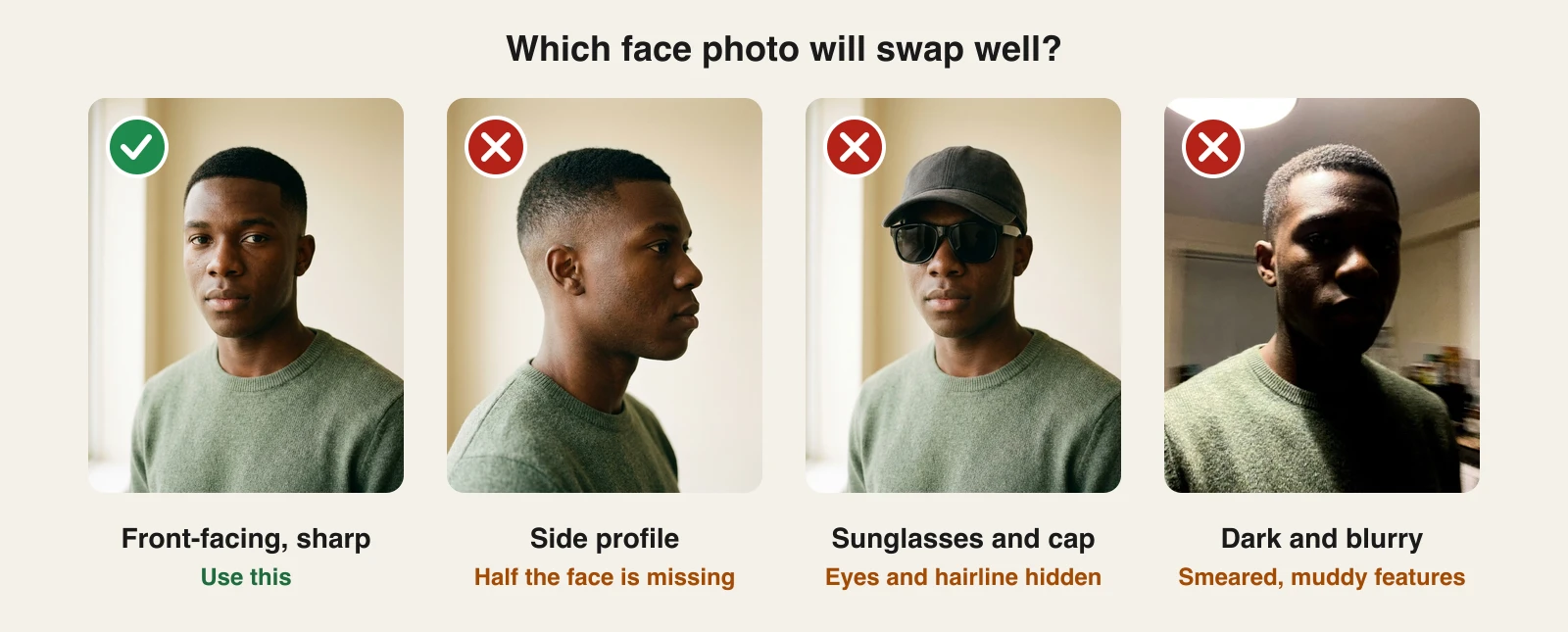
The photo is the identity the model copies, so every flaw in it shows up in every frame.
- Front-facing. Both eyes visible, face toward the camera. A slight angle is fine, a profile is not.
- The whole face visible. No sunglasses, caps pulled low, masks, or hands at the chin.
- Sharp and well lit. Use the original file in good resolution. A blurry, dark or heavily filtered photo produces a blotchy face.
- Neutral or relaxed expression. The video supplies the expressions. A huge grin or a squint in the photo can leak into frames where it does not belong.
- Hair as you want it to look. The swap brings the photo's hair along. If the person in the clip has long hair and your photo has short hair, expect the result to follow the photo.
- One person per photo. Crop group shots down to a single face before uploading.
- Similar build helps. The body comes from the clip. A face and hairstyle that suit the body and age in the clip look more natural.
A good rule of thumb: if the photo would work as an ID photo with better light, it will work for a face swap.
Fixing common face swap problems
The face flickers or drifts in some frames. Usually a source problem: fast motion, motion blur or an occlusion in those frames. Trim the clip around the bad section, or pick a take where the person moves more calmly.
The new face looks blurry or smeared. The photo is too small, too soft or too compressed. Use a sharper original. For final output, Pro's 1080p and better blending help noticeably.
The skin tone or light does not match the scene. Pick a photo taken in soft, neutral light rather than under a strong colored lamp, and avoid clips with extreme lighting. Pro handles blending better than Standard.
The wrong person changed. Standard swaps the main person in the clip. If two people share the frame, run it in Pro and use the "who becomes whom" note, or crop the clip so only one person is visible.
The hair looks wrong. The swap carries the photo's hair. Choose a photo whose hairstyle you actually want in the video.
The upload is rejected. Check the length (1 second to 2 minutes in Standard, 5 seconds to 1 minute in Pro), the format (.mp4, .mov or .webm) and the size (200 MB or less). Trim or re-export if needed.
Swapping two or three people at once (Pro)
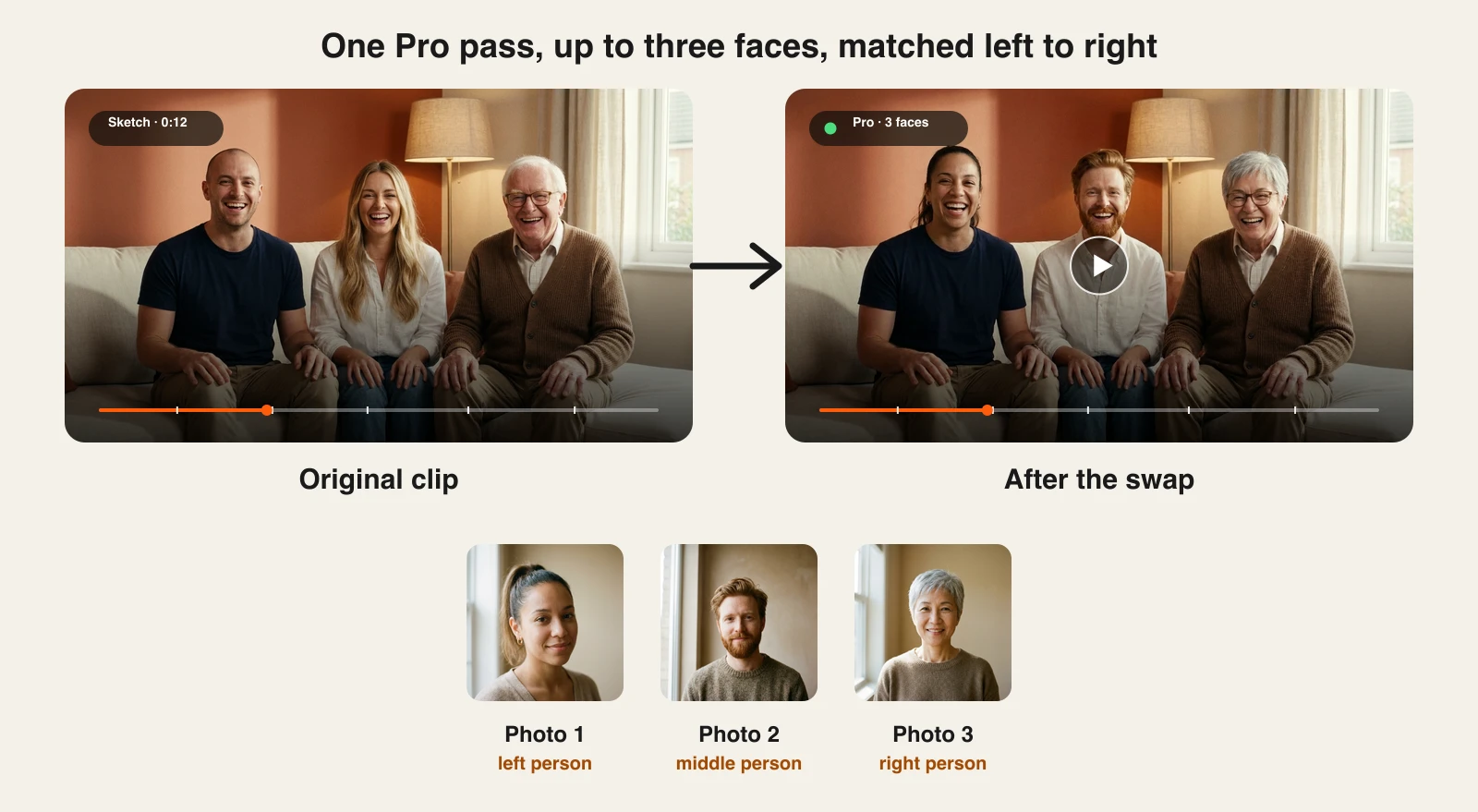
Pro can swap up to three people in one pass, which is ideal for skits, interviews and group scenes.
- Choose Pro and upload the clip.
- Add one photo per person, in order. The photos are matched to the people in the video from left to right: the first photo replaces the person on the left, the second the next one, and so on.
- If the order is ambiguous (people swap places, or someone walks in later), add a short "who becomes whom" note, for example: "Photo 1 is the woman in the red jacket, photo 2 is the man holding the guitar."
- Click Swap face.
You need consent from every person whose face you add, not just one. Clips where all three people stay roughly in their positions give the cleanest result.
Ideas: what people make with AI face swap videos
- Comedy skits. Film one take, then swap in the friends who could not make the shoot (with their permission). Multi-person Pro swaps turn one clip into a full cast.
- Ad personalization. Shoot one ad and produce versions with different presenters for different audiences or markets, using talent who agreed to appear in your ads. Test which face performs best before booking a reshoot.
- Localization. Pair a face swap with the AI video translator so the same ad gets a presenter and a voice that fit each market.
- AI influencers and characters. Generate a consistent face once with the AI influencer generator, then use Pick from my images to put that face into real footage. Our guide on how to make an AI influencer covers building the character itself, and the consistent character AI video generator handles scenes made entirely from prompts.
- Fan edits and memes, with permission. Put yourself into a scene you filmed, or swap faces with a friend who said yes. Keep it clearly playful, and leave real public figures out of it.
- Previs and casting tests. See how a different look works in a scene before you commit to a shoot.
Responsible use and AI disclosure
A face swap puts someone's face on a performance they never gave, so treat it with care.
- Only use footage you have the rights to, and only faces of people who agreed.
- Do not impersonate anyone. No fake endorsements, no putting words in a real person's mouth, no content meant to mislead, harass or embarrass. Leave politicians, celebrities and other public figures out of your swaps.
- Label realistic results. Every major platform now asks for it:
- YouTube: turn on the "Altered or synthetic content" setting in YouTube Studio when a video realistically shows a person who has been digitally altered. YouTube lists replacing one person's face with another's as an example that needs disclosure.
- TikTok: apply the AI-generated content label to realistic AI content, which explicitly includes face swaps. TikTok can also add the label automatically, and creators cannot remove it once it is applied.
- Instagram, Facebook and Threads: Meta requires you to use its disclosure tool for photorealistic video that was digitally created or altered, which shows an "AI info" label on the post.
- Add a caption note anyway. A short "face swapped with AI" in the caption keeps your audience's trust, even where the platform does not force a label.
Quick checklist before you post
- The clip is under the mode's limit, faces the camera and has steady light.
- The face photo is sharp, front-facing and fully visible.
- You tested in Standard and, for final output, re-ran in Pro.
- Every person whose face appears has agreed.
- The post carries the platform's AI label and a caption note.
Start with one 10-second clip and one good photo, check the result on mute, and build from there in ClipNova's AI Face Swap Video tool.
Frequently asked
How do I make an AI face swap video?
Upload a short clip and one sharp, front-facing photo of the new face to a video face swap tool, choose a quality mode and generate. In ClipNova you open AI Video Studio, click AI Face Swap, upload the video, add the face photo, choose Standard or Pro and click Swap face. The result appears in your Library.
How do I swap a face in a video without it looking fake?
Start with a clip where the person faces the camera in steady, even light, with nothing covering the face, and a face photo that is sharp, front-facing and well lit. Trim away fast or blurry moments, and run the final version in a higher quality mode such as ClipNova Pro, which renders at 1080p with more natural skin and blending.
How long can a face swap video be?
In ClipNova, Standard mode takes clips from 1 second to 2 minutes and Pro takes clips from 5 seconds to 1 minute. For longer footage, cut it into sections, swap each one and join them in your editor.
Can I swap more than one face in a video?
Yes. ClipNova's Pro mode swaps up to three people in one pass. Add one photo per person; the photos are matched to the people in the video from left to right, and you can add a short note describing who becomes whom when the order is unclear.
Does a face swap keep the original audio?
Yes. The swap replaces the person's look but keeps the clip's soundtrack, along with the motion, expressions, timing, camera and lighting. Both Standard and Pro in ClipNova keep the original sound.
How much does an AI face swap video cost in ClipNova?
Standard costs about 50 credits per started 5 seconds, so a 15-second clip is 150 credits. Pro costs about 113 credits per second, so a 15-second clip is about 1,690 credits. Face swap needs a paid plan; plans start at $39/mo.
Can I face swap a TikTok or Instagram video by pasting a link?
Not in ClipNova. Upload the video file itself as .mp4, .mov or .webm, up to 200 MB. Only use videos you own or have the rights to.
Is it legal to face swap someone in a video?
It depends on consent and use. Swap only faces of people who agreed, never impersonate anyone or imply an endorsement, and label realistic results: YouTube's altered or synthetic content setting, TikTok's AI-generated content label and Meta's AI info label all cover face swaps.
Can I use AI face swap on my phone?
ClipNova is a web app, so you can run a face swap in your phone's browser by logging in at app.clipnova.io. There is no separate mobile app.