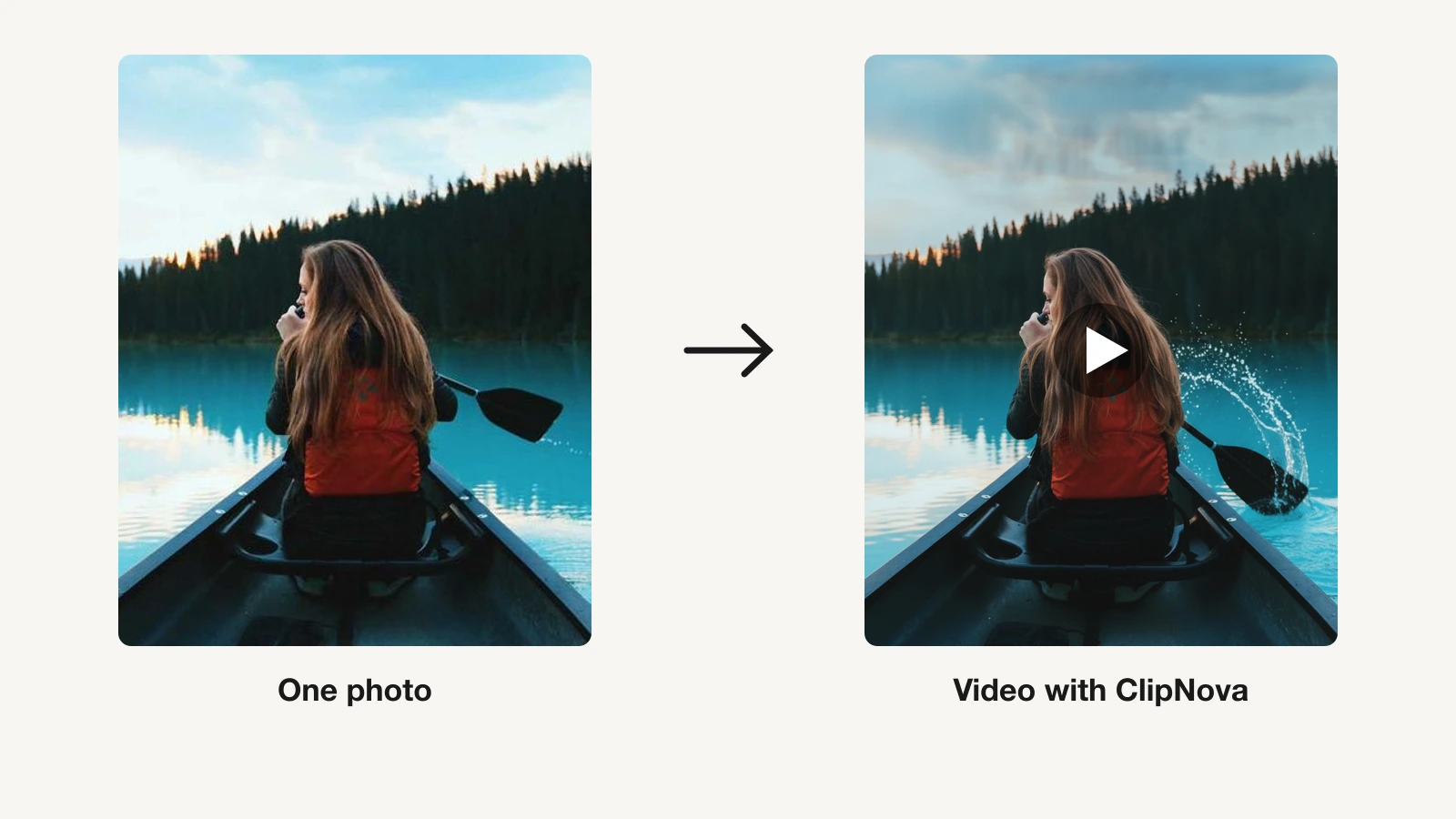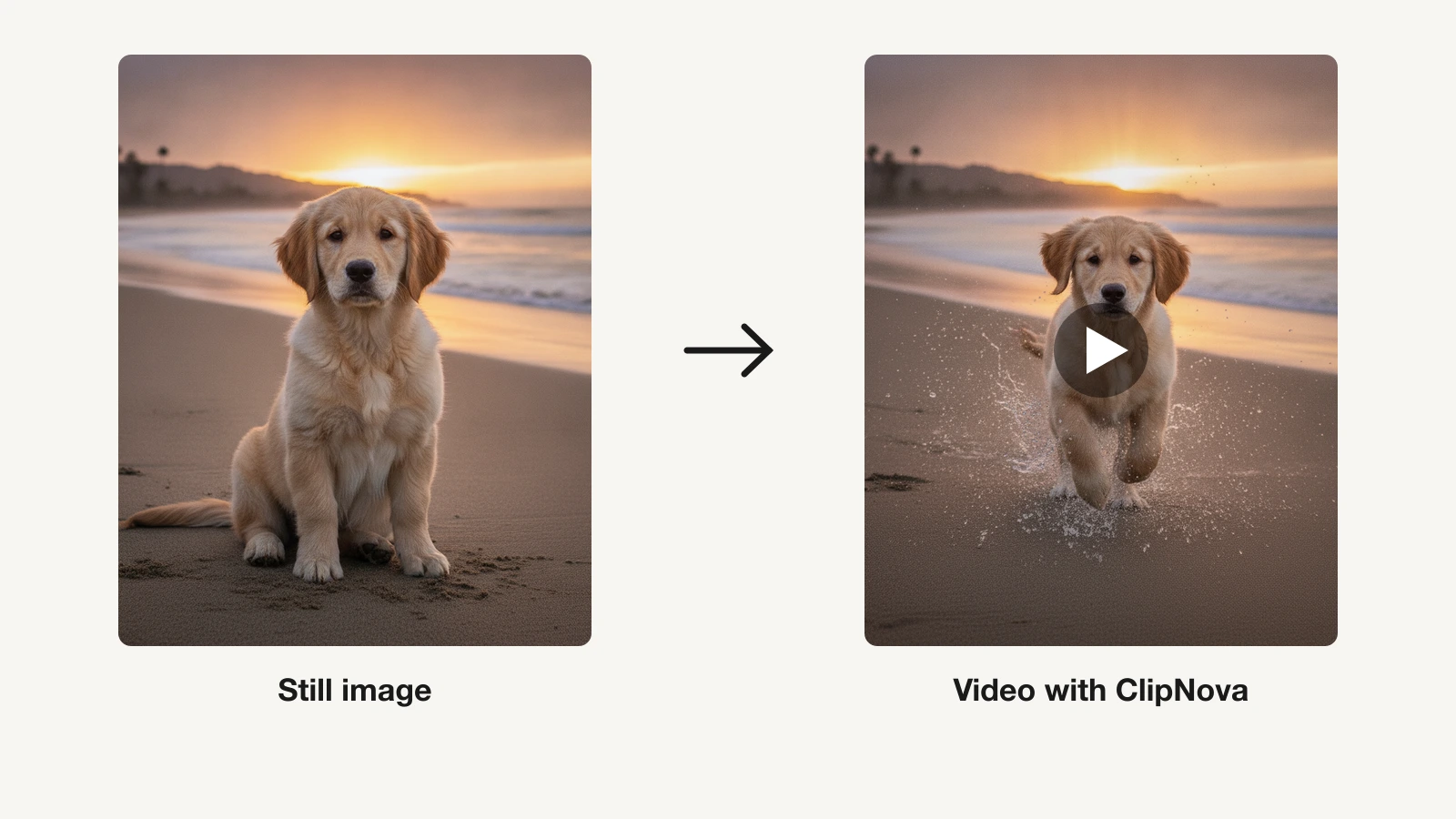
To turn a photo into a short video with AI, you upload a still image, describe the motion you want, and let a video model animate it: a camera push-in, hair moving in the wind, steam rising from a cup, a product turning on a table. The raw result is a clip of a few seconds. The useful result is what you build around it: a hook, a voiceover, captions, and music, so the clip becomes a short you can actually post.
This guide covers both halves. You will pick a photo that animates well, write a motion prompt that works, generate the clip with ClipNova, and turn it into a finished vertical short in one session. If you want a comparison of the software first, our roundup of the best AI tools to animate a photo into video ranks eight options. This article is the how-to.
What photo-to-video AI actually does
An image-to-video model reads your photo, infers depth and what each region is, and generates new frames that move consistently with the original. In practice you get three kinds of motion:
- Camera motion. Push-in, pull-back, pan, orbit, parallax between foreground and background. This is the safest and most natural-looking motion, because the subject itself does not have to change.
- Subject motion. A smile, a turning head, fabric drifting, a product rotating, water flowing. Small movements look real. Large movements (a person walking off-frame) still produce artifacts on most models.
- Ambient motion. Steam, dust in light, rain, clouds, flickering candles. Cheap to add, and it makes a still feel alive.
Clips come out at roughly 5 to 15 seconds depending on the model and tier. That is why a photo-to-video short is usually one or two animated clips plus a narration and caption layer, not a single 45-second generation.
Step 1: Pick a photo that animates well
The model can only move what it can see clearly, so the photo decides half the result before you write a word.
- Sharp and well lit. Blur, noise, and heavy compression get amplified into warped motion. Use the highest-resolution original you have, not a screenshot of it.
- One clear subject. A portrait, a single product, a landscape with a focal point. Cluttered scenes make the model guess which element should move.
- Room around the subject. A push-in or pan needs space to move into. Tight crops leave the model inventing edges.
- Crop to the output ratio first. For Shorts, Reels, and TikTok, crop to 9:16 before uploading so the model composes the motion inside the frame you will publish.
- Depth helps. A foreground element, a subject, and a background give parallax something to work with. Flat graphics animate less convincingly than photos.
Portraits, product shots, travel photos, food, artwork, and old family pictures all work. Photos with text, tiny faces in a crowd, or reflections in glass are the ones to avoid on a first try.
Step 2: Decide the motion before you prompt
The most common mistake is prompting the picture instead of the motion. The model already has the picture. Your prompt has to say what changes over time.
A motion prompt that works has four parts:
- The camera move. "Slow push-in on the subject," "gentle pan from left to right," "subtle handheld drift."
- The subject motion, if any. "Hair drifting in a soft breeze," "the mug's steam rising," "the fabric of the dress swaying."
- What the background does. "Background stays still with light parallax," "clouds drift slowly."
- Pacing and mood. "Slow and cinematic," "warm golden-hour light," "shallow depth of field."
Keep it to one or two motion types per clip. A prompt asking for a zoom, a head turn, rain, and a lens flare at once produces a mess. Generate the simple version first, then add one element per regeneration.
Step 3: Turn the photo into a video with ClipNova
ClipNova animates the photo and builds the short around it in the same place. You upload the image, describe the motion, choose a quality tier, and optionally switch on a voiceover, music, and subtitles. The tool returns a finished clip in under a minute, with the audio layers assembled for you, and you can export vertical for Shorts, Reels, and TikTok without opening an editor.
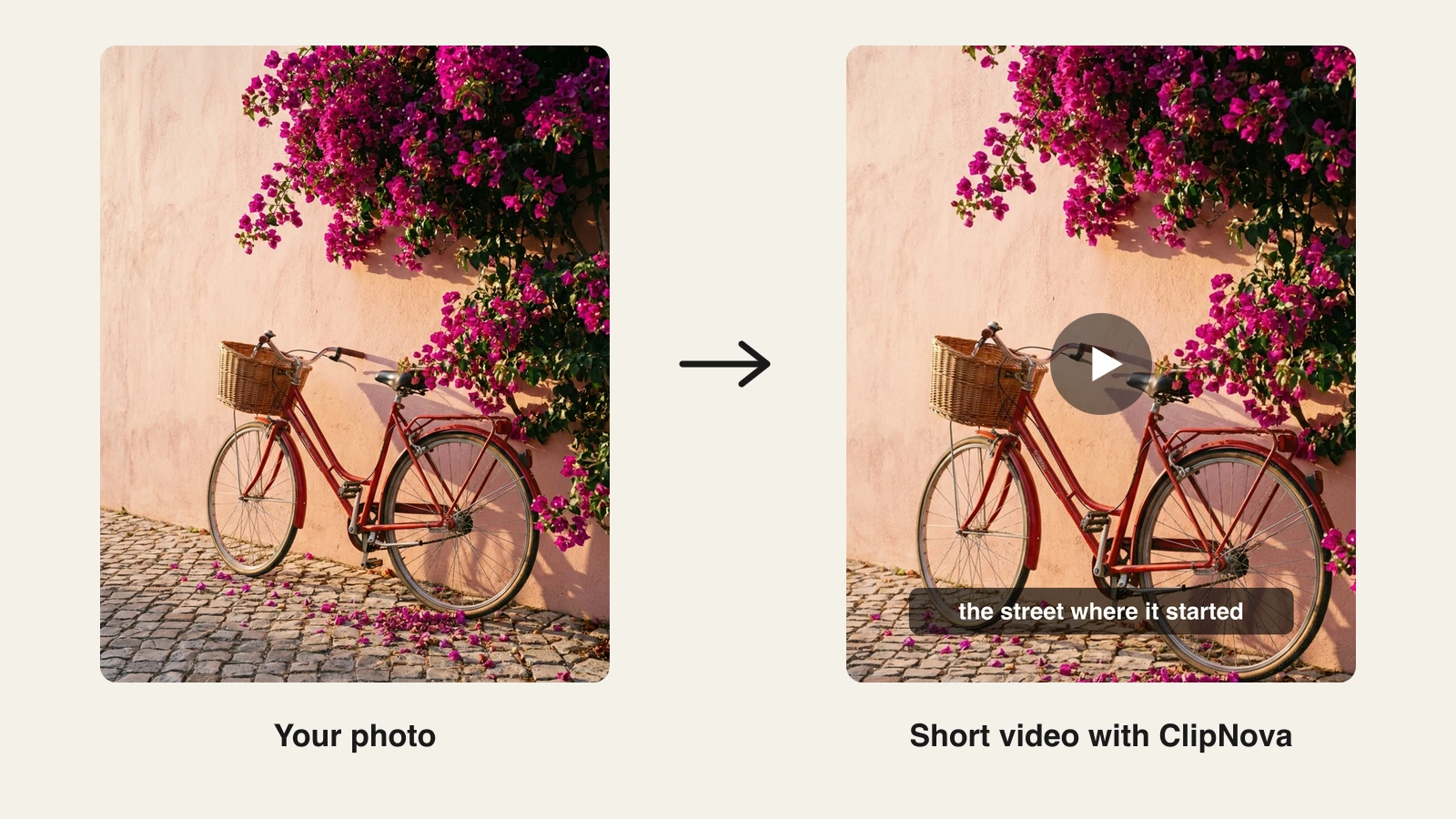
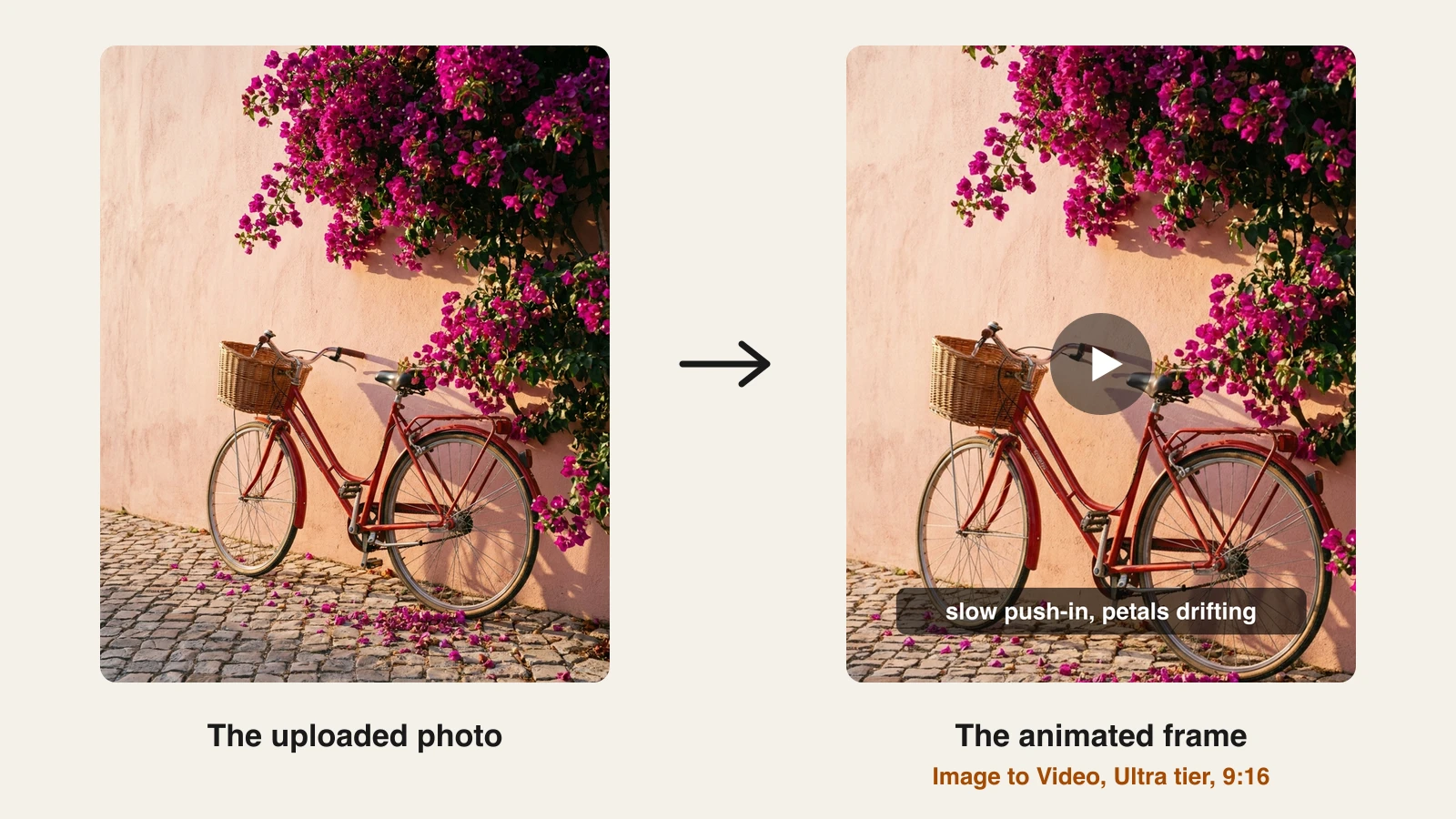
Here is the exact flow, using a travel photo of a red bicycle against a pastel wall as the example:
- Log in to the ClipNova app. New accounts start with 70 free credits and no card required, which covers your first few clips.
- Open AI Video Studio from the sidebar and pick the Image to Video tool (the same one as the image to video AI page on the site).
- Upload your photo as a JPG or PNG.
- Describe the motion. Our prompt: "Slow cinematic push-in on the red bicycle, bougainvillea petals drifting down in a soft breeze, warm late-afternoon light, gentle parallax between the wall and the bike, shallow depth of field."
- Choose a quality tier. Base is a fast 720p draft, Pro is the balanced cinematic option, and Ultra gives 1080p with synced audio. Draft on Base, finish on Ultra.
- Switch on voiceover, music, and subtitles if you want the finished short rather than a silent clip, then click Animate Image.
- Review the clip. If the motion is too strong or the wrong element moved, edit one line of the prompt and regenerate.
- Export in 9:16 at 1080p, or 4K if you need it, and download.
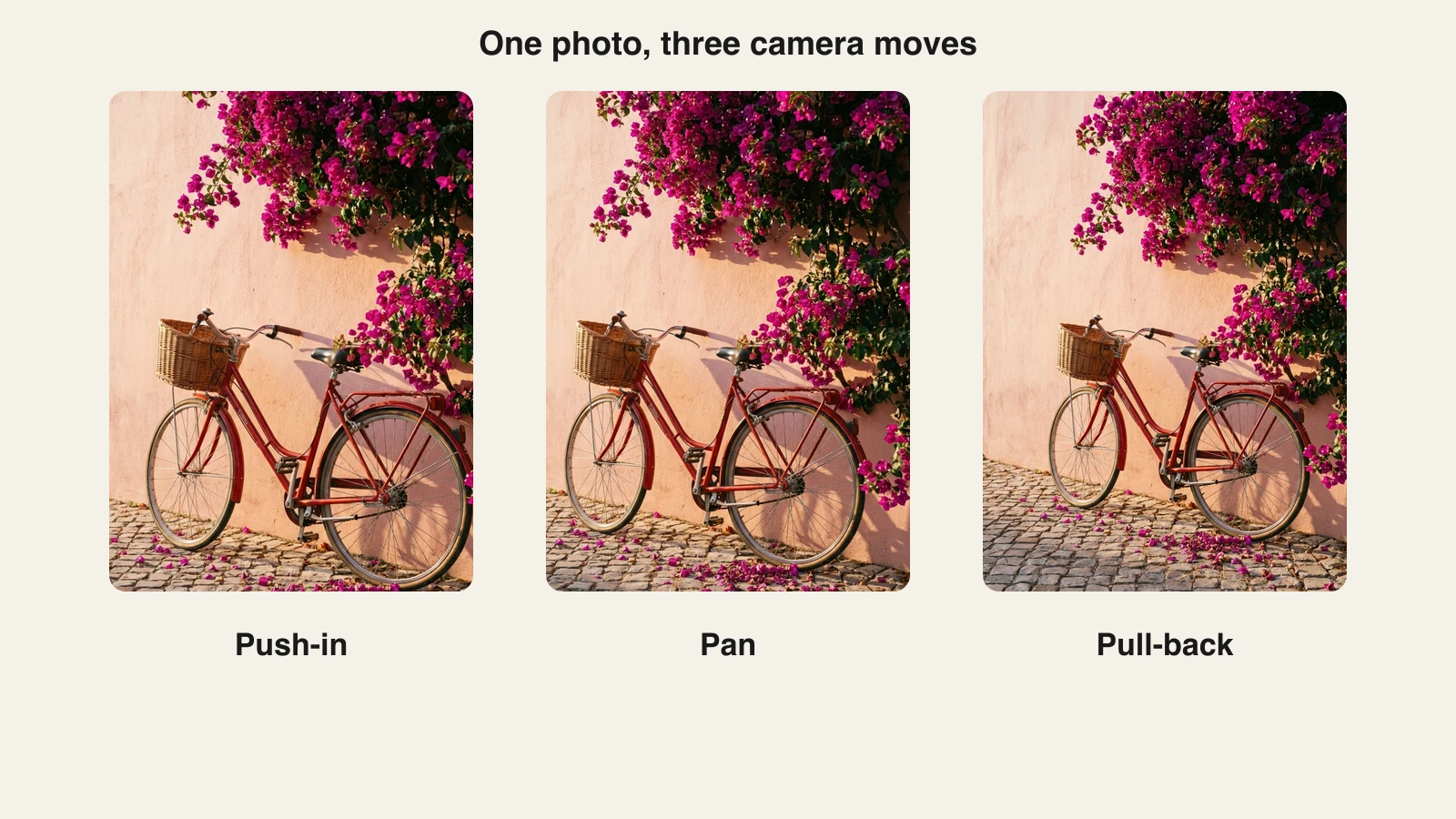
One photo can produce several different clips by changing only the camera move. A push-in, a pan, and a pull-back from the same still give you three shots to cut between, which is how a single photo becomes a 30-second short instead of a 6-second loop:
Under the hood, ClipNova runs current video models such as Kling 3.0 and Veo 3.1, so the motion quality matches what you would get from the model vendors directly, with the voice, caption, and music layers added on top. Every plan includes the full feature set and full commercial rights, and plans start at $19 a month.
Step 4: Turn the clip into a short, not a loop
A 6-second animated photo is a nice effect. A short needs a reason to watch. Four additions make the difference:
- A hook in the first second. Put the most striking motion first, or open on text that opens a loop: "This photo is 40 years old." Viewers decide in the first frame whether to keep watching.
- A voiceover. Even 20 words turn a clip into a story: where the photo was taken, what the product does, who the person was. ClipNova's narration is available in 32 languages, so the same short can be localized without re-recording.
- Captions. A large share of short-form viewing is on mute. Burned-in subtitles make the story land with the sound off, and ClipNova generates them synced to the voice when you switch subtitles on.
- Music. A soft bed under the narration hides the silence that makes AI clips feel synthetic.
For length, 15 to 45 seconds is the sweet spot for a photo-based short. Two or three animated clips from the same photo, or from a small set of related photos, cut together over one narration, is a format that works for travel recaps, product launches, memorials, and before-and-after reveals.
Step 5: Export and post
Export vertical 9:16 at 1080p for Shorts, Reels, and TikTok. Use 4K only if you plan to crop later. Keep the file under 60 seconds if you want it treated as a Short on YouTube, and put the hook text in the top two-thirds of the frame so platform UI does not cover it.
If the short is for a brand, add the logo and a closing call to action on the final clip. If it is personal, skip both. Then post the same file to all three platforms; there is no reason to render three versions.
Motion prompts by photo type
Copy these and adjust the nouns.
- Portrait: "Subtle push-in on the face, a slow natural blink and the hint of a smile, hair moving gently in a light breeze, background softly out of focus and still."
- Product shot: "Slow orbit around the product, soft studio light sweeping across the surface, background clean and static, shallow depth of field, premium and calm."
- Landscape: "Slow cinematic pull-back revealing the scene, clouds drifting, water moving gently, warm light, wide parallax between foreground rocks and the distant mountains."
- Food: "Gentle push-in on the plate, steam rising, a soft rack focus from the garnish to the main dish, warm overhead light."
- Old family photo: "Very subtle push-in, gentle parallax, minimal subject motion, film grain, warm faded tones, no changes to faces."
- Artwork or illustration: "Slow pan across the artwork, painted elements shifting with soft parallax, light dust particles drifting, painterly motion, nothing leaves the frame."
For a face that should speak rather than just move, use the talking avatar generator instead of image to video: it lip-syncs a script to the portrait. For a product that needs a full ad, the AI product video generator builds the whole spot from the packshot.
Common mistakes and how to fix them
- Warped faces or hands. The motion asked for too much. Reduce to a camera move only and regenerate. Keep subject motion to blinks, breath, and hair.
- The wrong element moved. Name the subject explicitly in the prompt ("the red bicycle stays fixed while the petals move") and say what should stay still.
- Flicker or a shape that morphs at the edges. Usually a tight crop. Re-crop with more room around the subject, or ask for a pull-back instead of a push-in.
- The clip looks like a slideshow. No ambient motion. Add one atmospheric element: steam, dust, drifting clouds, moving water.
- Blurry output. Low-resolution input or the draft tier. Upload the original file and finish on the higher-quality tier.
- It reads as fake. Silence. Add narration and music; sound is what convinces the viewer the clip is real footage.
How to choose your photo-to-video workflow
1) Do you need a clip or a finished short?
- If you only need the animated clip for an editor you already use: any image-to-video model works, and the model pages on ClipNova let you pick one by look.
- If you need the posted short, voice and captions included: use the image to video tool inside ClipNova so the whole thing comes out of one generation.
2) Is the subject a person, a product, or a scene?
- Person who should speak: talking avatar, not image to video.
- Person who should just come alive: image to video with subtle motion only.
- Product: orbit or sweep-light prompts, or the product video generator for a complete ad.
- Scene or artwork: camera moves plus ambient motion. These are the most forgiving inputs.
3) How many photos do you have?
- One photo: generate two or three camera moves from it and cut between them.
- A set of photos: animate each with the same camera style and narrate across them. Consistency of motion is what makes a set feel like one video.
Generate the first version on the fast tier, fix the prompt until the motion is right, then render the final on the highest tier. The whole process, from picking the photo to a posted short, takes minutes rather than an editing session.
Frequently asked
How do I turn a photo into a video with AI?
Upload a sharp photo to an image-to-video tool, write a prompt that describes the motion rather than the picture (a slow push-in, hair moving in a breeze, steam rising), choose a quality tier, and generate. In ClipNova you open AI Video Studio, pick Image to Video, upload the image, describe the motion, and switch on voiceover, music, and subtitles if you want a finished short instead of a silent clip.
Can I turn a photo into a video with AI for free?
Yes, for a first test. ClipNova gives every new account 70 free credits with no card required, which is enough to animate a few photos and see the result. Ongoing use needs a paid plan, which starts at $19 a month with the full feature set and commercial rights included.
How long can an AI photo-to-video clip be?
A single generation is typically 5 to 15 seconds depending on the model and tier. To make a longer short, generate two or three clips from the same photo with different camera moves, or animate a small set of related photos, and cut them together over one narration. Fifteen to 45 seconds is the sweet spot for a photo-based short.
What kind of photo works best for AI video?
A sharp, well-lit image with one clear subject and some space around it. Portraits, product shots, landscapes, food, and artwork animate well. Blurry or heavily compressed photos, cluttered scenes, and tight crops produce warped motion. Crop to 9:16 before uploading if the video is for Shorts, Reels, or TikTok.
How do I write a prompt to animate a photo?
Describe what changes over time, not what is in the picture. State the camera move, any subject motion, what the background does, and the pacing, for example "slow push-in on the subject, hair drifting in a soft breeze, background still with light parallax, warm cinematic light." Limit each clip to one or two motion types and add elements one regeneration at a time.
Can AI make a photo of a person talk?
Yes, but that is a different tool. Image to video adds natural motion such as blinks, breath, and hair movement. To make a portrait speak a script with lip sync, use a talking avatar generator, which ClipNova includes on every plan alongside image to video.
Why does my AI photo video look distorted?
The prompt usually asked for too much subject motion, or the input was low resolution or tightly cropped. Reduce the prompt to a camera move only, upload the original full-size file, leave room around the subject, and finish on the highest quality tier rather than the draft tier.
What is the easiest way to make a short video from a photo?
Use a tool that outputs the finished short rather than a raw clip. ClipNova animates the photo, then adds an AI voiceover in any of 32 languages, synced captions, and music in the same generation, and exports vertical 1080p or 4K for Shorts, Reels, and TikTok. The whole process takes minutes and starts free with 70 credits.