To turn an article into a video, decide the format first, then let an AI video tool do the conversion. Paste the article's link (or upload it as a PDF or Word file), pick a length between 30 seconds and 5 minutes, choose a voice and a look, and generate. The tool condenses the article into a narration, voices it, makes a scene for each line and burns in the captions. With ClipNova the whole thing takes one pass, with no filming or editing.
This guide follows one real article from link to finished video: Wikipedia's page on the 1919 Great Molasses Flood in Boston, about 4,500 words, turned into a 1-minute narrated vertical. You'll see every screen, what each setting does, what it cost, and the mistakes that make article videos fall flat.
Why turn articles into videos
An article is research that is already done. The facts are checked, the story has a shape, and the best line is somewhere in the second paragraph. What the article lacks is reach: most people never click a link to read 2,000 words, but they will watch 60 seconds of the same story in their feed.
Turning articles into videos reuses that work for TikTok, Reels, Shorts and YouTube. It suits:
- Bloggers and newsletter writers who want each post to work a second time on social.
- Marketers repurposing guides, case studies and product posts.
- Educators turning a reading assignment into something students watch before class.
- Faceless channels built on history, science and true stories, where a good article is the raw material.
Before you start: three decisions
Ten seconds of thinking here saves a wasted render.
1. The format
| Format | Length | Best for | What to keep from the article |
|---|---|---|---|
| Story vertical | 30-60 s | TikTok, Reels, Shorts | The single most striking story or fact |
| Summary vertical | 60-90 s | Reels, Shorts, LinkedIn | The main point and two or three takeaways |
| Explainer | 2-5 min, 16:9 | YouTube, your own site | The article's structure, section by section |
The same article can feed all three. Start with the short one: it is the cheapest to make and the fastest to test.
2. The source
Articles with a story turn into the strongest videos: an event, a person, a before and after. A list of tips works too, but it needs the longer lengths so every tip survives. Avoid pages that are mostly tables or code.
Only convert articles you have the right to use. Your own posts are fine. Wikipedia text is under CC BY-SA, so credit it (we credit it under every frame of our example). News sites and paywalled articles usually need the publisher's permission.
3. The look
Pick a style that matches the topic: Cinematic for history and news, Disney / Pixar 3D or a cartoon look for kids and light topics. Keep captions on, because most short-form video is watched on mute.
How to turn an article into a video with ClipNova
ClipNova's blog to video AI runs inside the app's PDF to Video tool. Despite the name, it takes article links as well as PDF, DOCX and TXT files. Here is the exact run for the molasses flood article.
Step 1: Paste the article link
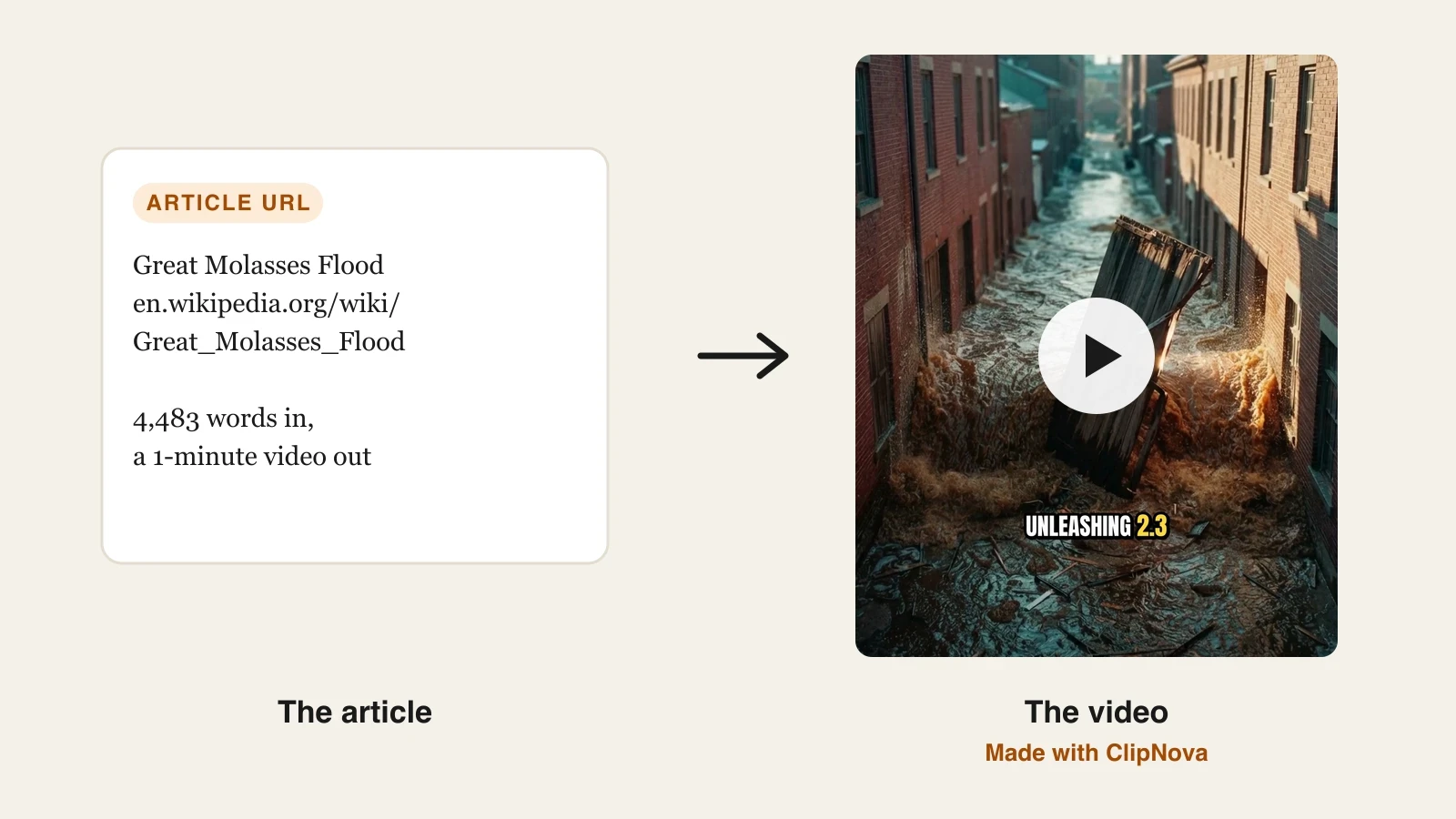
Open app.clipnova.io, go to AI Video Studio > PDF to Video and click the Article URL tab. Paste the link and click Read. ClipNova pulls the article text and drops the menus, ads and footers. Our Wikipedia page came back as 4,483 words ready.
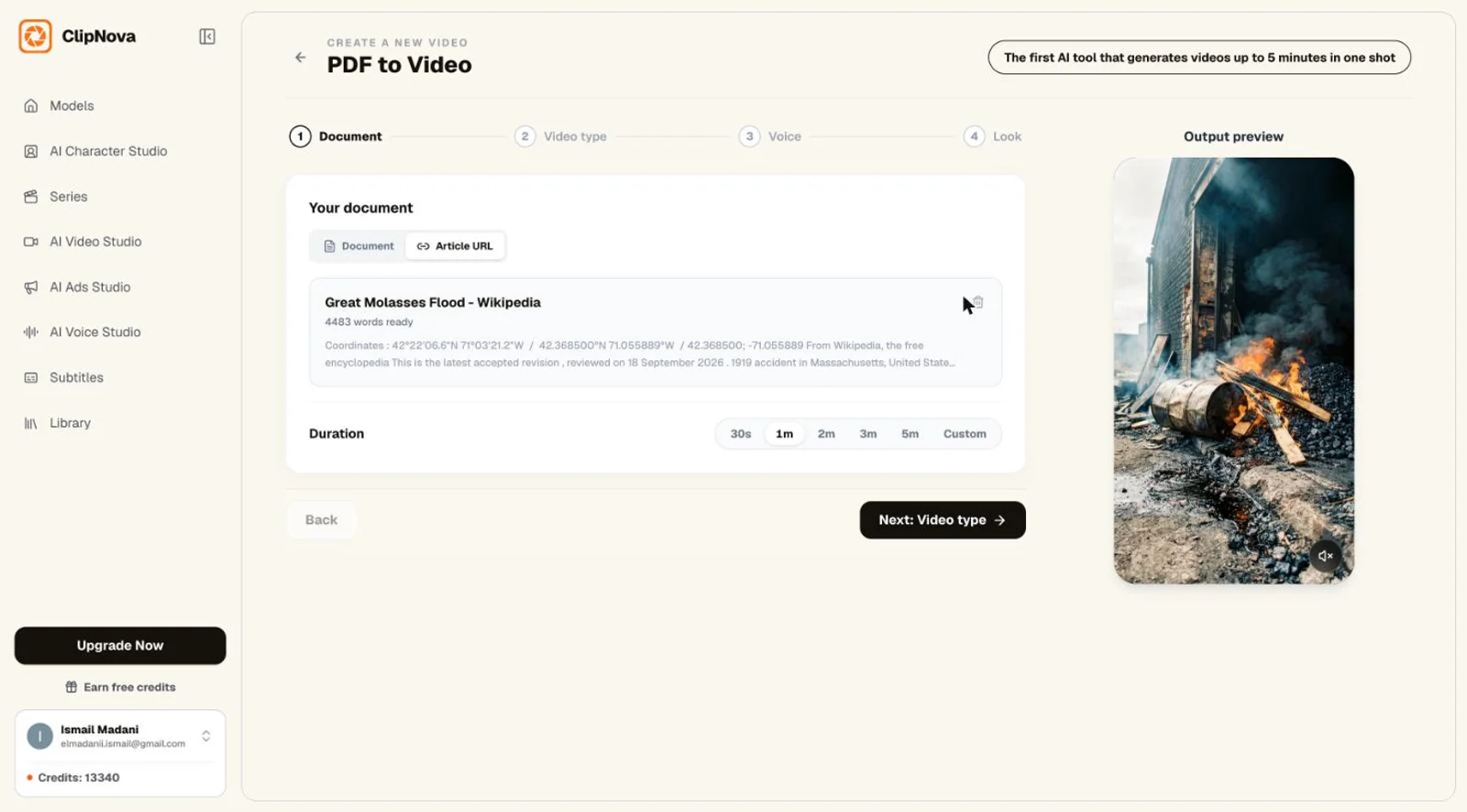
Two limits to know: a page behind a login or a paywall can't be read from the link, and a link that opens a PDF has to be downloaded and uploaded under Document instead. Very long articles are read up to about 12,000 words.
Step 2: Pick the length
Under the article, choose 30s, 1m, 2m, 3m or 5m, or Custom. The narration is written to fit that length, so this is also where you decide how much of the article survives. We picked 1 minute, which came out at about 140 words of narration: the disaster, its cause and its aftermath in one line each.
Step 3: Pick the video type
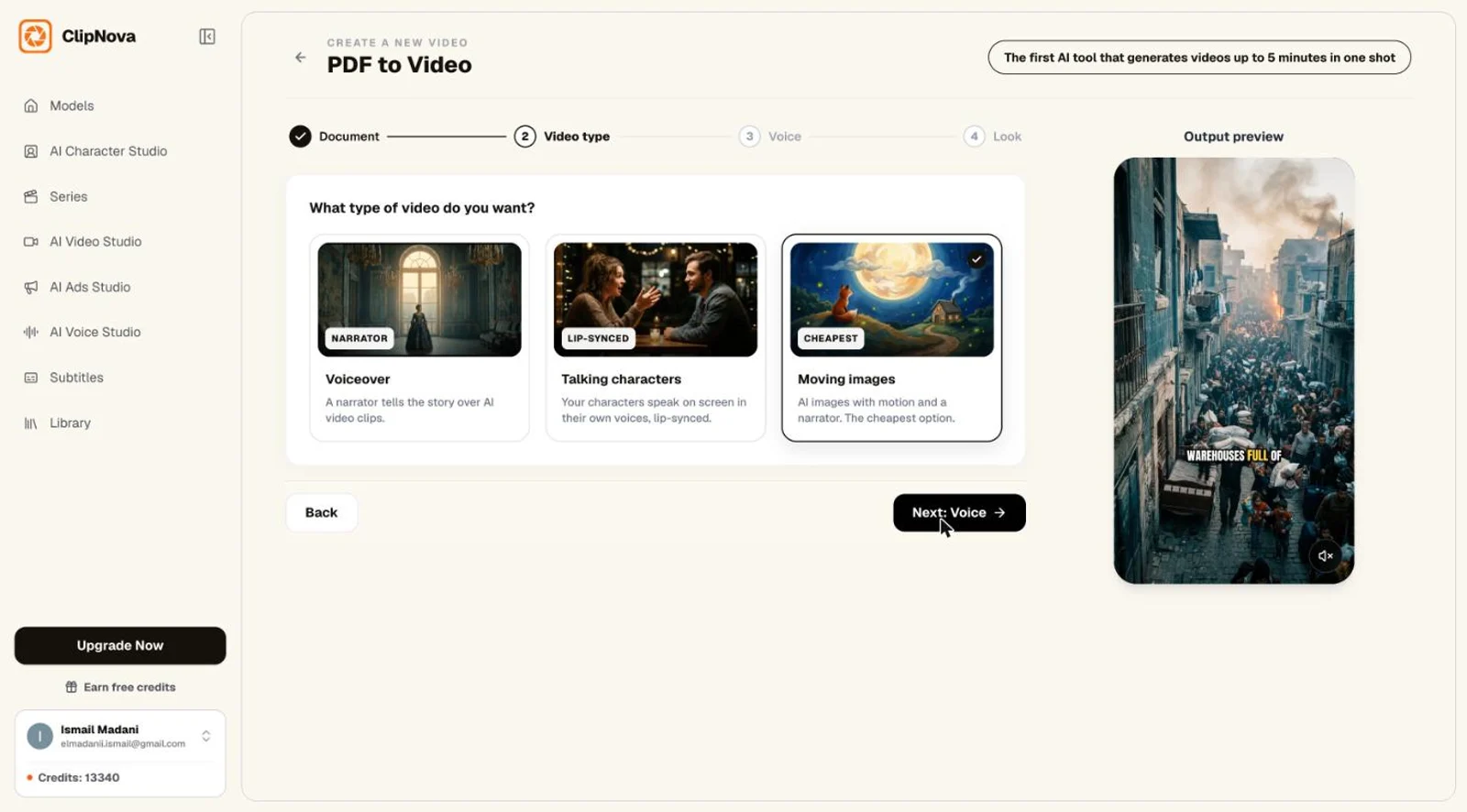
Moving images animates AI pictures under the narration and is the cheapest option. Voiceover puts a narrator over AI video clips. We used Moving images. (Talking characters, where people speak on screen, suits dialogue scripts more than articles.)
Step 4: Choose the voice
Pick a narrator from the voice list, or use Upload audio instead if you'd rather record it yourself. We kept Rachel, a warm female narration voice. The narration is written in the article's language, so an English article gets an English voice-over.
Step 5: Set the look and the quality
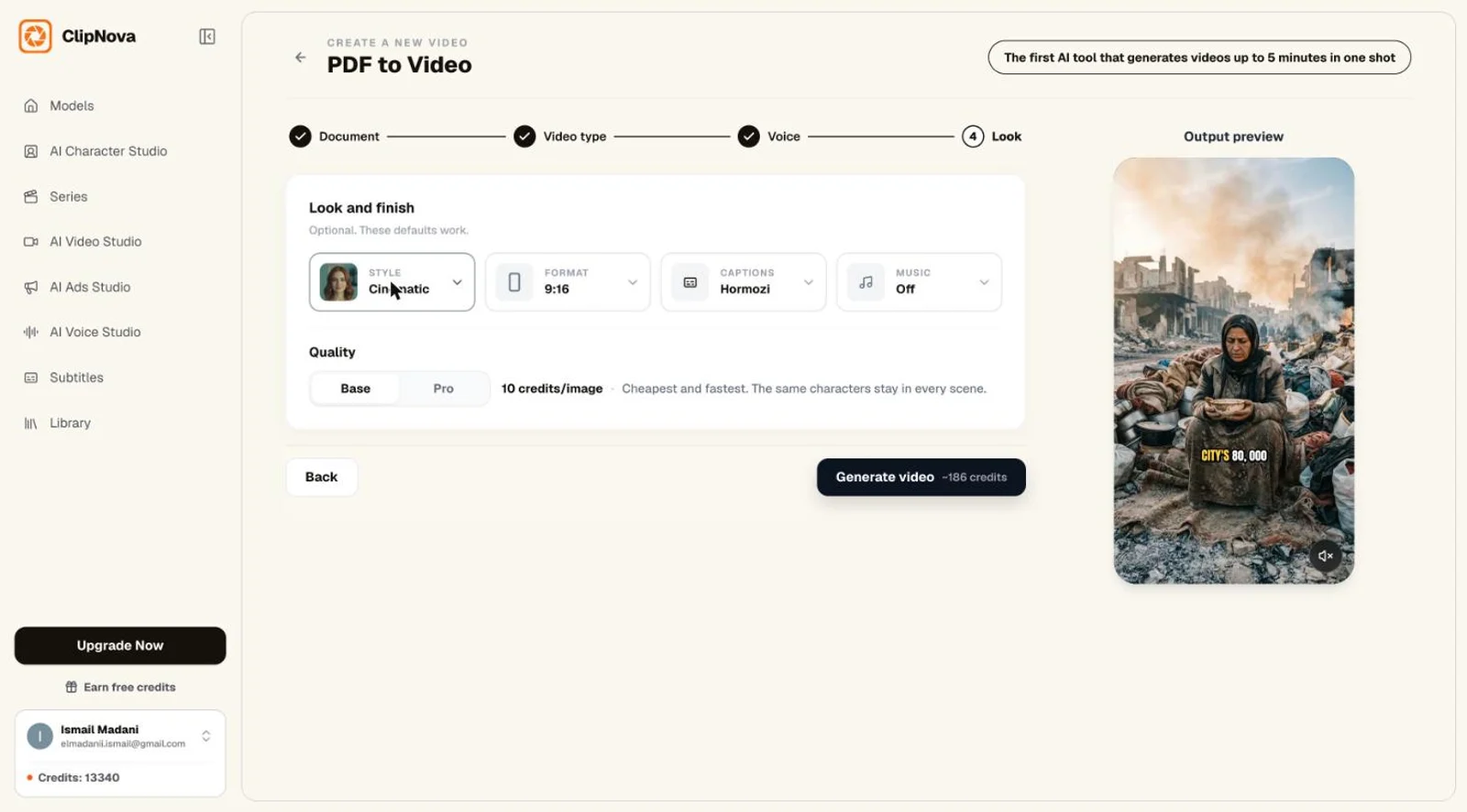
Choose the style (we used Cinematic), the format (9:16, 16:9 or 1:1), the caption design (we used Hormozi) and optional music. For Moving images, Base quality costs 10 credits per image and Pro is sharper. The Generate button shows the estimate before you spend anything: about 186 credits for our settings, and 176 were charged.
Step 6: Generate
Click Generate video. ClipNova writes the narration from the article (this step uses no credits), keeping its facts, numbers and names and adding none of its own. The voice reads that narration word for word, each line becomes its own scene, and the captions are burned in. The finished video lands in your Library.
Here is the narration ClipNova wrote from the 4,483-word article:
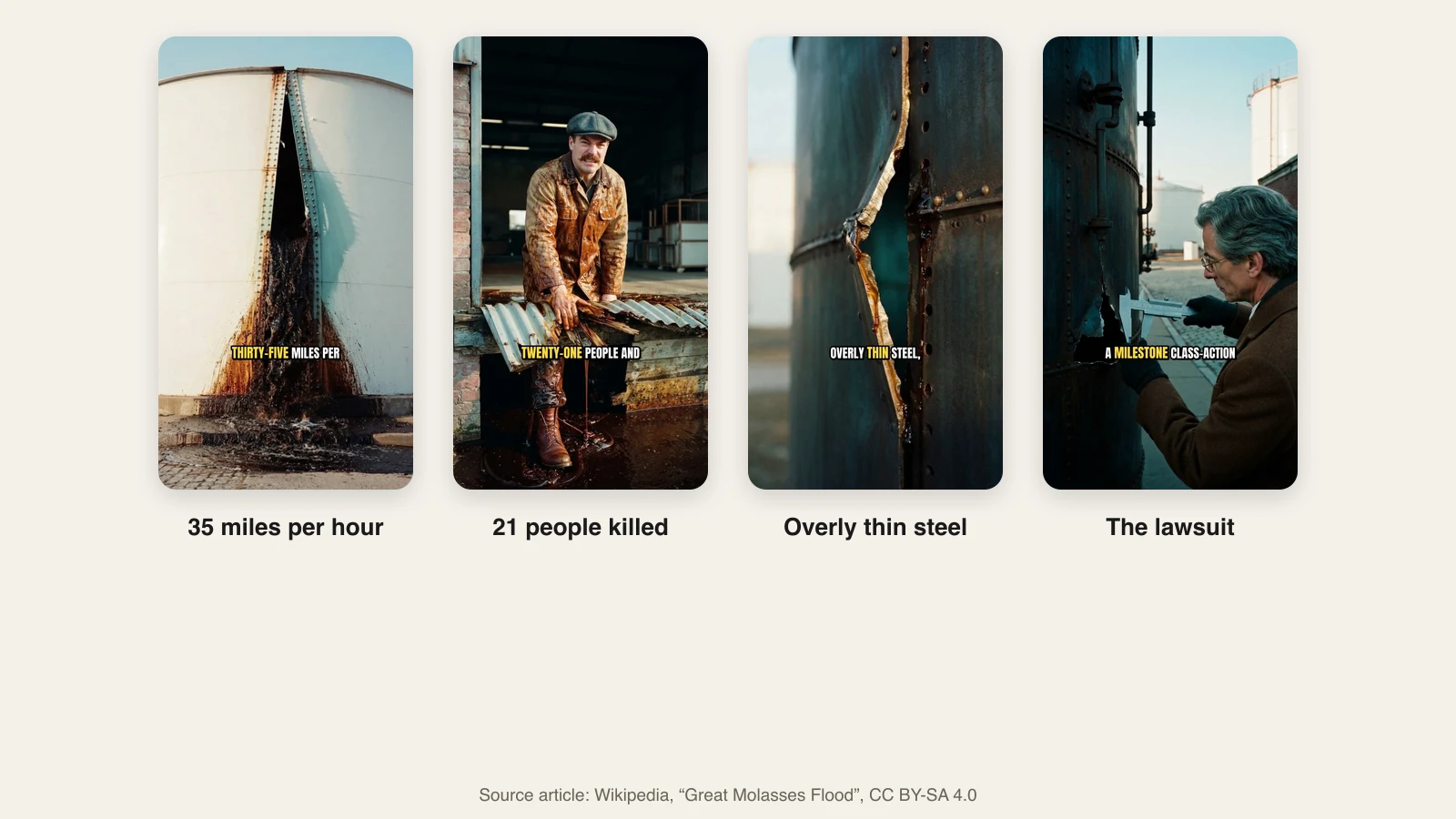
On January 15, 1919, a deadly wave of molasses surged through Boston's North End at thirty-five miles per hour. A massive storage tank at the Purity Distilling Company burst open, unleashing 2.3 million gallons of heavy syrup. Reaching twenty-five feet high, the wave crushed buildings, damaged elevated railway tracks, and flooded several city blocks. The disaster killed twenty-one people and injured one hundred fifty. As the fluid cooled in the winter air, it thickened rapidly, trapping victims in the sticky wreckage. Investigators found the tank was poorly constructed with brittle, overly thin steel, and basic safety tests had been ignored. A milestone class-action lawsuit held the United States Industrial Alcohol Company responsible, forcing it to pay six hundred twenty-eight thousand dollars in damages. The catastrophe permanently reformed building regulations, establishing mandatory oversight by licensed architects and civil engineers.
That is about 140 words from 4,483: the date, the speed, the 2.3 million gallons, the death toll, the cause, the lawsuit and the change in building rules, all taken from the article. It opens on the most dramatic sentence in the piece, not on background.
And here is what it looked like:
There is no step where you edit the narration in this tool: Generate writes it and makes the video in one go. If you want to control every word, write a short script from the article yourself and paste it into Script to Video AI instead.
Tips for better article videos
- Lead with the strangest fact. A molasses wave moving at 35 miles per hour stops a scroll; "In 1919, there was an accident" doesn't. Articles that open with background make slow videos, so pick a story whose opening is already a hook.
- Match the length to the detail. One minute gave the molasses flood one sentence per idea. The article's details (the rescue, the trial's three years of hearings, the folklore about the smell) only fit at 3 or 5 minutes. If a detail matters, choose a longer length rather than hoping it survives.
- Make two versions from one link. Run the same link at 1 minute in 9:16 for Shorts and Reels, then at 3 or 5 minutes in 16:9 for YouTube. ClipNova renders each format as its own video; there is no re-export of a finished video into another ratio.
- Keep the captions. They carry the story for people watching without sound.
- Credit the source. Put the article's name in the caption or description, and link to it if it is yours: the video becomes a route back to the post.
Common mistakes
Converting the whole blog archive at once. Make one video from a post that already performs, check how it does, then batch the rest.
Picking 30 seconds for a list article. Ten tips in 30 seconds means none of them land. Use 2 minutes or more, or pick the three best tips and write your own script.
Using a link the tool can't read. Paywalls, logins and PDF links fail. Save the page as a PDF and upload it.
Expecting stock-footage results. Template tools like Pictory and InVideo match your text to stock clips, which is fast but generic. ClipNova generates a scene for each line, so a flood article shows the flood. Pick the tool for the visuals you want. If you write long articles, ClipNova also goes up to 5 minutes from one article, where most converters aim at short clips.
What it costs
Writing the narration uses no credits; you pay for the video. Our 1-minute Moving images video with captions on Base quality cost 176 credits. ClipNova plans start at $49.99 a month with commercial rights on every plan (see pricing), so a Starter plan's 2,600 credits cover more than a dozen 1-minute article videos at those settings.
Final advice
Start with one article you are proud of, and make the 1-minute vertical first. If it gets watched, make the long explainer from the same link and post it on YouTube. To see the tool, the settings and the real example in one place, open the blog to video AI page, or go straight to the app and paste your first link.
Frequently asked
How do I turn an article into a video?
Decide the format first (a 30 to 60 second vertical or a 2 to 5 minute explainer), then give the article to an AI video tool. In ClipNova, open PDF to Video, paste the article link and click Read, pick the length and video type, choose a voice, style and captions, and click Generate. ClipNova writes the narration from the article, voices it, makes a scene for each line and burns in the captions.
Can AI turn an article link into a video?
Yes, if the page is public. ClipNova reads the article text from a public https link and ignores menus, ads and footers. Pages behind a login or a paywall, and links that open a PDF file, can't be read from the link; save the article as a PDF, DOCX or TXT file and upload it instead.
Will the video change what the article says?
It shouldn't, and in ClipNova it is written not to. The narration is condensed from the article's own facts, numbers and names and adds none of its own. A shorter video keeps fewer points, so pick a longer length when the detail matters.
How long should a video made from an article be?
30 to 60 seconds for TikTok, Reels and Shorts, where one clear story or takeaway works best, and 2 to 5 minutes in 16:9 for YouTube, where you can follow the article section by section. One article can become both.
Can I turn someone else's article into a video?
Only if you have the right to. Your own posts are fine. For other sources, check the license and credit the source: Wikipedia text, for example, is under CC BY-SA, which requires attribution and the same license for adaptations. News articles and paywalled content usually need the publisher's permission.
Can I edit the script before the video is made?
In ClipNova's PDF to Video, Generate writes the narration and makes the video in one go, so there is no edit step. If you want to control every word, write a short script from the article yourself and use Script to Video AI instead.