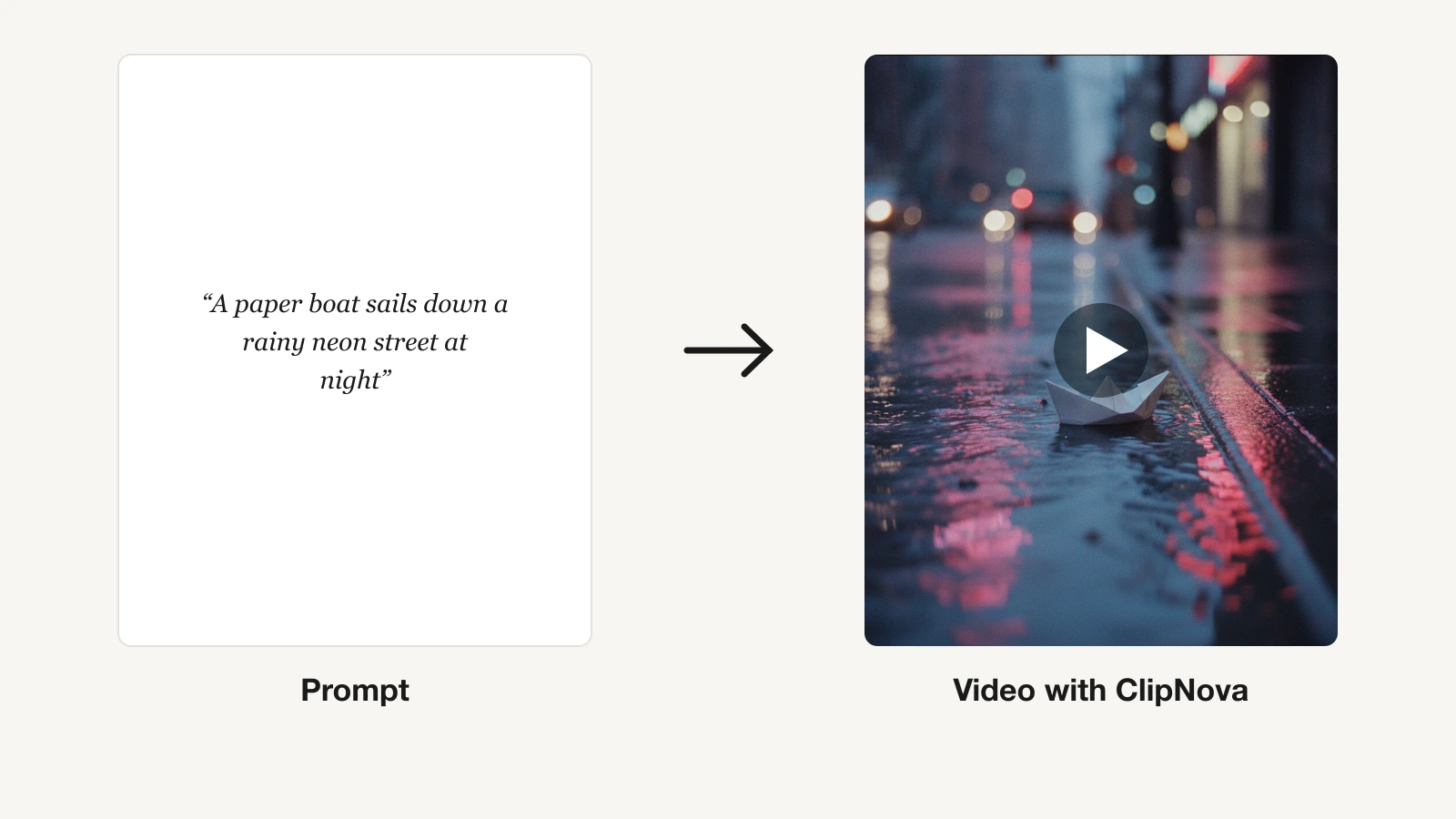
You can now make a finished video without a camera, actors or editing software. You type what should happen on screen, an AI model renders the shots, and a voice, captions and music are added on top. The hard part is no longer the tools. It is knowing what to type, which settings matter, and how to turn a five-second clip into something people actually watch to the end.
This guide shows you how to make AI videos step by step, from a blank page to an exported file. We use ClipNova as the worked example because it runs the whole chain in one place, and we cover the other engines you will run into along the way.
How to make AI videos: the short version
- Pick one idea and one format. A 30 second vertical story, a 60 second explainer, or a 16:9 YouTube scene.
- Write a prompt that names the subject, the action, the setting, the camera and the light.
- Choose a visual style (Cinematic, Anime, Claymation, Pixar-style 3D and so on) and keep it for the whole video.
- Set the length, aspect ratio and quality. 9:16 for TikTok, Reels and Shorts, 16:9 for YouTube.
- Add a voiceover so the video tells a story instead of just moving.
- Turn on captions and music. Most short-form viewers watch with the sound off.
- Generate, review and export. Fix the one scene that is off, then download.
The rest of this guide walks through each step, with the settings that make the difference.
What you need before you start
Less than you think. You need an idea, a few minutes to write, and an AI video tool. You do not need footage, a microphone or editing skills.
There are two kinds of tools, and it helps to know which one you are using:
- Clip models such as Veo 3.1, Kling, Seedance and Wan. You give them a prompt (and sometimes an image) and they return one shot, usually 4 to 30 seconds long. You still have to write the narration, add captions and stitch shots together yourself.
- End-to-end video generators such as ClipNova. You give them an idea and they return a finished video: several shots, a voiceover written to fit the length, captions and music, in the format you picked.
If you want a single striking shot for an edit, a clip model is enough. If you want a video you can post today, start with an end-to-end tool and drop down to a specific model only when a shot needs it.
Step 1: Pick one idea and one format
Most first AI videos fail because they try to show too much. A good first video has one subject, one place and one turn of events. "A lighthouse keeper lights the lamp during a storm and spots a boat in trouble" works. "The history of lighthouses" does not, at least not in 30 seconds.
Decide the format at the same time, because it changes how you write:
- Short vertical story (20 to 60 seconds, 9:16): one hook line, two or three scenes, a clear ending. Best for TikTok, Reels and Shorts.
- Explainer (60 to 90 seconds): one question, three points, one takeaway. The voiceover carries it, the visuals illustrate.
- YouTube scene or long video (16:9, 2 to 5 minutes): several scenes that follow a script. Plan it as chapters.
If you run a faceless channel, pick ideas from a niche you can repeat every day. Our guide to making faceless content with AI covers niche choice and posting rhythm in more detail.
Step 2: Write the prompt
The prompt is where most of the quality comes from. Both OpenAI's Sora 2 guide and Google's Veo 3.1 guide land on the same advice: be concrete about what the camera sees, and describe one clear action per shot.
A reliable formula has six parts:
| Part | What to write | Example |
|---|---|---|
| Subject | Who or what is on screen, with two or three visual details | An old lighthouse keeper in a yellow raincoat |
| Action | One clear thing that happens | climbs the last steps and lights the great lamp |
| Setting | Place, time of day, weather | inside the lamp room at dusk, stormy sea outside |
| Camera | Shot size, angle, movement | low-angle shot, slow push in |
| Light and color | Where the light comes from, two or three color anchors | warm lamp glow against cold blue twilight |
| Style | The look of the whole video | cinematic, 35mm film, realistic |
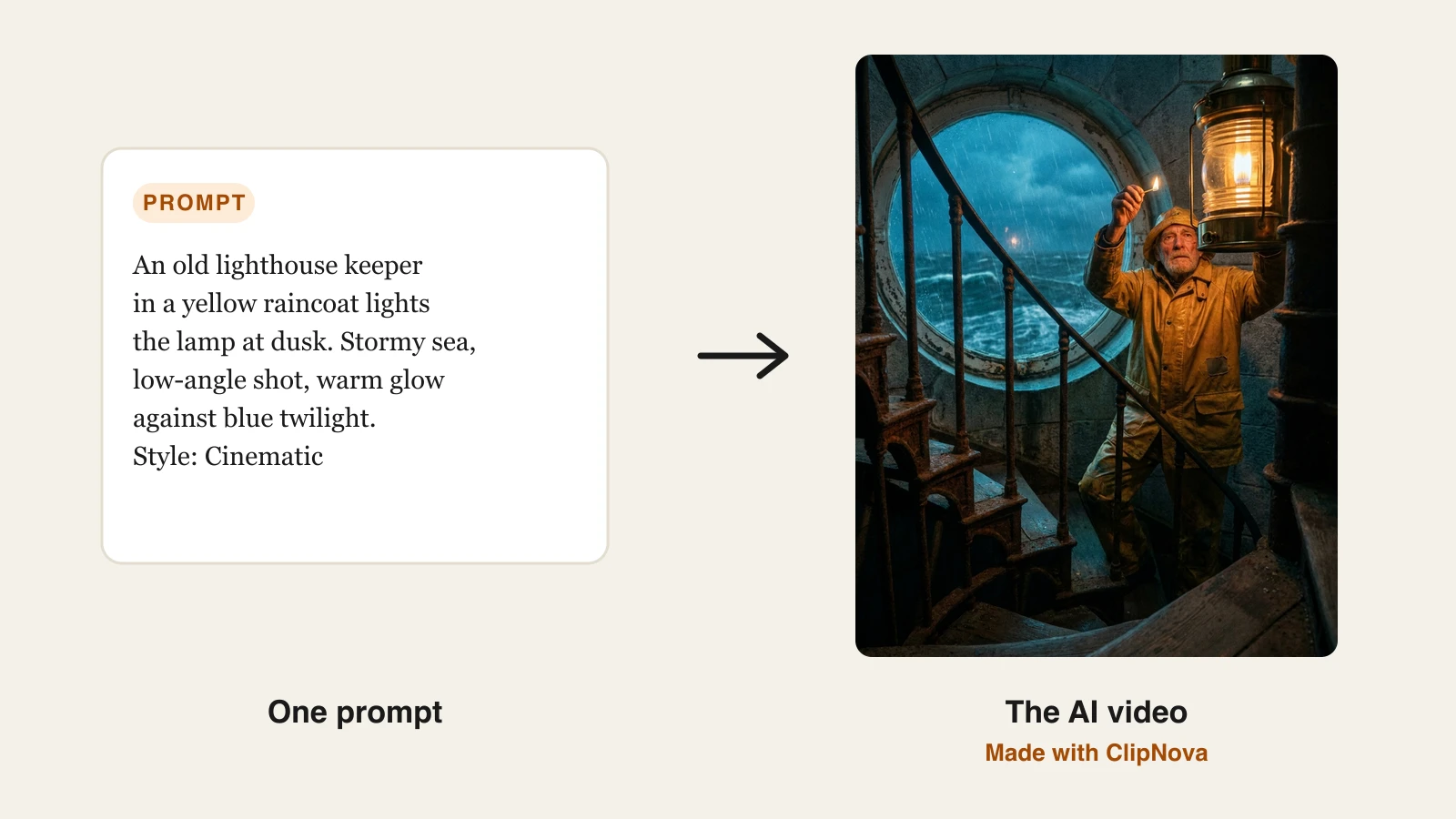
Put together: "An old lighthouse keeper in a yellow raincoat climbs the last steps of a spiral staircase and lights the great lamp at dusk. Stormy sea through the round window. Low-angle shot, slow push in. Warm lamp glow against cold blue twilight. Cinematic, 35mm film."
A few rules that save a lot of credits:
- Write what the camera sees, not what the viewer should feel. "Wet asphalt, neon reflections, steam from a grate" beats "a moody city".
- One camera move and one main action per shot. Two moves in one short clip usually come out as a mess.
- Give characters fixed details. If the keeper wears a yellow raincoat in scene one, write "yellow raincoat" in every scene.
- Leave out on-screen text. AI models still misspell words in the frame. Add text as captions instead.
If you are stuck, write the idea in one plain sentence and let a prompt helper expand it. In ClipNova the Prompt Enhancer button rewrites a rough idea into a model-ready prompt, which you can then edit.
Step 3: Choose a visual style
The style decides whether your video looks like a film, a cartoon or a children's book. The same prompt can produce very different videos:
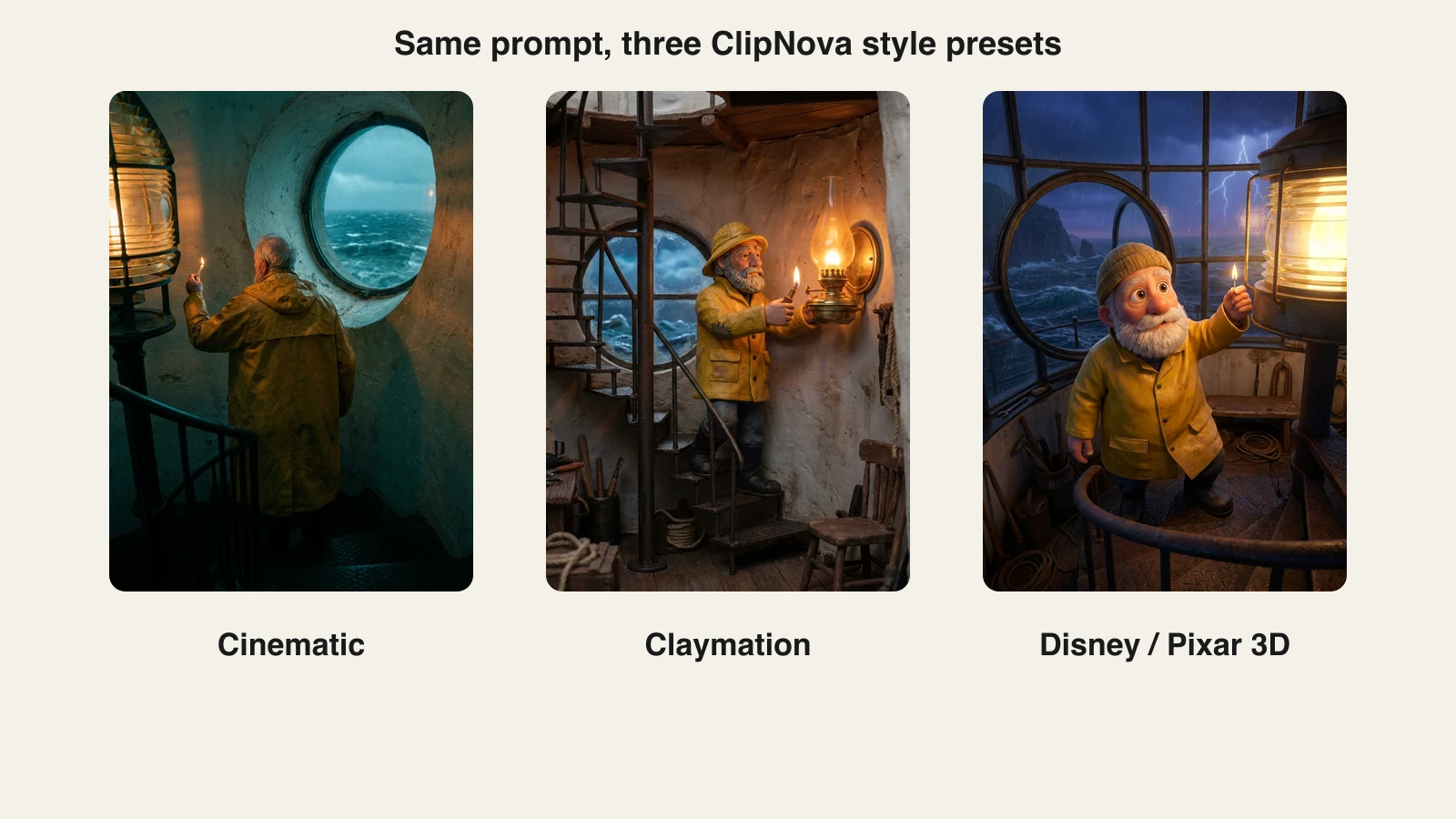
ClipNova's Prompt to Video has style presets such as Realism, Cinematic, Anime, Ghibli, Claymation, Disney / Pixar 3D, Cyberpunk, Film Noir, Watercolor, Pixel Art and Dark Fantasy, or no preset if your prompt already describes the look.
How to pick:
- Realism or Cinematic for stories, history, true events and anything aimed at adults.
- Disney / Pixar 3D, Claymation or Watercolor for kids' content and cozy stories.
- Anime or Ghibli for fan-style storytelling and fantasy.
- Dark Fantasy or Film Noir for horror and mystery.
Whatever you choose, use the same style for the whole channel. Viewers recognize a channel by its look before they read the name.
Step 4: Set length, aspect ratio and quality
Three settings to get right before you generate:
Aspect ratio. 9:16 for TikTok, Reels and Shorts. 16:9 for YouTube and websites. 1:1 for some feed posts. Pick it first, because the model composes the shot for that frame.
Length. Short-form stories work best between 20 and 60 seconds. In ClipNova you can set a manual length or leave it on auto, where the length follows your idea and the voiceover. Prompt to Video goes up to 5 minutes per video; longer videos are built from several shots, so describe your scenes in order.
Quality tier. ClipNova's Prompt to Video has three tiers:
- Base: fast, 480p, for drafts and testing ideas.
- Pro: 720p, more cinematic, for most posts.
- Ultra: 1080p, the sharpest finish for the version you post. Need a clip sharper still, up to 2K or 4K? Run it through the AI video upscaler.
Draft on Base, then re-run the version you like on Pro or Ultra. Credits are charged per second, so testing cheaply first is the single biggest saving.
Step 5: Add a voiceover
A moving image without a voice is a mood. A voice turns it into a story, an explainer or an ad. For faceless content, the voice is the character people come back for.
In ClipNova, narration is on by default in Prompt to Video. It writes the voiceover from your idea, sizes it to the video's length, and reads it with the voice you pick, in 18 languages including English, Spanish, French, German, Portuguese, Arabic, Hindi and Japanese. If you already have a script, paste it in and it is read word for word.
Tips for a voiceover that holds attention:
- Start with the hook, not the setup. "He hadn't missed a night in forty years. Tonight, the lamp would not light." beats "This is the story of a lighthouse keeper."
- Write for the ear. Short sentences, no lists, no brackets.
- Keep one voice per channel. It becomes part of your brand.
For more control over voices and languages, see ClipNova's AI Voice Generator.
Step 6: Turn on captions and music
Captions are not optional on short-form platforms. Many people scroll with the sound off, and word-by-word captions keep their eyes on the screen.
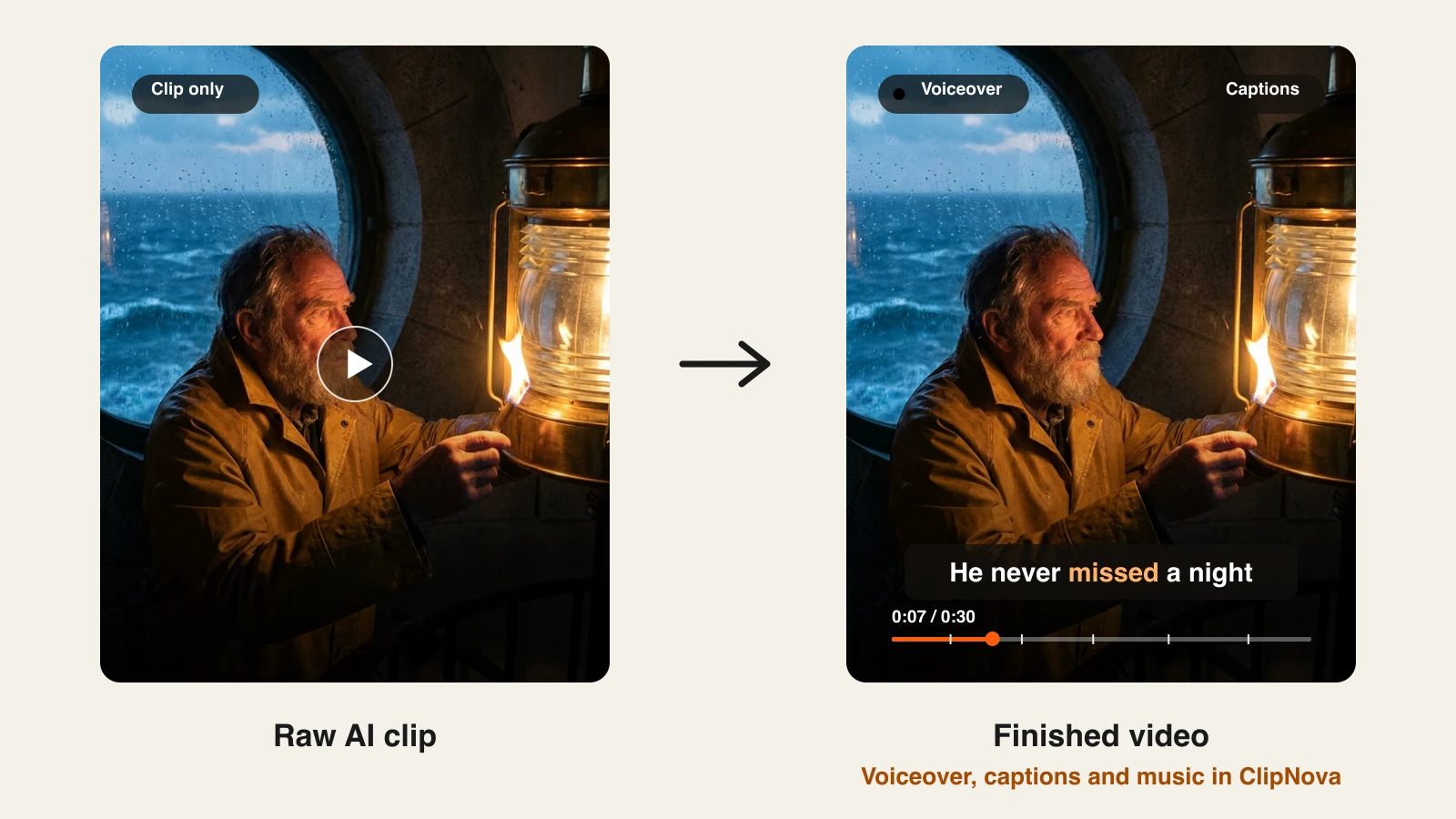
In ClipNova, captions and background music are switches in the same panel as the voiceover. Captions are burned in and light up word by word with the voice. Music is lowered automatically under the narration. You can also upload your own track.
If you already have a video and only need subtitles, the AI Caption Generator adds them to an existing file, and our guide on how to add captions to a video covers styles and placement.
Step 7: Generate, review and export
Generation takes from under a minute for a short draft to several minutes for a long video. When it is done:
- Watch it once with sound and once without. If it does not make sense muted, the captions or the visuals need work.
- Check the first two seconds. That is where viewers decide to stay. If the opening shot is weak, regenerate it or move a stronger scene first.
- Look for drift. Characters changing clothes, extra fingers, warped text. Regenerate the scene rather than the whole video.
- Export in the format you set and post natively on each platform.
How to make AI videos with ClipNova
ClipNova makes finished long videos with consistent characters. One idea or script becomes a video of up to 5 minutes, a saved character keeps the same face and outfit in every scene, and the script, scenes, voiceover, captions and music come back in one pass, so you can fix any single scene in Studio before you post.
Here is the full path inside the app:
- Sign in at app.clipnova.io and open AI Video Studio.
- Choose Prompt to Video.
- Type your idea, or paste a full prompt. Press Prompt Enhancer if you want it expanded.
- Pick the aspect ratio (9:16, 16:9 or 1:1), the quality tier (Base, Pro or Ultra) and a style preset.
- Leave Narrate the story on and pick a voice. Switch on captions and background music if you want them.
- Check the estimated cost in credits, then press Generate video.
- Download the finished video from your library when it is ready.
The Text to Video AI Generator page shows the same composer with example outputs if you want to see results before signing in. Plans start at $39 a month, and every plan includes the full feature set.
Other ways to make AI videos
ClipNova is not the only route, and it is worth knowing the alternatives:
- Pick a quality tier. You choose Base, Pro, or Ultra rather than a model. Draft on Base, then render the version you will post on the tier that fits it.
- Start from a photo. If you already have an image (a product shot, a portrait, a generated scene), Image to Video AI animates it, which gives you more control over the first frame than text does.
- Use a model maker's own app. Google, OpenAI, Kling and Runway all offer their own apps. They are good for single clips; you will usually still need an editor for the voiceover, captions and assembly.
If you are comparing tools, our roundup of the best text to video AI tools goes through the main options with pricing.
Common mistakes when making AI videos
- Too many ideas in one prompt. One subject, one action, one place per shot.
- Vague words. "Beautiful", "epic" and "amazing" give the model nothing to draw. Name the light, the lens and the colors.
- Changing style mid-video. Pick a preset and stay with it.
- Text inside the frame. Put words in captions, not in the prompt.
- Rendering everything at top quality. Draft cheap, finish expensive.
- No hook. If nothing happens in the first two seconds, nobody sees second three.
Three prompts to start with
Copy one of these into a text-to-video tool and change the details to your niche.
Story (9:16, Cinematic): "A young fisherman pulls a glowing glass bottle from the sea at dawn and finds a map inside. Close shot of his wet hands unrolling the paper, then a slow push in on his face. Soft golden light, mist on the water, muted teal and amber colors."
Explainer (9:16, Disney / Pixar 3D): "A curious honeybee with big round eyes explains how honey is made, flying from a sunflower to a hive. Bright meadow, morning light, gentle side-tracking shot, warm yellow and green palette."
Product (16:9, Realism): "A ceramic coffee mug on a wooden table by a rainy window, steam rising, a hand reaches in and lifts it. Macro close-up, slow dolly, soft window light, cream and walnut tones."
Run each one on Base first, keep the version you like, then regenerate it at a higher tier.
Frequently asked
How do I make an AI video for the first time?
Start with one idea and one format, such as a 30 second vertical story. Write a prompt that names the subject, the action, the setting, the camera angle and the light, pick a style, and generate. Then add a voiceover, captions and music, and export. End-to-end tools like ClipNova do all of these steps in one run.
What should I write in an AI video prompt?
Describe what the camera sees. Name the subject with two or three visual details, one clear action, the place and time of day, the shot size and camera movement, the light source and two or three colors, and the overall style. Avoid vague words like beautiful or epic, and keep one camera move per shot.
How long can an AI video be?
Most clip models render 4 to 30 seconds per shot. Longer videos are built by joining several shots. ClipNova's Prompt to Video makes videos up to 5 minutes long by planning the scenes and assembling them with one voiceover.
Can I make AI videos with a voiceover?
Yes. Some models, such as Veo 3.1, generate synced audio directly. End-to-end tools also write and record a narration for you. In ClipNova, narration is on by default, it is written to fit the video's length and can be read in 18 languages.
Which aspect ratio should I use for AI videos?
Use 9:16 for TikTok, Instagram Reels and YouTube Shorts, 16:9 for regular YouTube videos and websites, and 1:1 for some feed posts. Choose it before generating, because the model composes each shot for that frame.
Why do my AI videos look strange or inconsistent?
The usual causes are prompts that ask for too many actions at once, vague descriptions, characters without fixed details, and text inside the frame. Give each shot one action and one camera move, repeat the same character details in every scene, keep one style, and put words in captions instead of the image.
Can I use AI videos on YouTube and TikTok?
Yes, as long as you have the rights to the output and follow each platform's rules. YouTube and TikTok ask creators to label realistic AI-generated content, and YouTube's monetization rules reward original, varied videos over mass-produced repetitive ones. Every ClipNova plan includes commercial rights.
What is the easiest tool to make AI videos?
An end-to-end generator is the easiest start, because it turns one idea into a finished video with scenes, voiceover, captions and music. ClipNova's Prompt to Video does this in one generation, with style presets and Base, Pro and Ultra quality tiers. Plans start at $39 a month with every feature included.