Old 480p clips, a 720p AI generation, phone footage that looks soft on a big screen: all of it can look noticeably sharper with an AI upscaler. Unlike the stretch-and-blur scaling built into most editors, AI upscaling rebuilds edges, textures, and fine detail as it enlarges each frame.
This guide explains how to upscale a video to 1080p or 4K with AI, what upscaling can and cannot fix, and the exact steps in ClipNova.
What upscaling actually does
A 4K frame is 3840 × 2160 pixels, four times the pixels of 1080p and nine times the pixels of 720p. When you enlarge a video, those extra pixels have to come from somewhere.
- Traditional scaling (bicubic, the default in most editors) averages neighboring pixels. The video gets bigger but not sharper, so it looks soft.
- AI upscaling uses a model trained on pairs of low- and high-resolution footage. It predicts what the missing detail should look like: sharp edges, hair, skin texture, text, fabric.
The result is a sharper video, but the added detail is a prediction, not a recovery. An upscaler cannot read a license plate that was never legible in the original.
When upscaling is worth it
- AI-generated clips rendered at 480p or 720p that you want to publish at 1080p or 4K.
- Old home videos and archive footage from DVDs or early phones.
- Screen recordings and webinars that look soft on large monitors.
- Footage for a 4K timeline, so a lower-resolution clip does not stand out next to native 4K shots.
It is not worth it for footage that is badly out of focus or heavily motion-blurred. Upscaling makes those sharper-looking, not clearer.
Before you upscale: clean the source
Upscalers enlarge everything, including problems. Fix these first:
- Use the original file, not a download from a social platform. Every re-compression removes detail the upscaler would need.
- Trim first. Upscaling is slow and usually priced by length, so only upscale what you will use.
- Fix color and exposure before upscaling, not after.
- Deinterlace old footage (from tape or broadcast) before you upscale, or the comb lines get enlarged too.
1080p or 4K?
- 1080p is enough for TikTok, Reels, Shorts, and most social feeds, and it is quicker and cheaper.
- 4K is worth it for YouTube, big screens, client deliverables, and footage you will crop or zoom in the edit.
- Do not jump too far. A 360p clip upscaled straight to 4K tends to look painted. For very low-resolution sources, 1080p usually looks more natural.
How to upscale a video with ClipNova
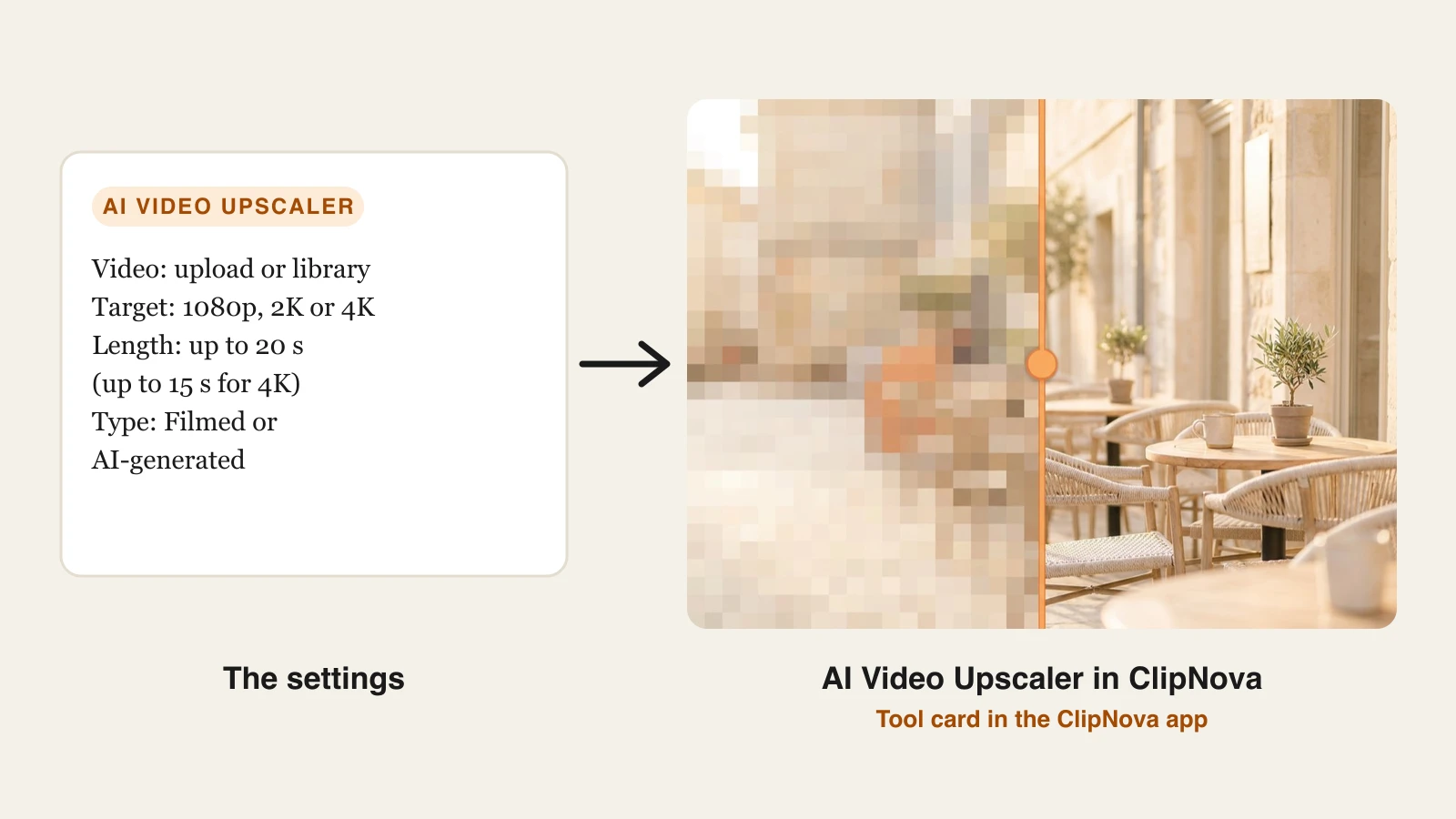
ClipNova's AI video upscaler takes a short clip, filmed or AI-generated, to 1080p, 2K, or 4K in the browser. It is built for Shorts, Reels, ad cuts, and AI generations: clips of up to 20 seconds at 1080p or 2K, and up to 15 seconds at 4K.
Upscaling sharpens a clip you already have. To make the video itself, ClipNova makes finished long videos with consistent characters: up to 5 minutes at up to 1080p, the same saved face in every scene, with voiceover, captions and music in one pass.
- Sign in at app.clipnova.io. The video upscaler is included in the paid plans, from $49.99 a month.
- Open AI Video Studio and choose AI Video Upscaler.
- Upload an MP4, MOV, or WEBM (up to 200 MB), or click Pick from my videos to use a clip you made in ClipNova.
- Choose the Target resolution: 1080p, 2K, or 4K. If the clip is already that sharp, ClipNova tells you to pick a higher target instead of charging you.
- Set the Type of video: Filmed for camera footage, AI-generated for clips from a video model. Each gets its own enhancement preset.
- Click Upscale video. A 10-second clip takes about three minutes; then compare the result with the original at full screen and download it.
It is priced per second of video: a 10-second clip costs about 20 credits at 1080p and 80 credits at 4K. The frame rate stays the same as the source (up to 30 fps), and nothing new is added to the picture. Plans start at $49.99 a month with full commercial rights; the pricing page has the credit breakdown.
For a full video longer than 20 seconds, upscale the shots before you assemble the edit, or use a desktop upscaler such as Topaz Video, which handles long files on your own graphics card.
Upscaling stills works the same way: ClipNova's AI image upscaler sharpens photos and thumbnails, and our guide on how to unblur an image covers that side.
How to check the result
Watch the upscaled video at 100% zoom, not in a small preview window, and look for:
- Faces: skin should look like skin, not plastic. Over-smoothed faces are the most common upscaling artifact.
- Text and logos: letters should stay the same letters. Upscalers sometimes invent shapes in small text.
- Flicker: fine textures like grass, hair, and fabric should stay stable from frame to frame.
- Edges: look for halos or white outlines around people and objects.
If you see these, try the lower target resolution. Smaller jumps produce fewer artifacts.
Export settings that keep the detail
- Bitrate: an upscaled 4K file at a low bitrate throws the new detail away again. Export 4K at a high bitrate, or let the upscaler's own export settings handle it.
- Frame rate: keep the original frame rate. Upscaling and frame interpolation are separate jobs.
- Codec: H.264 is fine for 1080p. For 4K, H.265 (HEVC) keeps more detail at the same file size if your platform accepts it.
Upscale one short clip first, compare it side by side with the original, and only then run the full video. Ten seconds of testing saves an hour of rendering.
Frequently asked
How do I upscale a video to 4K?
Start from the original, highest-quality file, trim it, fix color first, then run it through an AI video upscaler set to 4K. Check the result at full screen for over-smoothed faces, warped text, and flicker, and export at a high bitrate so the new detail survives.
Does upscaling a video actually improve quality?
AI upscaling makes a video look noticeably sharper by predicting edges, textures, and fine detail. It cannot recover information that was never captured, so badly blurred or out-of-focus footage gets sharper-looking but not clearer.
Should I upscale to 1080p or 4K?
1080p is enough for TikTok, Reels, and Shorts. Choose 4K for YouTube, large screens, client work, or footage you plan to crop. For very low-resolution sources such as 360p, 1080p usually looks more natural than a jump straight to 4K.
Can I upscale an old video?
Yes. Old home videos and DVD footage are among the most common uses. Deinterlace tape or broadcast footage first, use the best copy you have, and expect gentler results on faces than on landscapes.
Why does my upscaled video look fake or plastic?
The upscaler is over-smoothing, usually because the jump in resolution is too big for the source. Try a smaller target resolution, start from a less compressed file, and check faces and skin at 100% zoom.
What is the difference between upscaling and frame interpolation?
Upscaling adds pixels to each frame to increase resolution. Frame interpolation adds new frames between existing ones to raise the frame rate or create slow motion. They are separate jobs, and you can do one without the other.
How long a video can I upscale with ClipNova?
ClipNova's AI Video Upscaler takes clips of up to 20 seconds at 1080p or 2K and up to 15 seconds at 4K, on paid plans from $49.99 a month. That covers Shorts, Reels, ad cuts, and AI generations; for a long video, upscale the individual shots before you edit them together, or use a desktop upscaler.