How to translate a YouTube video depends on which side of the screen you are on. If you are watching, YouTube can translate the captions for you in a few clicks. If you made the video, you can do much more: translated captions, translated titles, and a dubbed voice track, so viewers in another language hear the video instead of reading it.
This guide covers both, starting with the quick viewer fix and then the full creator workflow, including dubbing with AI.
If you are watching: translate the captions
- Open the video and click Settings (the gear icon) in the player.
- Click Subtitles/CC and pick a caption track.
- If your language is not listed, click Auto-translate and choose it.
Auto-translated captions are machine translations of YouTube's automatic captions, so names, slang, and technical terms can come out wrong, but they are good enough to follow most videos.
If it is your video: three levels of translation
From cheapest to most effective:
- Translated captions. Upload a subtitle file per language. Viewers still hear your original voice. ClipNova's AI subtitle generator transcribes your video, translates the captions into 100+ languages, and exports SRT or VTT files you can upload in YouTube Studio.
- Translated titles and descriptions. Add them in YouTube Studio under Languages. Your video can then be found when people search in that language.
- A dubbed audio track. A translated voice track viewers can pick in the player. This is what actually turns a foreign-language viewer into a subscriber.
YouTube says creators who add multi-language audio see over 25% of their watch time come from views in a language other than the video's main one.
Option 1: YouTube's automatic dubbing
YouTube now dubs videos automatically for eligible creators, in 30-plus languages. You review each dub in YouTube Studio and can publish, unpublish, or delete it.
It is built into YouTube Studio, but it has limits:
- Videos over 120 minutes, videos with very fast speech or too little speech, and videos with copyright claims are not eligible.
- The voice is a generic synthetic voice, and YouTube warns that dubs can contain errors from accents, dialects, and background noise.
- Lip sync is experimental and limited to select channels, so your lips usually do not match the new language.
- The dub lives only on YouTube. You cannot post it to TikTok, Instagram, or a second channel.
Option 2: Dub it yourself with AI
If you want a dub that sounds like you, matches your lips, and works on every platform, you translate the video yourself and upload the result as your own audio track or as a separate video.
The AI pipeline has four steps, and a good tool runs all of them for you:
- Separate the speech from the music and sound effects.
- Translate what was said into the target language.
- Re-voice it, ideally in a clone of the original speaker's own voice, then mix the music back in.
- Lip-sync the speaker's mouth to the new audio.
Translate a Short or a clip with ClipNova
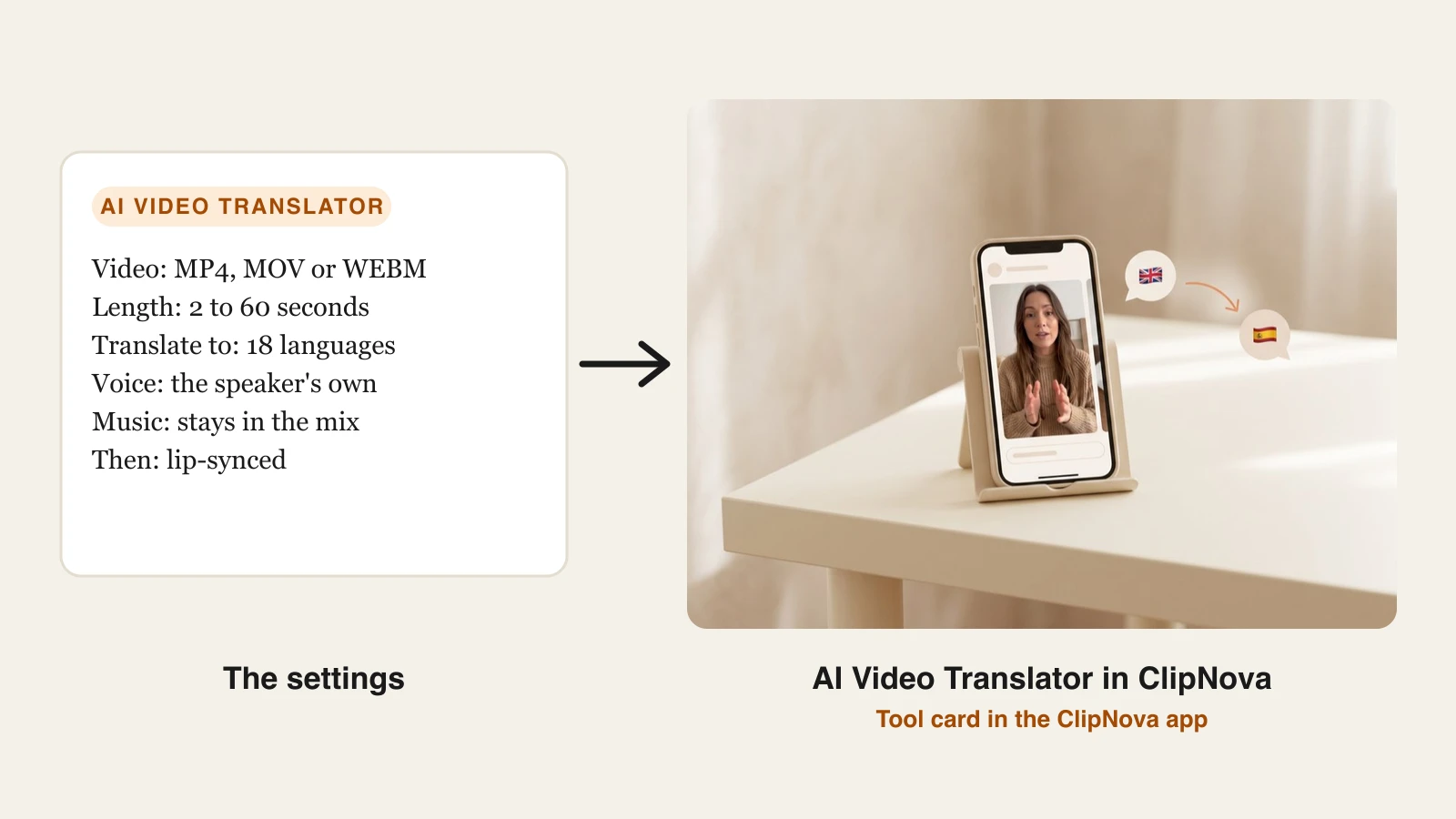
ClipNova's AI video translator runs that whole pipeline in one step for clips of up to 60 seconds, which makes it a fit for YouTube Shorts, trailers, and the hook of a longer video. You keep your own voice in the new language, the background music stays in, and your lips are synced to the translated words.
Translation works on a video you already have. To make the next one, ClipNova makes finished long videos with consistent characters: up to 5 minutes, the same saved face in every scene, with narration in 18 languages and captions and music done.
- Sign in at app.clipnova.io. Video translation is included in the paid plans, from $39 a month.
- Open AI Video Studio and choose AI Video Translator.
- Upload your clip: MP4, MOV, or WEBM, 2 to 60 seconds, up to 200 MB. If it is already on YouTube, download it from YouTube Studio first. One speaker facing the camera, clearly lit, works best.
- Under Translate to, pick one of 18 languages, including Spanish, Portuguese, Hindi, Arabic, French, German, Japanese, and Indonesian.
- Generate. ClipNova dubs the clip in your own voice with ElevenLabs, keeps the music, and lip-syncs the result. The tool shows the maximum credits before you start (about 980 for a full 60-second clip) and returns what it does not use.
- Watch it with a native speaker if you can, then download it and post it as a new Short with a translated title.
For full-length videos, use YouTube's automatic dubbing or a long-form dubbing tool, and add translated captions; ClipNova's 60-second limit is built for short clips. Plans start at $39 a month with full commercial rights; the pricing page has the credit breakdown.
Add the dub to your YouTube video
- Open YouTube Studio and click Languages in the left menu.
- Pick the video and add the language.
- Under audio, upload the dubbed track. It must match the length of the video.
- Add a translated title and description in the same row.
Uploading your own audio tracks needs access to YouTube's advanced features. If YouTube already made an automatic dub in that language, delete it first, then upload yours.
Should you post a separate channel instead?
- One video, several audio tracks keeps all views, comments, and watch time on one video. Best for most creators.
- A separate channel per language makes sense once one language is big enough to deserve its own titles, thumbnails, and community, and for Shorts, where viewers rarely switch audio tracks.
Mistakes to avoid
- Translating videos you do not own. Re-uploading someone else's video in another language is still their content. Get permission or translate only your own videos.
- Skipping the review. Have a native speaker watch the first dub in each language. One wrong word in the hook costs more than the whole dub.
- Leaving the thumbnail in English. If your thumbnail has text, make a version per language.
- Translating idioms literally. Ask for a natural translation, not a word-for-word one, especially for jokes and hooks.
Start with your best-performing video and one language where your analytics already show viewers. If the dubbed version holds watch time, translate the next ten.
Frequently asked
How do I translate a YouTube video?
As a viewer, click Settings in the player, then Subtitles/CC, then Auto-translate, and pick your language. As the creator, add translated captions, translated titles and descriptions, and a dubbed audio track in YouTube Studio under Languages.
Can YouTube translate a video's audio automatically?
Yes, for eligible creators. YouTube's automatic dubbing creates dubbed audio tracks in 30-plus languages that you review in YouTube Studio. Videos over 120 minutes, with very fast or too little speech, or with copyright claims are not eligible, and lip sync is still experimental.
How do I translate a YouTube video to English?
To watch one, turn on captions and use Auto-translate to English. To publish an English version of your own video, transcribe and translate the speech, re-voice it in English, and upload the result as an English audio track or a separate video.
Can I translate someone else's YouTube video and upload it?
Not without permission. A translated re-upload is still the original creator's content, and it can be removed with a copyright claim. Translate your own videos, or ask the creator first.
Is it better to add audio tracks or start a separate channel?
For most creators, one video with several audio tracks is better because views, comments, and watch time stay on one video. A separate channel per language makes sense once a language is big enough to need its own titles, thumbnails, and community.
How accurate is AI video translation?
Good enough for most talking videos, but not perfect. Names, slang, jokes, and technical terms are where errors happen, so have a native speaker review the first video in each language before you translate more.
Can I translate a YouTube Short in my own voice?
Yes. ClipNova's AI Video Translator takes a clip of up to 60 seconds, dubs it into one of 18 languages in the speaker's own voice with the background music kept, and lip-syncs the result, so you can post it as a new Short. It is included in the paid plans, from $39 a month.