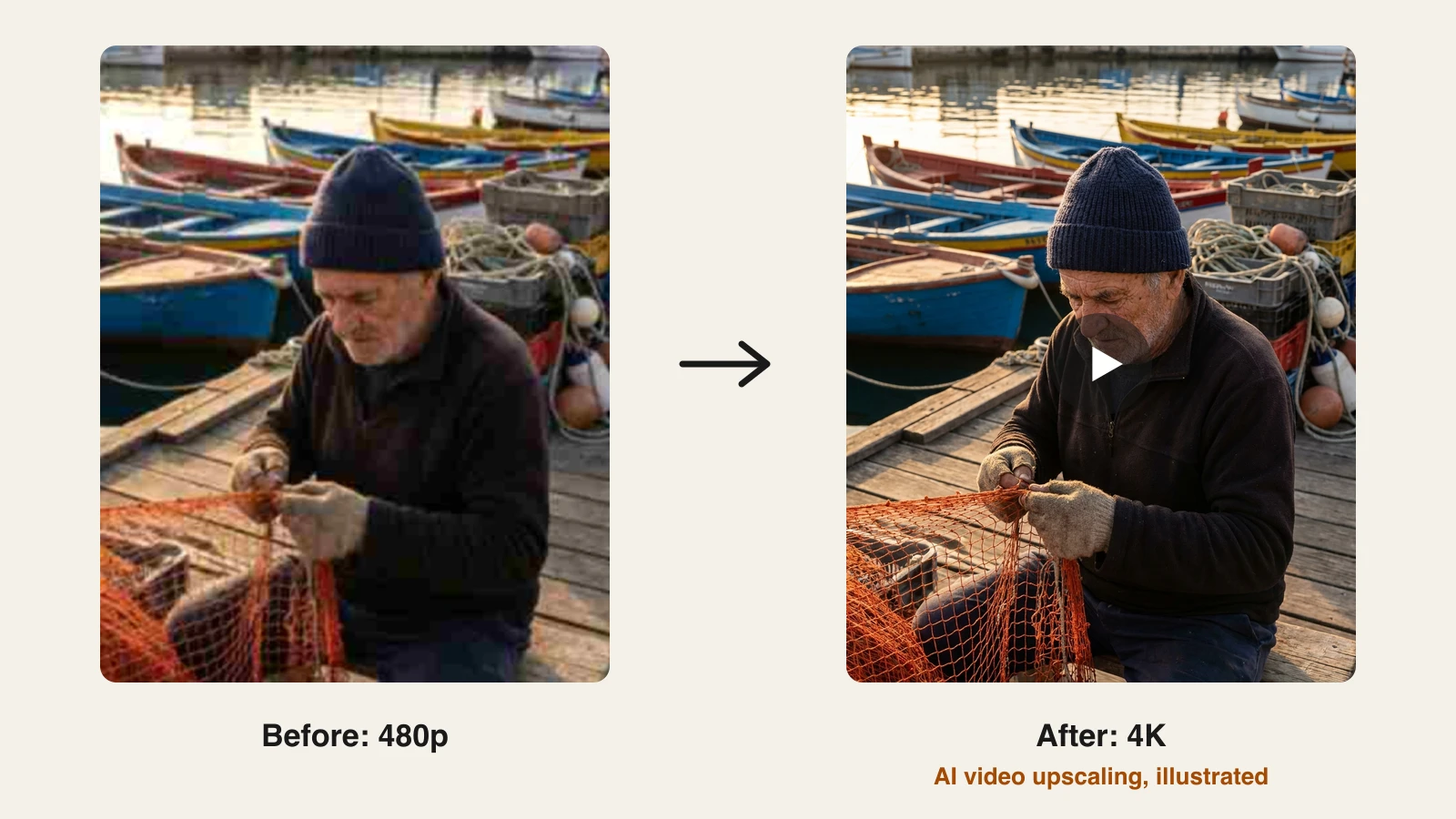
A video that looked fine on a phone in 2015 looks soft and blocky on a 4K TV today. The same goes for a 720p AI clip, a Zoom recording, or a scanned family tape. An AI video upscaler fixes that by predicting the detail a higher resolution would have captured, frame by frame, while keeping motion steady so faces and textures do not shimmer.
The tools differ more than their landing pages suggest. Some run locally on your graphics card and cost a few hundred dollars a year; some run in the browser on credits; some are a button inside an editor. Output ceilings range from 4K to 16K, and pricing runs from monthly credits to one-time lifetime licenses.
This guide compares the 7 best AI video upscalers in 2026, with verified pricing and the limits that matter before you upload an hour of footage.
Best AI video upscalers: a brief overview
Desktop upscalers (your GPU does the work)
- Topaz Video: Best overall AI video upscaler for quality, with 20+ specialised models, 8K output, and plugins for Premiere Pro and DaVinci Resolve.
- HitPaw VikPea: Best for beginners who want one-click models on desktop and phone.
- UniFab Video Upscaler AI: Best lifetime value, with up to 16K output and a $129.99 one-time license.
- AVCLabs Video Enhancer AI: Best for restoring and colorizing old family footage.
Browser and in-app upscalers (no GPU needed)
- ClipNova: Best for creators who make short AI videos and want to upscale them to 1080p, 2K, or 4K in the same browser workflow.
- Magnific: Best for creative upscaling of short AI-generated clips.
- CapCut: Best for upscaling inside a video editor you may already use.
| Tool | Best for | Starting price | Max output |
|---|---|---|---|
| Topaz Video | Highest-quality restoration | $25/mo billed yearly ($299/yr), $59 monthly | 8K, frame interpolation to 120 fps |
| ClipNova | Upscaling short AI clips in one workflow | From $49.99/mo | 1080p, 2K, or 4K, clips up to 20 s |
| HitPaw VikPea | One-click models, desktop and mobile | About $43-54/mo, $99.99-124.99/yr | 8K |
| Magnific | Creative upscaling of short AI clips | From €10.50/mo billed yearly | 4K, up to 60 fps |
| UniFab Video Upscaler AI | Lifetime value | $99.99/yr or $129.99 lifetime | 16K (desktop), 4K (cloud) |
| AVCLabs Video Enhancer AI | Old footage, colorizing | $39.95/mo, $95.96/yr | 8K |
| CapCut | Upscaling inside an editor | Pro $19.99/mo (US web price) | 4K |
Reading the table: "Max output" is a ceiling, not a promise. Upscaling 480p to 4K is a 4.5x jump in each direction, and every tool here invents most of those pixels. The model choice and the quality of your source matter more than the number on the box.
1. Topaz Video, best overall AI video upscaler for quality
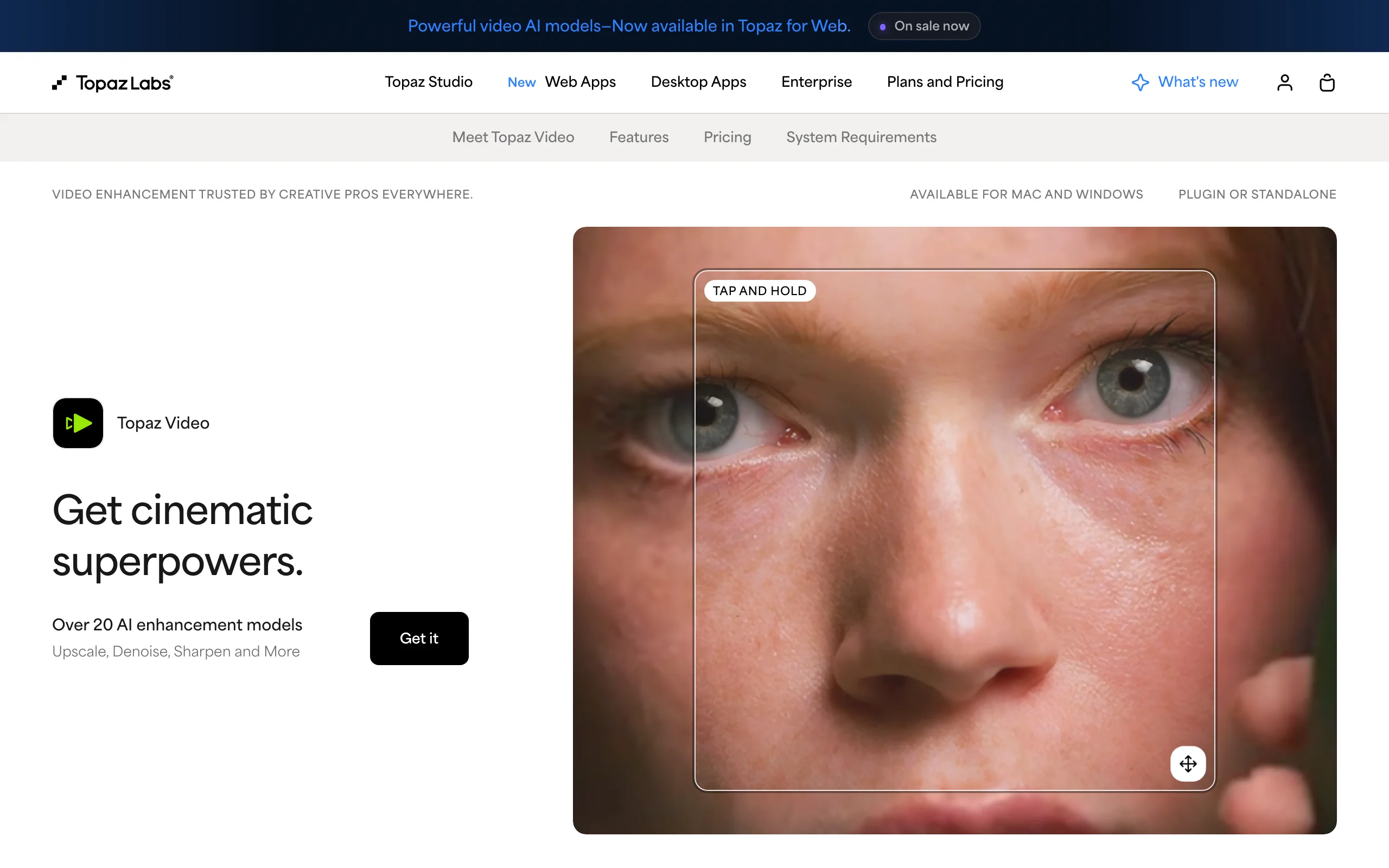
Topaz Video (formerly Topaz Video AI) is the benchmark the rest of this list gets compared against. It ships more than 20 AI models, each tuned for a job: Starlight Precise and Proteus for general upscaling, Iris for faces, Nyx for noise, Rhea for 4x texture detail, plus Chronos and Apollo for frame interpolation. You pick the model that fits the footage instead of trusting one generic pass, which is why restoration studios and YouTubers who remaster old uploads use it.
It runs locally on NVIDIA, AMD, or Apple Silicon GPUs, works as a standalone app or a plugin for Adobe Premiere Pro and DaVinci Resolve, and includes monthly cloud credits for when your machine is too slow. Topaz also sells Astra, a browser version with a Creative mode built for AI-generated video, up to 4K.
Key features
- 20+ specialised models for upscaling, denoising, face recovery, and sharpening
- Upscaling to 4K and 8K with temporally aware processing that limits flicker
- Frame interpolation for smooth slow motion at 60 or 120 fps
- Stabilization and SDR to HDR conversion
- Plugin for Premiere Pro and DaVinci Resolve, plus local or cloud rendering
Best for
- Editors and archivists restoring footage where quality beats speed
- Creators with a capable GPU who upscale every week
Pricing
- Topaz Video: $59/mo, or $299/yr (about $25/mo), with 25 cloud credits a month
- Topaz Studio (all apps): $69/mo or $399/yr, with 300 cloud credits a month
- Astra (browser): Standard $19/mo for 400 credits, about 10 minutes of HD video, up to 4K
Pros
- The widest model choice and the most control over the result
- Works inside the editors professionals already use
Cons
- Local rendering needs a strong GPU, and long 4K jobs can take hours
- The most expensive subscription on this list
2. ClipNova, best for upscaling short AI clips in one workflow
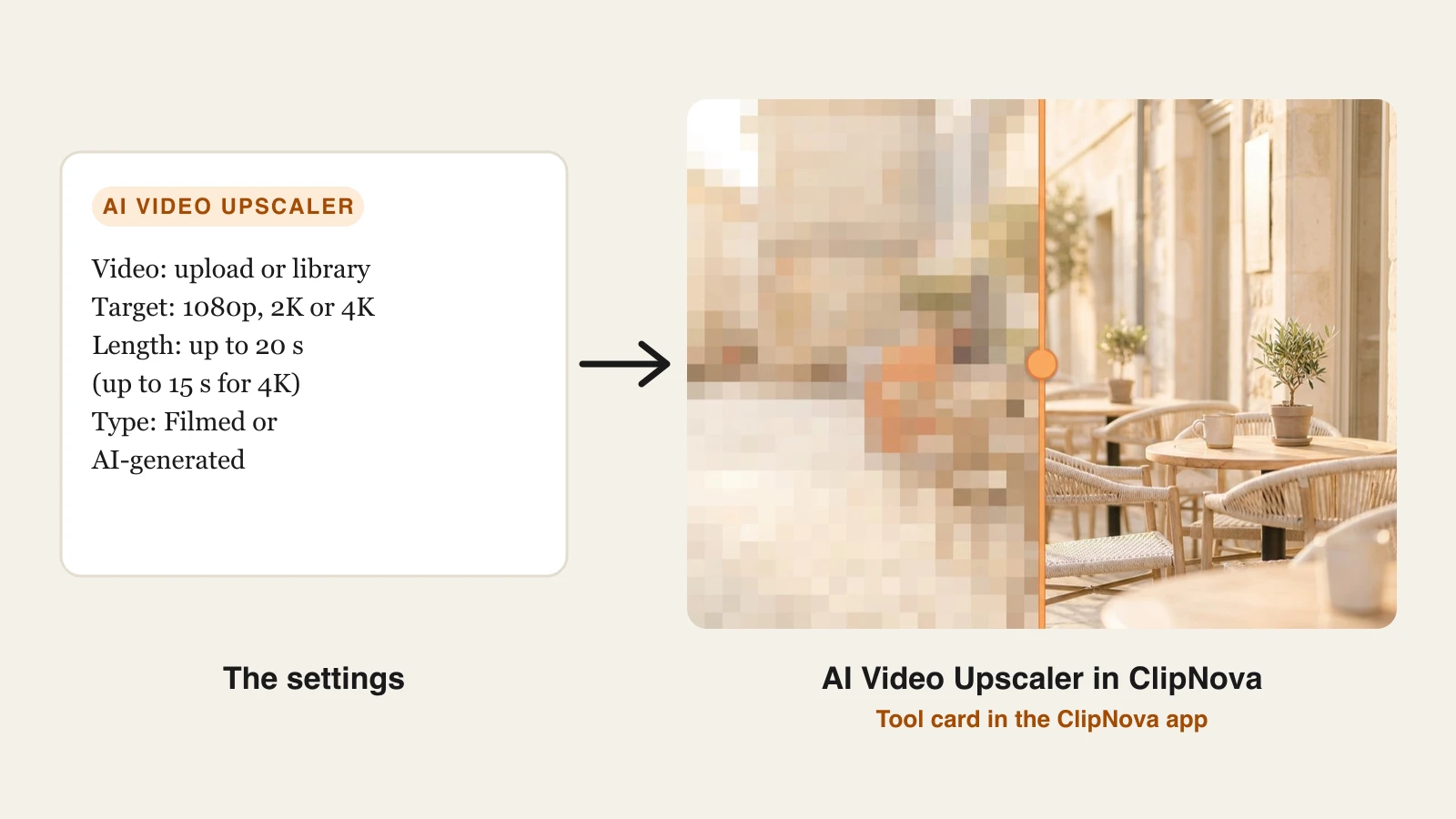
Most upscalers assume you already have a finished video. ClipNova is where many creators make the video in the first place, from a prompt, a script, or a photo, and its AI Video Upscaler closes the loop: pick a clip from your ClipNova library or upload one, choose 1080p, 2K, or 4K, and get the sharper version back in the browser, with no GPU or install.
Upscaling is the last step. The first step is why creators use ClipNova: finished long videos with consistent characters.
- Long: one script becomes a video of up to 5 minutes, at up to 1080p, ready to post.
- Consistent characters: a saved character keeps the same face and outfit in every scene.
- Finished: script, scenes, voiceover, captions and music come back in one pass.
It runs ByteDance's video upscaler and asks one question the others skip: is the clip Filmed or AI-generated? AI clips get a preset tuned for generated footage, camera footage gets the general one. It keeps the source's frame rate (up to 30 fps) and adds no new content or style, and it refuses a clip that is already at the target resolution, so you never pay to upscale 4K to 4K.
The trade-off is length. ClipNova takes clips of up to 20 seconds at 1080p or 2K and up to 15 seconds at 4K, which fits Shorts, Reels, ad cuts, and AI generations, not a two-hour home movie. A 10-second clip takes about three minutes.
If you only need sharper stills, such as thumbnails or a product shot, ClipNova's AI image upscaler does the same job for photos.
How to upscale a video with ClipNova
- Sign in at the ClipNova app. The video upscaler is included in every plan, from $39 a month.
- Open AI Video Studio and choose AI Video Upscaler.
- Upload an MP4, MOV, or WEBM (up to 200 MB), or click Pick from my videos to use a clip you generated.
- Choose the Target resolution (1080p, 2K, or 4K) and the Type of video (Filmed or AI-generated).
- Click Upscale video, then download the result from the preview or your library.
Key features
- Upscale to 1080p, 2K, or 4K in the browser, no GPU required
- Separate presets for filmed footage and AI-generated clips
- Works straight from your ClipNova library, so generating and upscaling share one workflow
- No watermark and full commercial rights on every plan
Best for
- Faceless channels and marketers sharpening AI-generated clips before posting
- Creators without a gaming PC who want 4K short clips without buying desktop software
Pricing
- Included in every paid plan: Starter $49.99/mo (2,600 credits), Growth $99/mo (5,750), Ultra from $199/mo (12,000); yearly billing is 20% off
- Priced per second of video: a 10-second clip costs about 20 credits at 1080p and 80 credits at 4K
- See ClipNova pricing for the full credit breakdown
Pros
- No hardware requirements and nothing to install
- Very cheap per clip, on the same credits you use to make the video
Cons
- Clips of up to 20 seconds (15 seconds at 4K), so it is not for long videos
- Fewer controls than Topaz: no model picker, frame interpolation, denoise sliders, or 8K
3. HitPaw VikPea, best for beginners on desktop and mobile
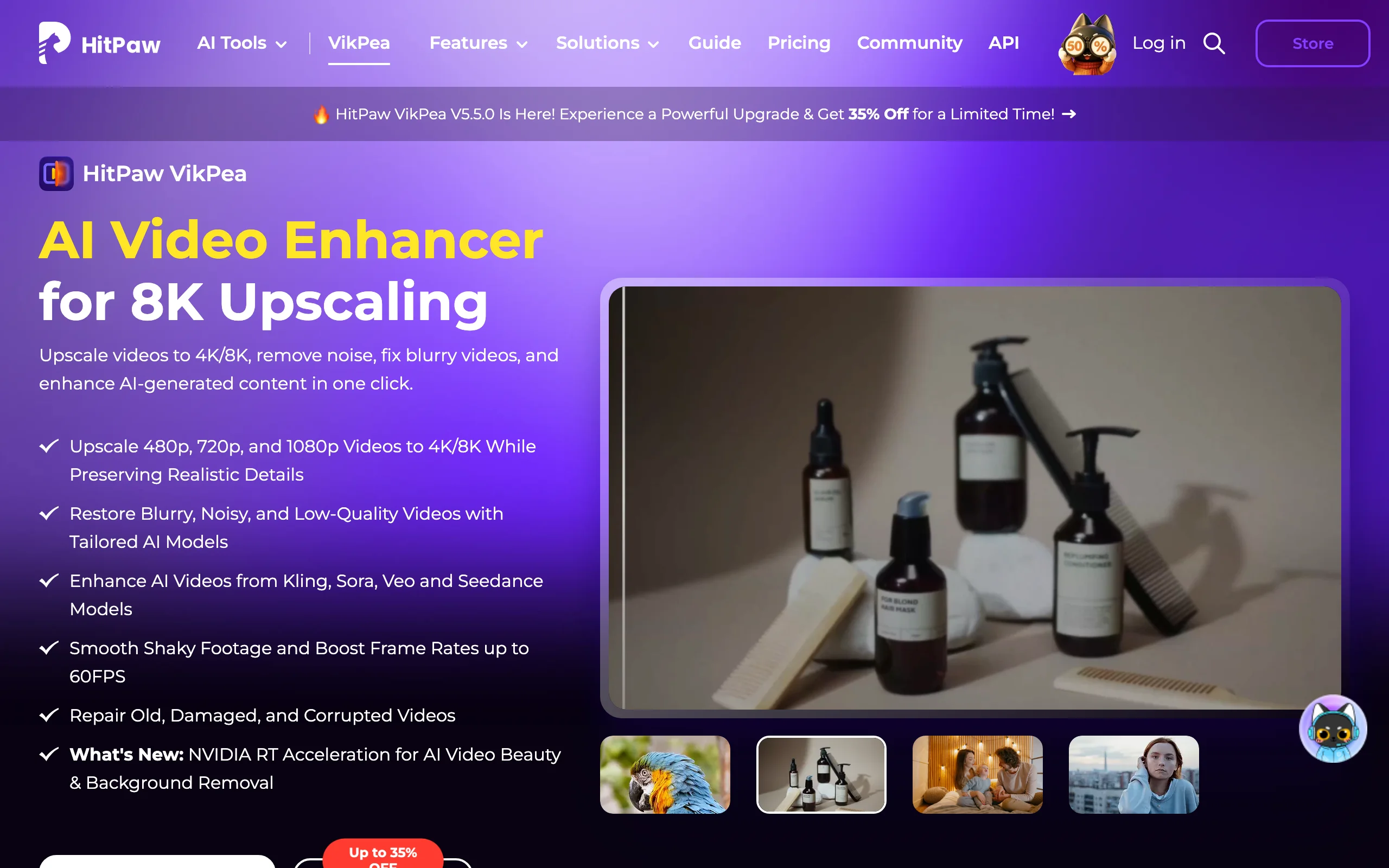
HitPaw VikPea (formerly HitPaw Video Enhancer) hides the model zoo behind clear names: General Restoration, Portrait, Low-light Enhancement, Video Quality Repair, Colorize, Frame Interpolation, and Stabilization. You pick the problem, preview a few seconds, and export. It also markets enhancement for AI videos from Kling, Sora, Veo, and Seedance.
Unusually for this category, VikPea runs on Windows, macOS, iPhone, Android, and the web, so you can fix a clip on your phone and finish bigger jobs on a desktop.
Key features
- Upscale 480p, 720p, and 1080p video to 4K or 8K
- Task-named models for portraits, low light, repair, and color
- Frame interpolation up to 60 fps and stabilization
- Desktop, mobile, and online versions
Best for
- Beginners who want a guided, one-click workflow
- Creators who need to fix a clip on a phone
Pricing
- Windows: 1 month $53.99 list (on sale at $43.19 when we checked), 1 year $124.99 list ($99.99 on sale), perpetual $437.99 list ($350.39 on sale)
- Mac prices are listed separately and run higher on the monthly plan
Pros
- The friendliest interface here for non-editors
- The only desktop upscaler on this list with phone apps
Cons
- Prices change with near-constant promotions, so the real cost is hard to pin down
- Fewer fine controls than Topaz for difficult footage
4. Magnific, best for creative upscaling of short AI clips
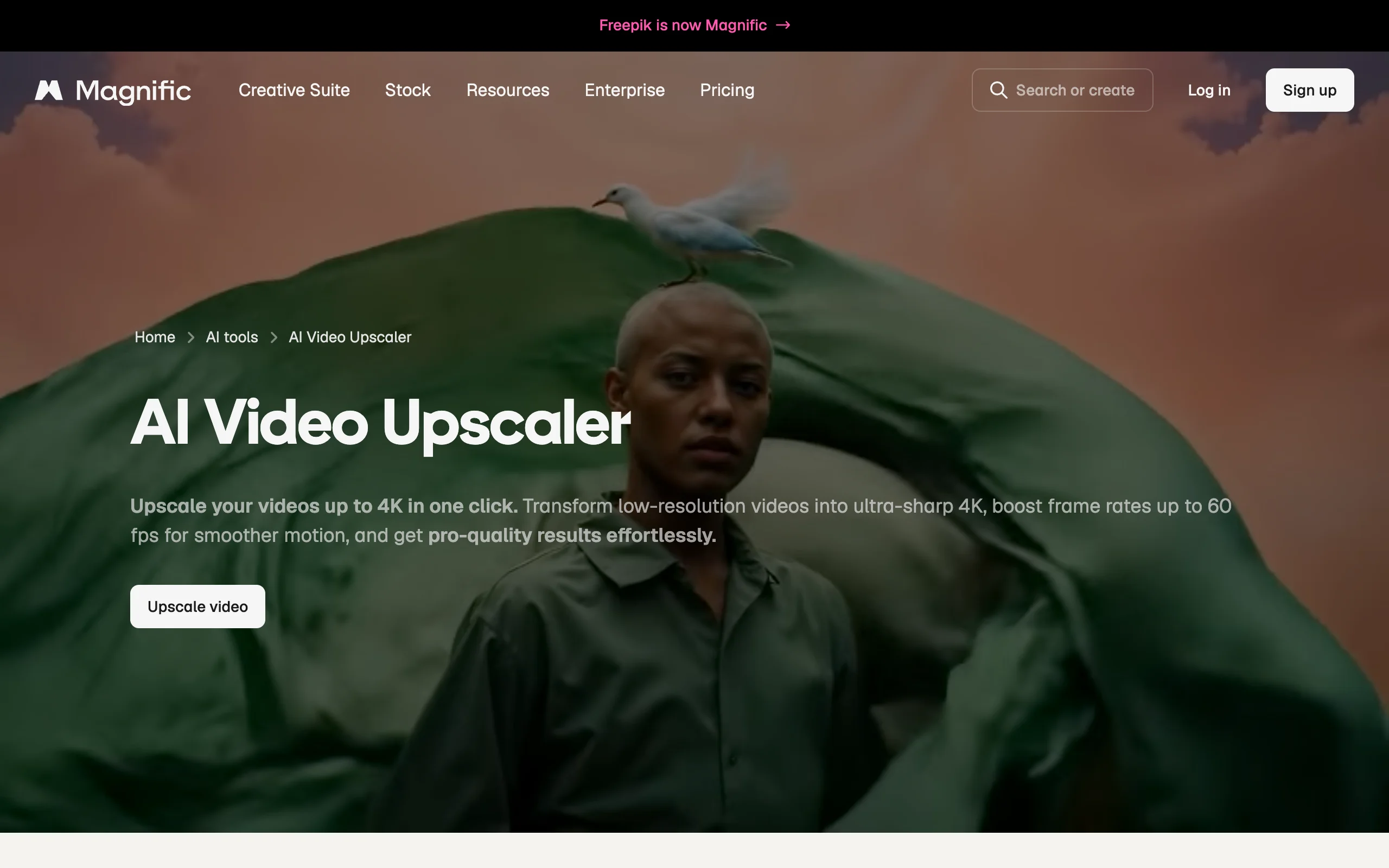
Magnific (Freepik rebranded to Magnific in 2026) brought its well-known creative image upscaler to video. Upload a clip, choose 1K, 2K, or 4K, pick one of three presets or a custom mix of creativity and quality, and Magnific adds detail rather than just sharpening what is there. FPS Boost raises frame rates up to 60 fps, Turbo mode trades a little quality for speed, and a one-frame preview lets you check the look before spending credits.
It is built for short, stylised clips, especially AI generations, rather than long camera footage.
Key features
- Upscale to 4K with three presets plus a custom mode
- FPS Boost up to 60 fps for smoother motion
- One-frame preview before you commit credits
- Lives inside a suite that also generates images, video, and audio
Best for
- AI filmmakers polishing 5 to 15 second generations
- Designers already paying for Magnific or Freepik
Pricing
- Part of the Magnific plans: Premium from €10.50/mo billed annually (€15 monthly) with 240,000 credits a year, as shown on the pricing page we were served; prices vary by region
- Premium+ and above add more credits, and Premium+ includes both the Magnific and Topaz upscalers
- Video upscaling is charged per clip from your shared credit balance
Pros
- Creative detail that suits stylised AI footage
- The preview frame saves wasted credits
Cons
- Clip length is short: Magnific's documentation lists a 15-second, 450-frame, 150 MB limit at launch
- "Creative" upscaling can alter details, which is wrong for documentary or archival work
5. UniFab Video Upscaler AI, best lifetime value
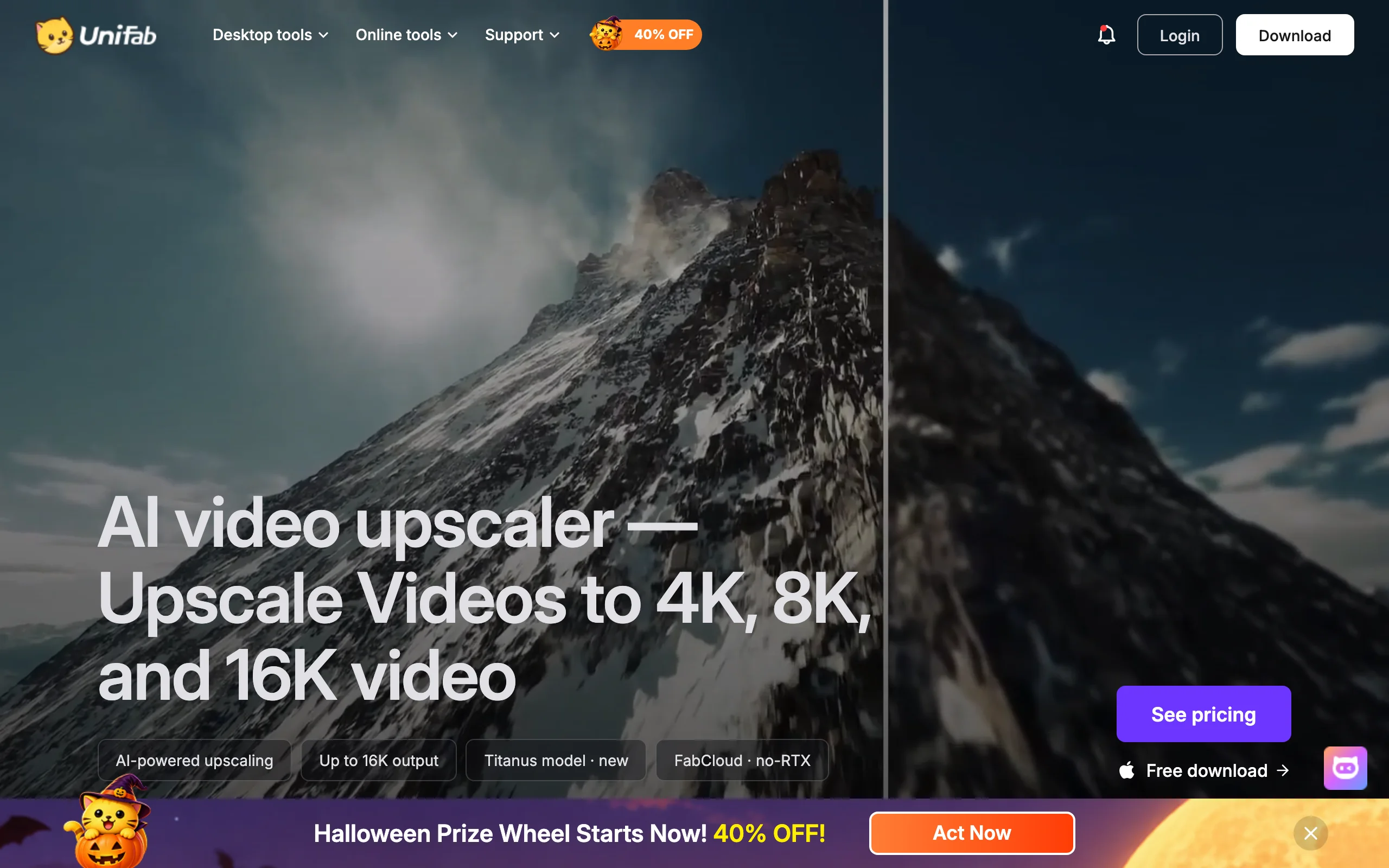
UniFab competes on price and ceiling. Its desktop app upscales to 4K, 8K, or even 16K with four models: Equinox for general footage, Vellum for texture-rich scenes, Kairo for anime and cartoons, and Titanus for movies and TV. If your PC has no strong GPU, FabCloud processes the job remotely, up to 4K.
The headline is the license: a one-time purchase that undercuts a single year of most rivals.
Key features
- Up to 16K output on desktop, up to 4K on FabCloud
- Four models, including a dedicated anime and cartoon model
- Local GPU processing on Windows and Mac, plus a browser tool for short clips
- Part of a larger suite (denoise, frame interpolation, HDR) sold as a bundle
Best for
- Anime and cartoon channels upscaling back catalogues
- Anyone who prefers to pay once instead of subscribing
Pricing
- Video Upscaler AI: $99.99 for 1 year or $129.99 lifetime
- All-In-One bundle (18 tools): $319.99 lifetime
- 14-day money-back guarantee
Pros
- Lifetime license pays for itself within the first year
Cons
- 16K is a spec-sheet number; few people can view or deliver it
- Smaller model library and community than Topaz
6. AVCLabs Video Enhancer AI, best for old family footage
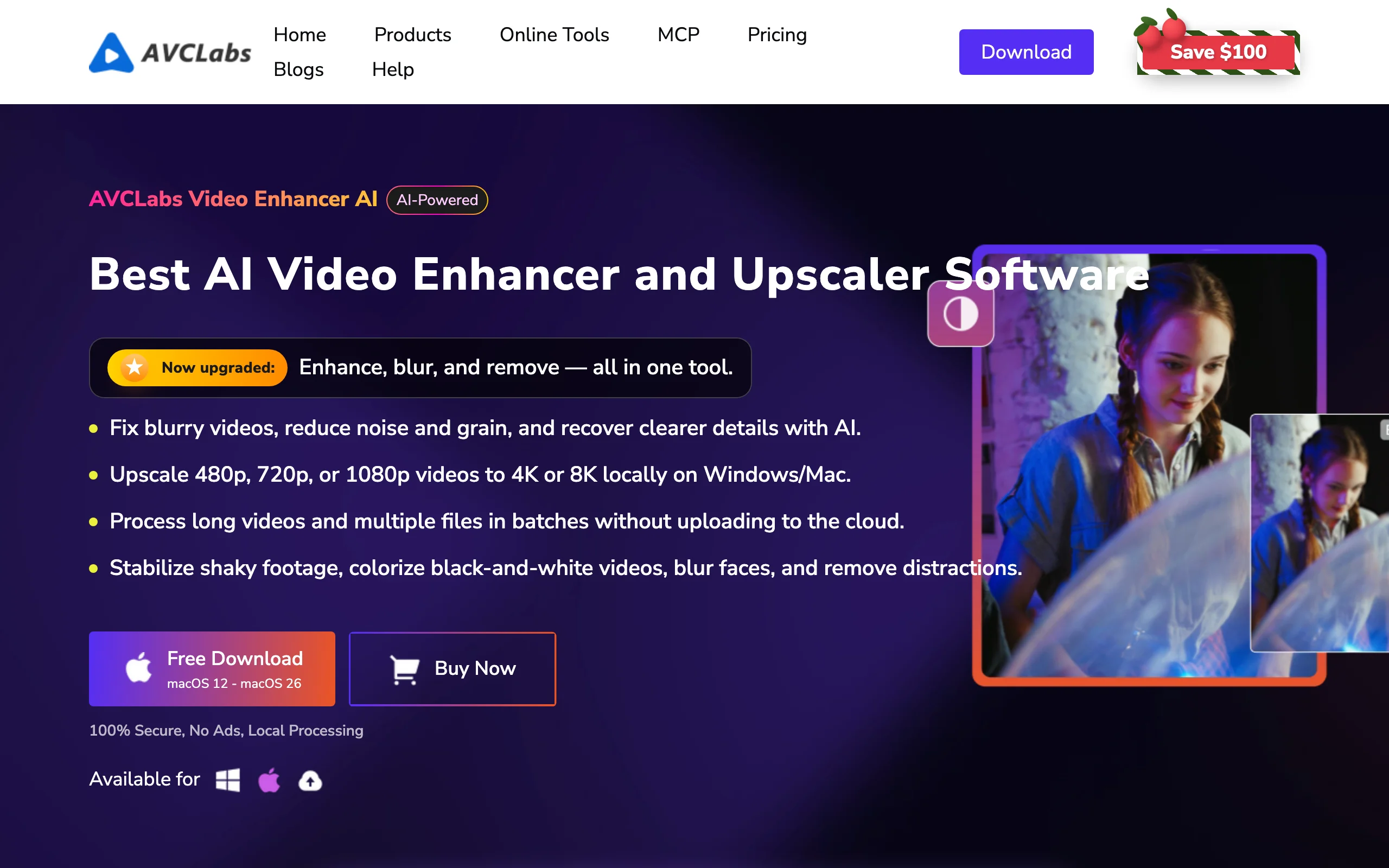
AVCLabs Video Enhancer AI bundles the jobs old footage usually needs in one pass: upscaling to 4K or 8K, face enhancement, denoising, deinterlacing for tape transfers, stabilization, and a colorizer that turns black-and-white film into color. Everything runs locally on Windows or Mac, with batch processing for long videos and multiple files.
If you are digitising VHS or MiniDV tapes, this mix of deinterlacing, face recovery, and colorizing covers most of the work.
Key features
- Upscale 480p, 720p, or 1080p to 4K or 8K
- AI colorizer for black-and-white footage
- Face enhancement, denoising, deinterlacing, and stabilization
- Local, batch processing without uploading to the cloud
Best for
- Families and archivists restoring home movies and tape transfers
- Privacy-sensitive footage that should never leave your computer
Pricing
- 1 month $39.95, 1 year $95.96 (list $119.95), perpetual $149.90 (list $299.90) for Windows
- 5-day money-back guarantee on subscriptions, 30 days on the perpetual license
Pros
- The colorizer and deinterlacer are rare in this category
- Footage stays on your machine
Cons
- Processing speed depends entirely on your GPU
- The interface is busier than HitPaw's
7. CapCut, best for upscaling inside your editor
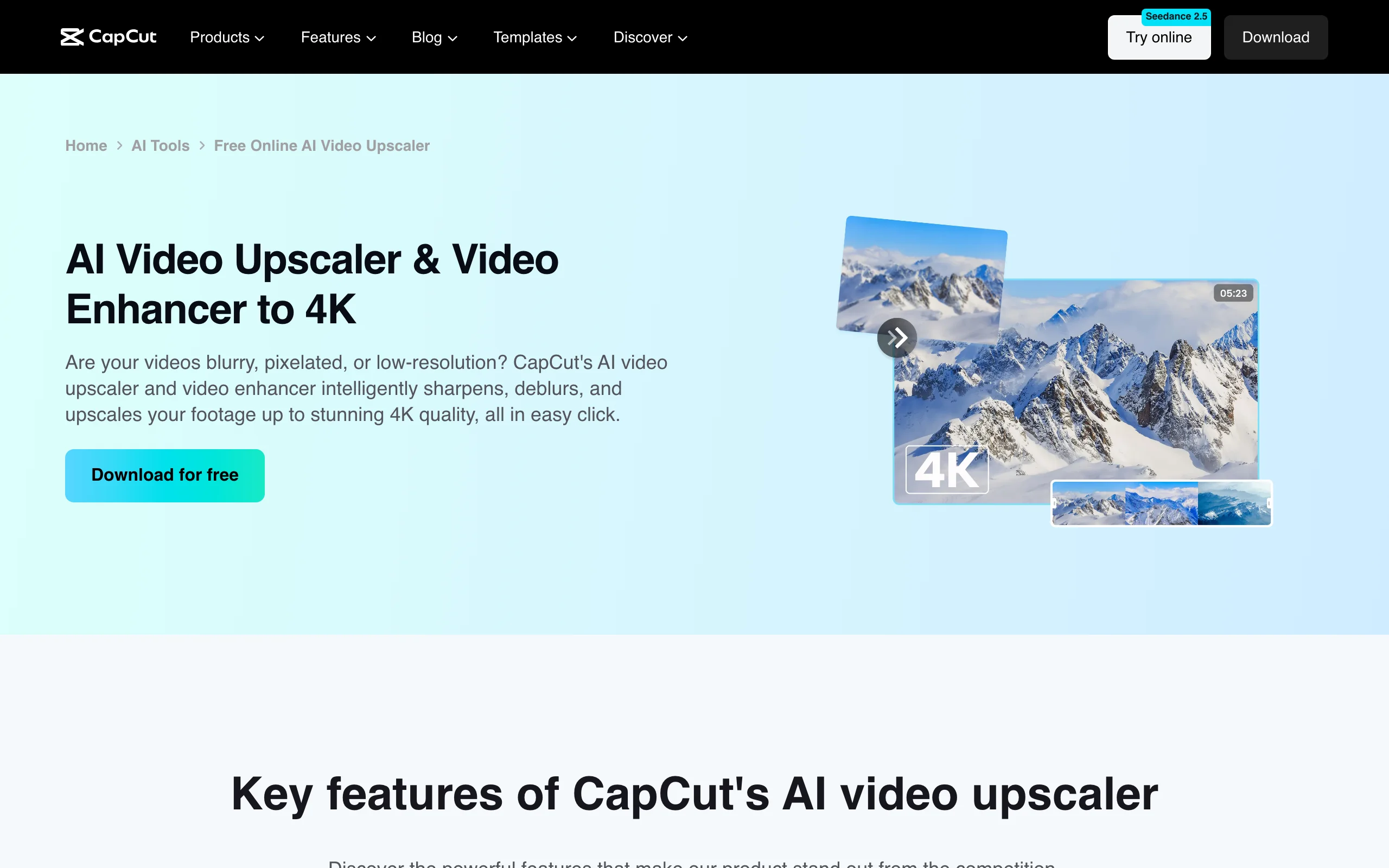
CapCut's upscaler is not a separate app. In CapCut Desktop, select a clip, open Video > Basic > Enhance quality, and choose HD, UHD, or 4K. The upscaled clip stays on your timeline, so you can cut, caption, and export without moving files between tools.
That convenience is the point: it is the fastest route for a creator who just wants a sharper clip in a short they are already editing.
Key features
- One-click Enhance quality to HD, UHD, or 4K inside the editor
- Deblur and detail recovery as part of the same step
- Full editing, captions, and templates around it
- Desktop, web, and mobile apps
Best for
- TikTok and Reels creators already editing in CapCut
- Quick fixes where a dedicated upscaler would be overkill
Pricing
- 4K export requires Pro, listed at $19.99/mo or $179.99/yr on the US web; prices vary by region and app store
Pros
- No new tool to learn, and no export round trip
- Good enough for most social video
Cons
- One generic model, with no control over the result
- The best output sits behind Pro, and pricing varies by region
How to choose the best AI video upscaler for your footage
Start with the footage, then the hardware, then the budget.
1) What kind of footage are you upscaling?
- Short AI-generated clips you want to post in higher resolution: ClipNova (upscale where you create), Magnific (creative detail), or Topaz Astra
- Old home movies and tape transfers: AVCLabs (deinterlace and colorize) or Topaz Video (face and noise models)
- Anime and cartoons: UniFab's Kairo model or Topaz Video
- A clip in a short you are already editing: CapCut
2) Do you have a strong GPU?
- Yes: Topaz Video, UniFab, AVCLabs, and HitPaw VikPea all run locally and get faster with better hardware
- No, or you work on a laptop: use a browser tool (ClipNova or Magnific for short clips, Topaz Astra) or UniFab's FabCloud
Local rendering is cheaper per minute once you own the license, but a long 4K job can tie up a mid-range machine for hours.
3) How much will you upscale?
- A few clips a month: a browser tool on credits is enough
- Weekly restoration work: Topaz Video's yearly plan or a lifetime license from UniFab or AVCLabs
- Volume social content: keep it in the same tool you create in, so you are not paying twice
4) Test on your own footage
Run the same 10-second clip, ideally one with a face, fine texture, and motion, through two or three shortlisted tools. Watch it at full screen, not as a thumbnail, and look for shimmering edges, waxy skin, and invented details. UniFab's 14-day money-back guarantee and AVCLabs' refund window lower the risk of committing to a desktop license.
On ClipNova, a 1080p test of a 10-second clip costs about 20 credits on any plan, so comparing it against your shortlist is cheap.
For still images, the same principles apply; our roundup of the best AI image upscalers compares the photo-side tools.
A note on "enhancers" that do not upscale: some tools that rank for "video enhancer", such as VEED's, adjust brightness, contrast, and sharpness but do not raise resolution. VEED's own FAQ says it cannot turn non-4K footage into 4K. Check that a tool actually changes the output resolution before you pay for it.
Frequently asked
What is the best AI video upscaler?
For pure quality, Topaz Video is the benchmark, with more than 20 specialised models, 8K output, and plugins for Premiere Pro and DaVinci Resolve. If you do not have a strong GPU, a browser tool like Topaz Astra or Magnific is easier, and if you want a one-time purchase, UniFab's $129.99 lifetime license is the best value. The right pick depends on your footage, your hardware, and how often you upscale.
Can AI really upscale a video to 4K?
Yes, but it predicts detail rather than recovering it. Going from 480p to 4K multiplies each dimension by about 4.5, so the model invents most of the new pixels based on what similar footage usually looks like. Results are excellent on clean 720p or 1080p sources and less reliable on heavily compressed or very low-resolution clips, where faces and text can come out waxy or wrong.
How long does it take to upscale a video with AI?
It depends on the length, the target resolution, the model, and your hardware. On a local GPU, a few minutes of 1080p to 4K can take anywhere from minutes to hours with heavier models. Cloud tools remove the hardware question but charge credits per second or per clip, and some cap clip length, such as Magnific's 15-second limit at launch.
Should I upscale AI-generated videos before posting them?
Often, yes. Many AI video models render at 720p or 1080p, which looks soft on large screens and next to camera footage. A 1080p or 4K upscale makes clips hold up better on YouTube and TVs. For TikTok and Reels, which display vertically on phones, 1080p is usually enough, so spend credits on 4K only when the destination needs it.
Does upscaling fix blurry or shaky video?
Partly. Upscalers with deblur, denoise, and face models, such as Topaz Video, HitPaw VikPea, and AVCLabs, can recover a lot of softness, and several include stabilization. Severe motion blur or out-of-focus footage cannot be fully fixed, because the detail was never recorded. Test a short section before processing a whole video.
What is the difference between a video upscaler and a video enhancer?
An upscaler raises the resolution, for example from 720p to 4K, and fills in detail. An enhancer adjusts the existing image, such as brightness, contrast, color, and sharpness, without changing the resolution. Some tools do both. VEED's enhancer, for instance, states that it cannot turn non-4K footage into 4K, so check the output resolution before you buy.
If I make AI videos and want to upscale them, what should I use?
If you generate videos regularly, use a tool where creation and upscaling share one workflow so you are not paying for two subscriptions. ClipNova's AI Video Upscaler takes a clip of up to 20 seconds, yours or one you generated, to 1080p, 2K, or 4K in the browser on the same credits, from about 20 credits per 10-second clip at 1080p on paid plans from $49.99 a month. For heavy restoration of camera footage, Topaz Video is still the reference.